Feature Summary
When you need to perform operations such as data cleaning, classification and summarization, or chart generation in Sheets but are unfamiliar with the operation paths, AI Sheet Assistant can help you complete various sheet operations through natural language dialogues, helping you master sheet tools in the most intuitive way.
Feature Description
| Feature Dimension | Description |
|---|---|
| Membership Limits | Available for both WPS Pro+ and WPS Premium |
| Version Limits | Applicable to the latest version on the WPS official website |
Steps
AI Sheet Assistant
Feature Entry
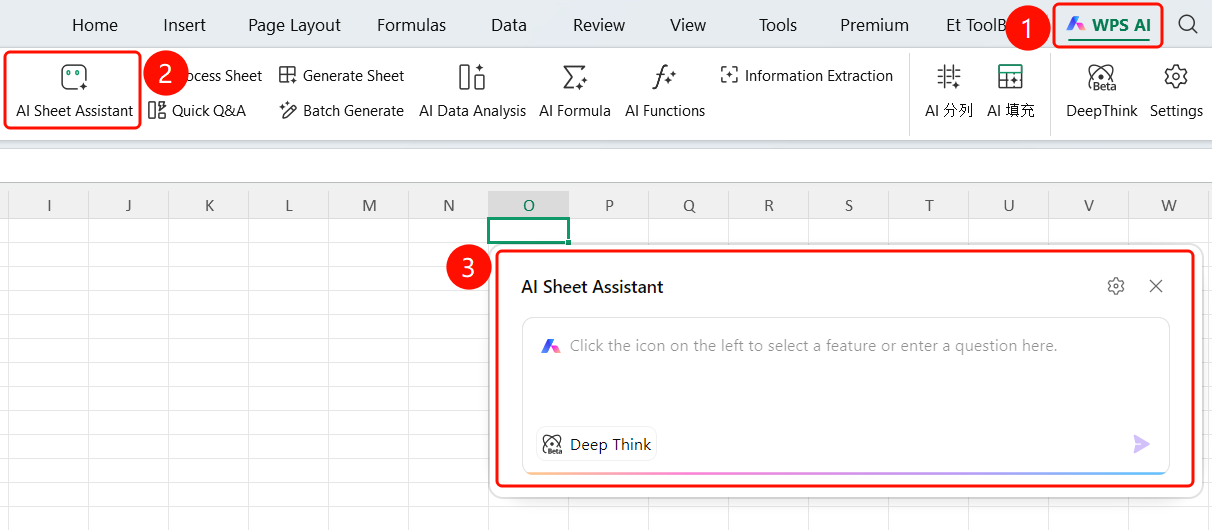
"WPS AI" tab → "AI Sheet Assistant"
- Open a WPS Sheets document.
- Click the "WPS AI" tab on the top menu bar.
- Find and click the "AI Sheet Assistant" button.
- The "AI Sheet Assistant" floating window will pop up.
Enter Sheet Requirements
Feature Entry
AI Sheet Assistant floating window → Input box
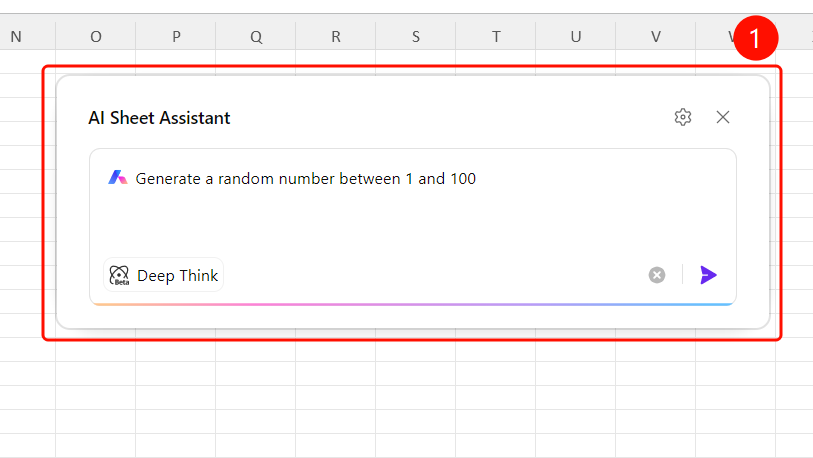
- Enter your sheet requirements described in natural language in the input box.
- Example: "Help me generate any number from 1 to 100", "Sum the data in column A", "Create a pivot table".
- The "DeepThink" option is provided at the bottom to enable deep analysis mode.
- Click the SlateGray Send button to initiate the task.
View Results or Continue Asking
Feature Entry
AI Quick Q&A results page
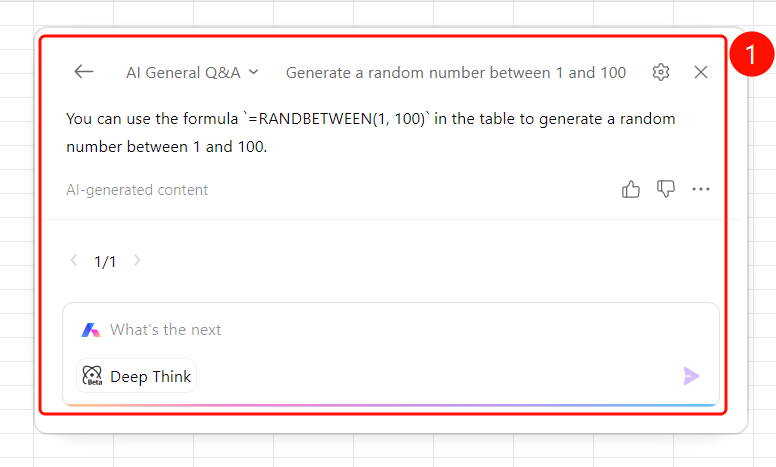
- After AI completes the task, the analysis conclusion is displayed (e.g., "The analysis conclusion: The generated number between 1 and 100 is 50.").
- The "Generated by AI" note is displayed at the bottom.
- Click the "Retry" button to regenerate the result.
- Enter "What to do next" in the input box to continue asking or initiate a new task.
- Click "← AI Quick Q&A" in the upper left corner to return to the previous level.
FAQ
Question 1: What operations does AI Sheet Assistant support?
- Solution: It supports various sheet operations such as data cleaning, classification and summarization, chart generation, data calculation, pivot table creation, and conditional filtering. You can describe your requirements in natural language.
Question 2: What should I do if I am not satisfied with the generated results?
- Solution: Click the "Retry" button to regenerate, or add more specific requirements in the input box to continue asking.
Question 3: What is the difference in "DeepThink" mode?
- Solution: After enabling "DeepThink", the AI will perform a more detailed analysis and processing of complex requirements, which is suitable for tasks requiring multi-step reasoning.
Notes
- There is no limit on the number of times WPS Plus and Premium members can use the AI Sheet Assistant feature.
- Describe your requirements in natural language, and the AI will automatically understand and execute them.
- Multi-turn dialogues are supported, allowing you to continuously ask questions or make adjustments.