Feature Summary
When you need to beautify the appearance of tables, unify fonts, and coordinate color schemes in a document, AI Table Formatting can automatically apply professional formatting designs, helping you quickly generate beautiful and professional data reports.
Feature Description
| Feature Dimension | Description |
|---|---|
| Membership Limits | Available for both WPS Pro+ and WPS Premium |
| Version Limits | Applicable to the latest version on the WPS official website |
Operating Steps
AI Table Formatting
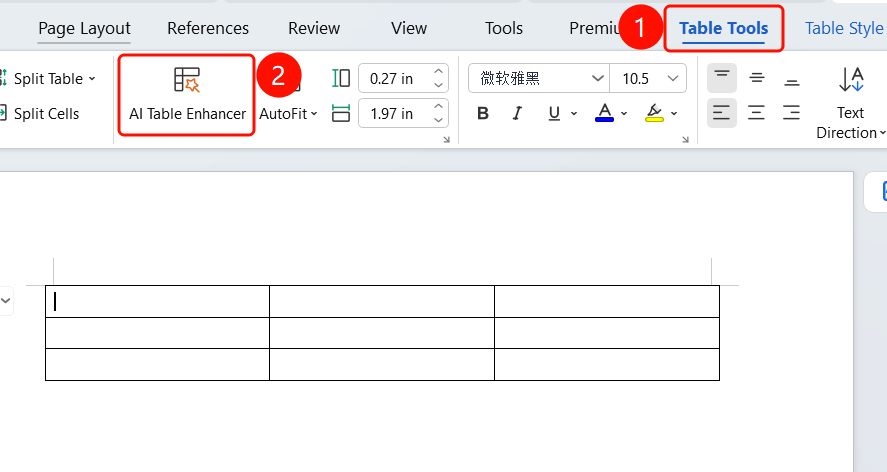
Feature Entry ①
"Table Tools" tab -> "AI Table Enhancer"
- Select a table in the document.
- Click the Table Tools tab on the top menu bar.
- Find and click the AI Table Enhancer button.
- AI will automatically enhance the table.
Feature Entry ②
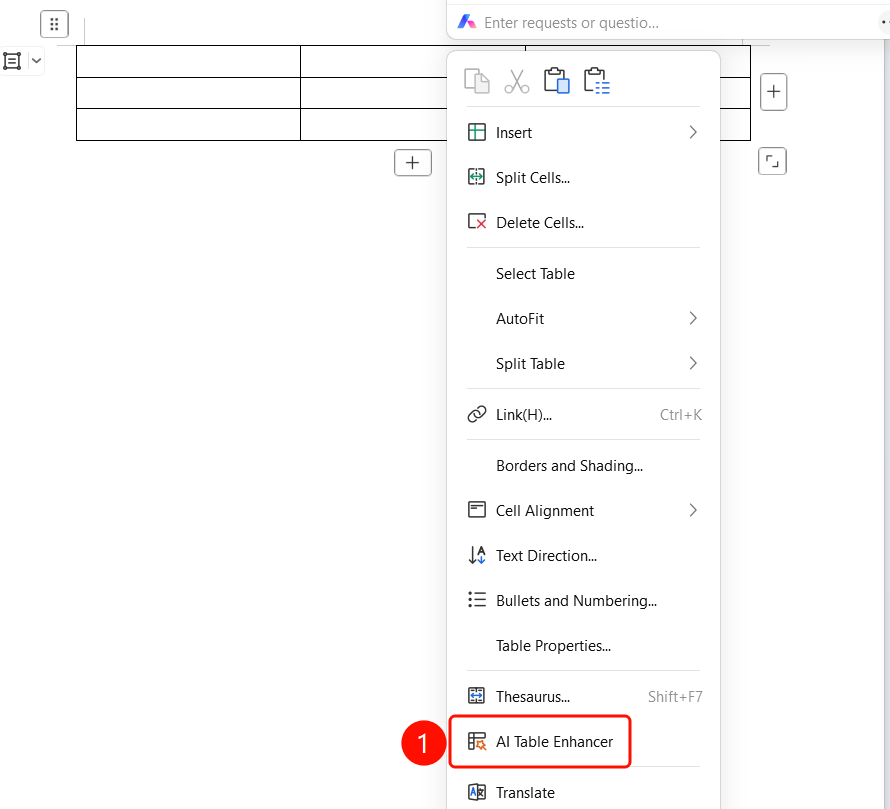
Right-click menu -> "AI Table Enhancer"
- Select a table in the document.
- Right-click the table.
- Select AI Table Enhancer from the right-click menu.
- AI will automatically enhance the table.
Feature Entry ③
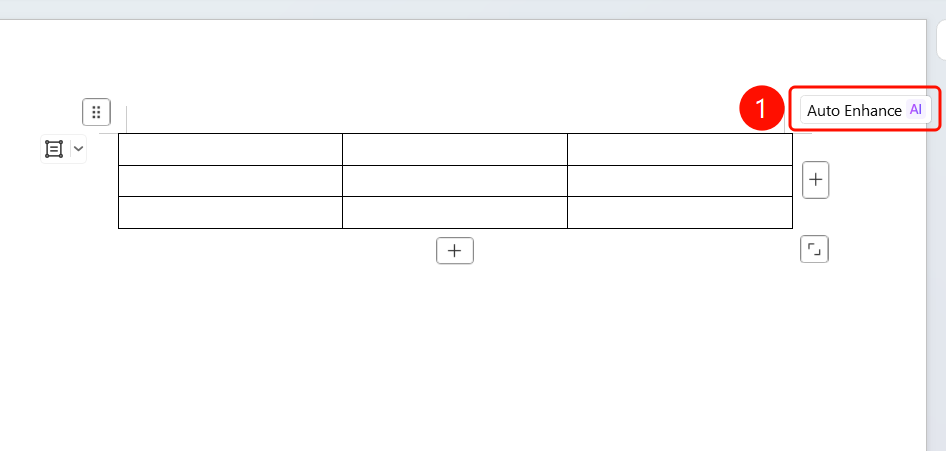
Upper right corner of the table -> "Auto Enhance"
- Hover over or select the table.
- The Auto Enhance AI button will appear in the upper right corner of the table.
- Click this button to enhance the table with one click.
Enhancement Completed
Feature Entry
Top notification bar + Table Style panel
After the AI enhancement is completed, a green notification bar "Table smart enhancement completed" will appear at the top.
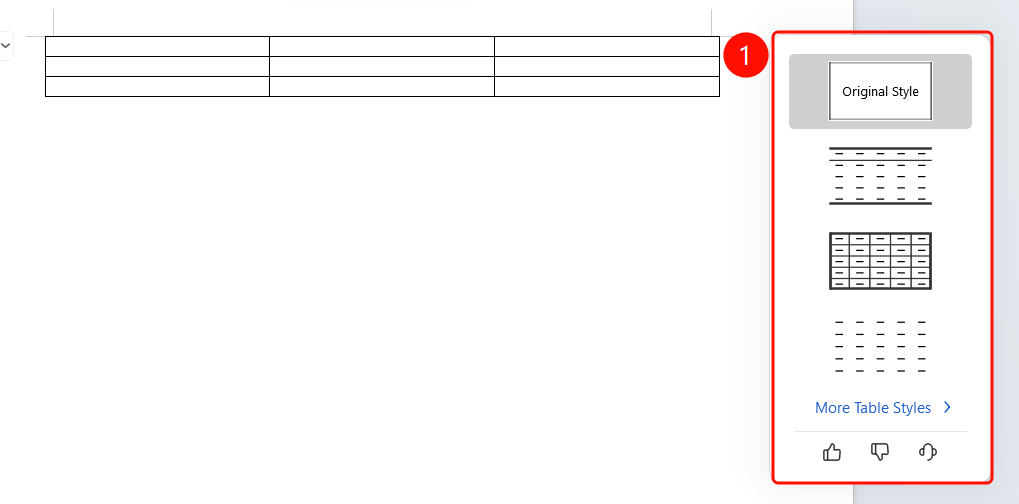
The table style selection panel will pop up on the right:
- Original Style: Restore the original style
- Multiple Table Styles: Preview different formatting designs
- More Table Styles: View more style options
Like, dislike, and feedback buttons are provided at the bottom.
FAQ
Question 1: Will AI Table Enhancer change the data in the table?
- Solution: No. AI Table Enhancer only adjusts the appearance and style of the table (such as fonts, color schemes, and borders) and will not modify the data content in the table.
Question 2: Can I switch to other styles after enhancement?
- Solution: Yes. After the enhancement is completed, the table style selection panel will pop up on the right, where you can click different styles to preview and switch.
Question 3: Can I undo the enhancement if I am not satisfied?
- Solution: Yes. You can use the Undo button (Ctrl+Z) on the top toolbar to undo the enhancement and restore the original table style.
Notes
- WPS Plus and Premium members have unlimited access to the AI Table Formatting feature.
- Multiple table style previews are provided, allowing you to choose the most suitable design.
- Enhancement only adjusts the appearance and does not affect table data.