Feature Summary
When you need to print multiple documents at once, repeatedly opening files to submit print tasks can be tedious. Batch Print allows you to batch generate print tasks based on custom settings. This helps you skip redundant operations like opening files one by one and repeatedly configuring print parameters, allowing you to print multiple files efficiently.
Feature Description
| Feature Dimension | Description |
|---|---|
| Subscription Limit | Available for any subscription tier |
| Version Limit | Applicable to the latest version on the WPS official website |
Steps
Batch Print
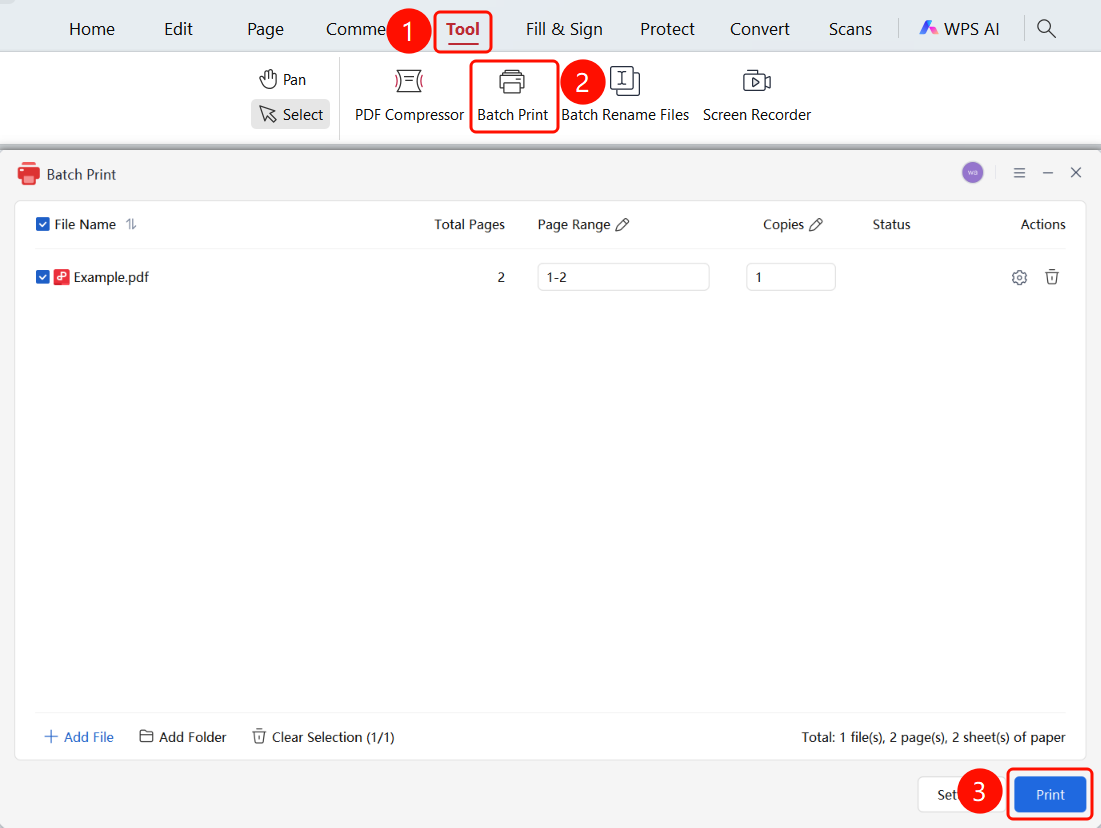
Feature Entry 1
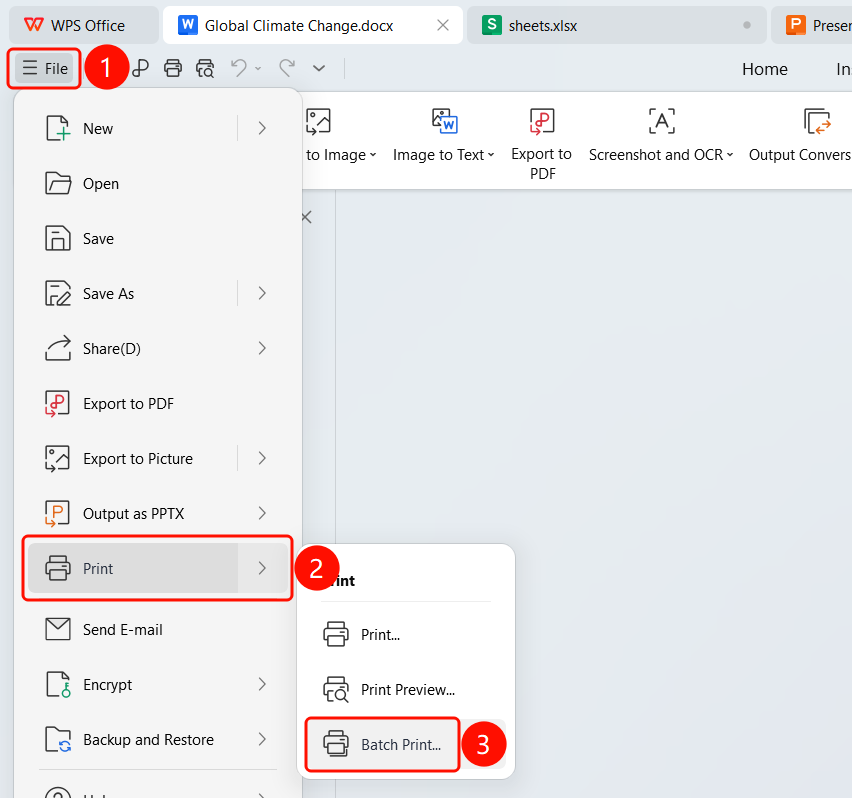
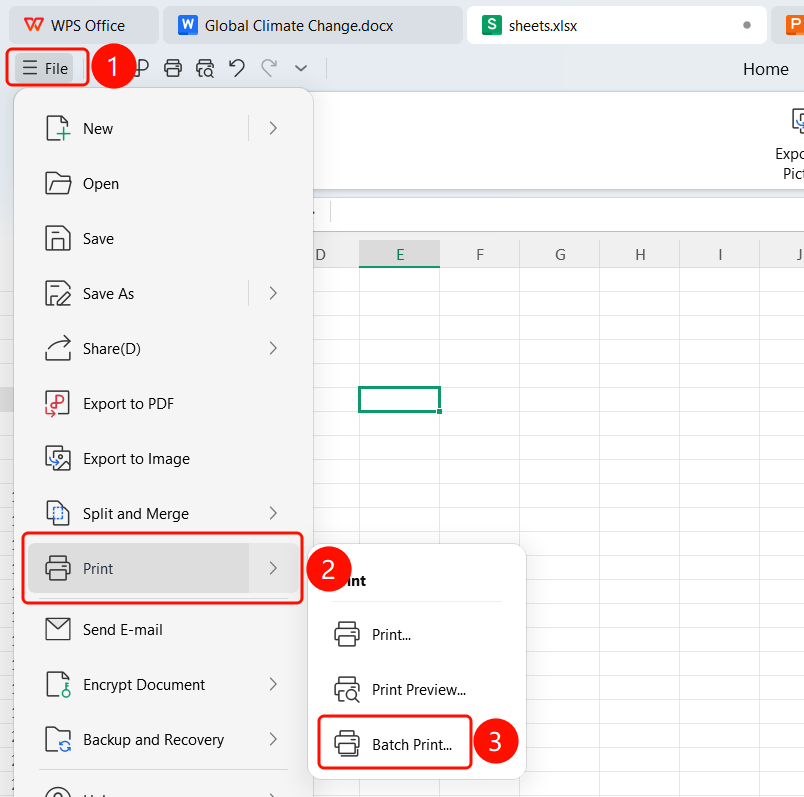
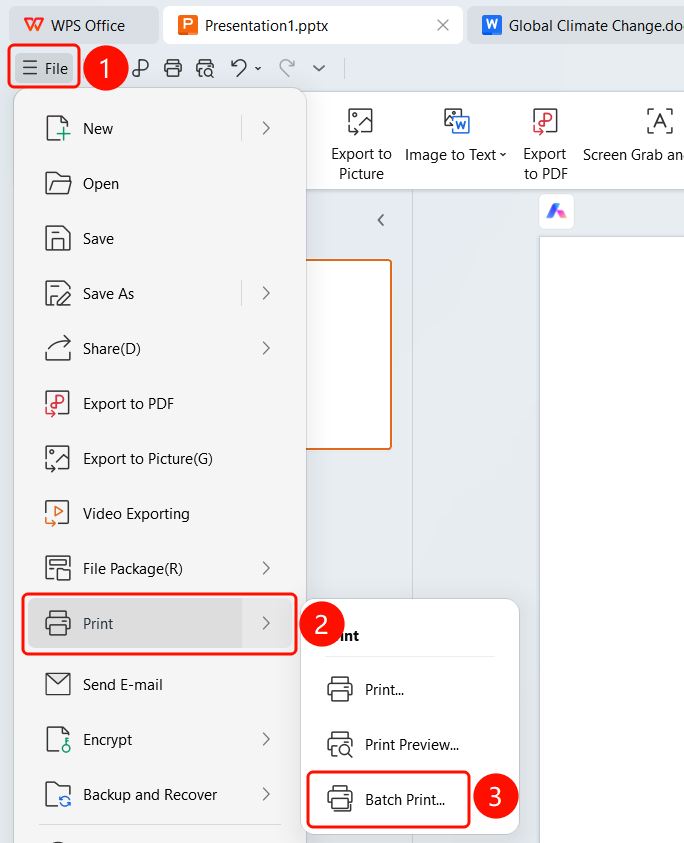
File tab > Print > Batch Print
- Open WPS Office (Writer, Spreadsheets, or Presentation).
- Click the File tab in the upper-left corner.
- Select Print from the drop-down menu.
- Click Batch Print.
- The Batch Print window will appear.
Feature Entry 2
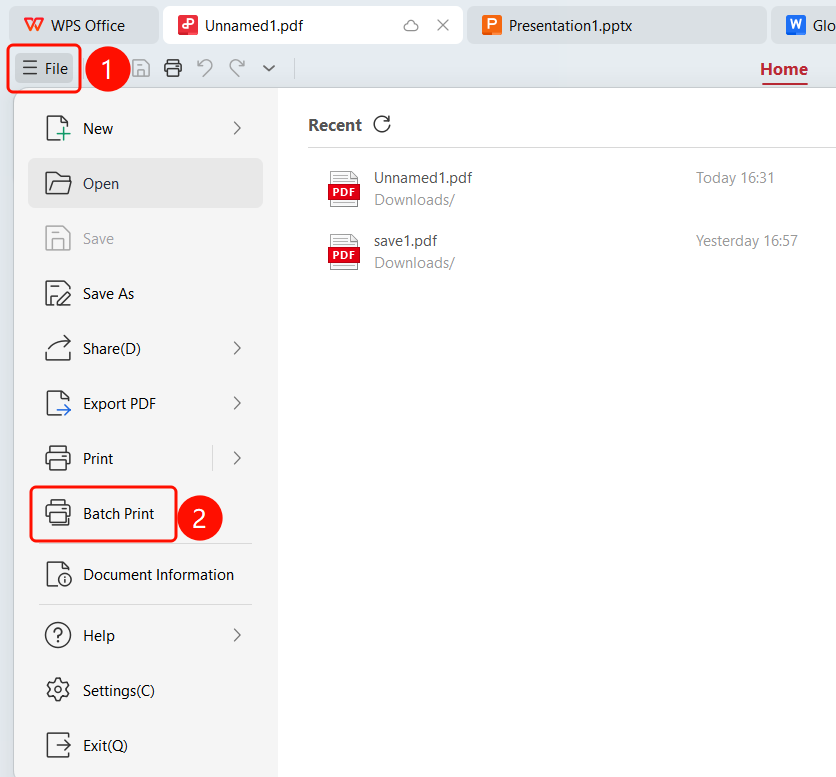
File tab > Batch Print (PDF only)
- Open a WPS PDF document.
- Click the File tab in the upper-left corner.
- Click Batch Print directly from the drop-down menu.
- The Batch Print window will appear.
Feature Entry 3
Tools tab > Batch Print (PDF only)
- Open a WPS PDF document.
- Click the Tools tab on the top menu bar.
- Find and click Batch Print on the toolbar.
- The Batch Print window will appear.
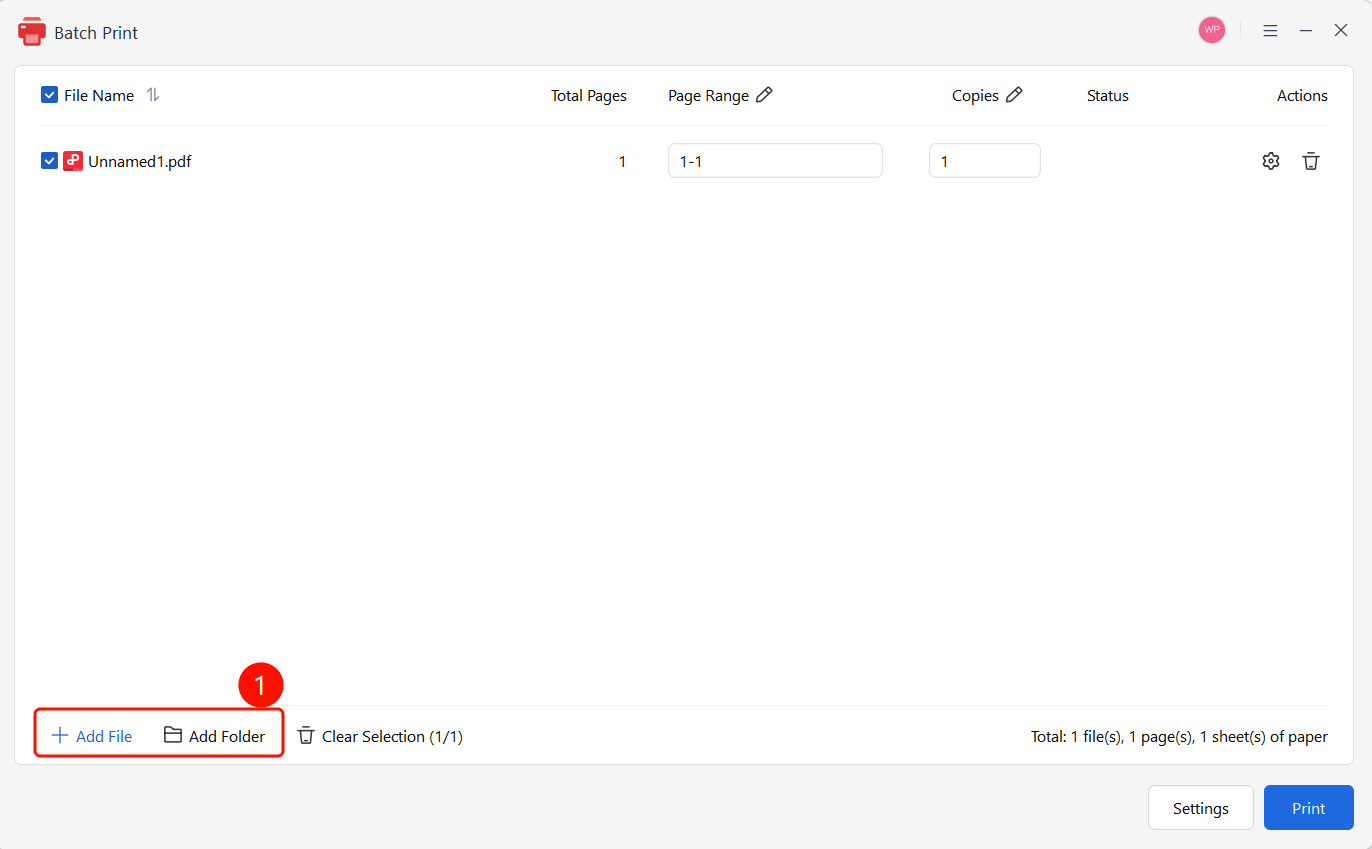
Add Files
Feature Entry
Batch Print window > Add Files button
- In the Batch Print window, click Add Files.
- Batch printing is supported for PDF, Word, Excel, and PPT documents.
- Select the files you want to print. You can add multiple files at once.
- You can also click Add Folder to batch add all documents in an entire folder.
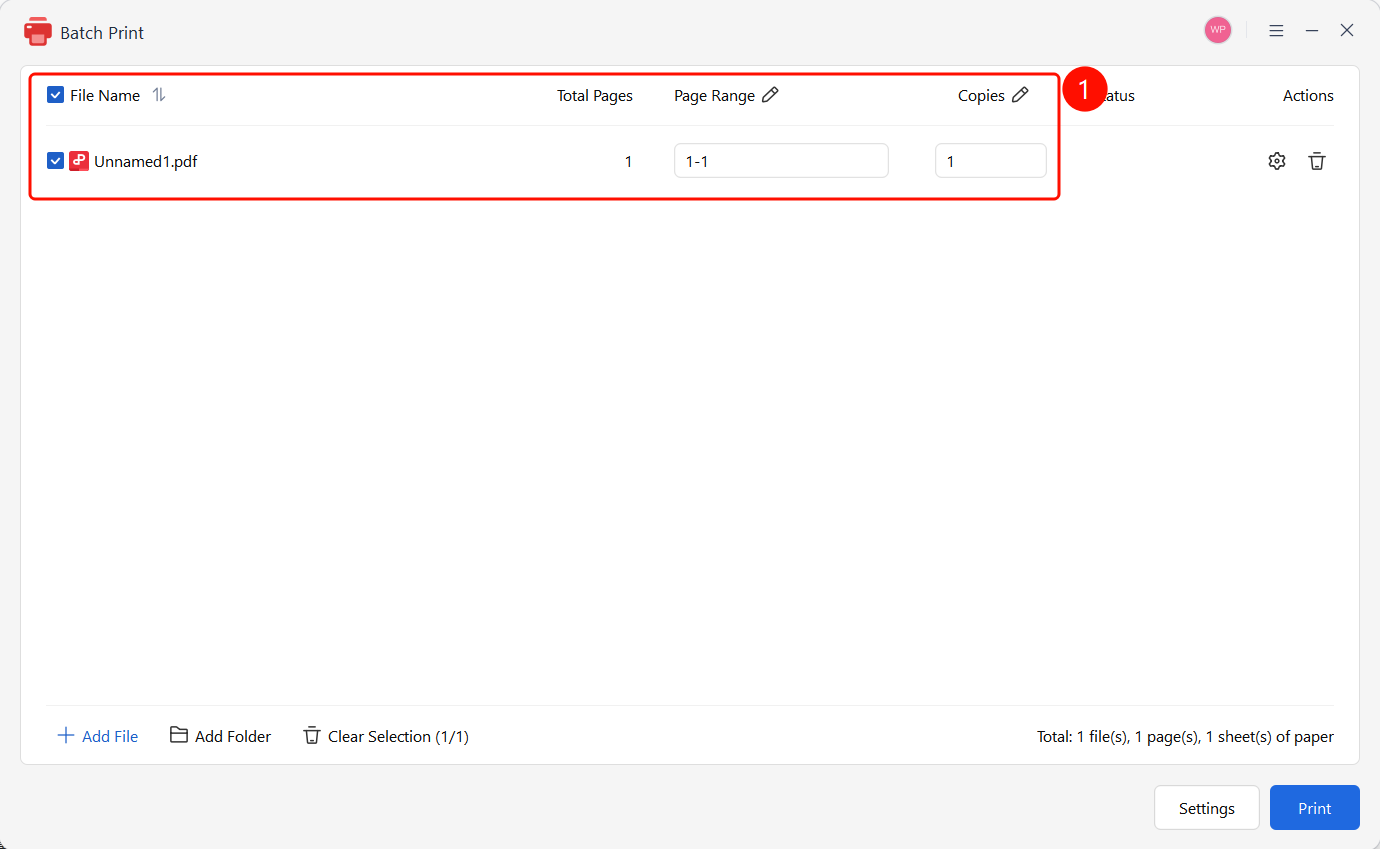
Set Print Range and Copies
Feature Entry
Batch Print window > File list
After adding files, you can view the details of each file in the file list:
- File Name: Displays the name of the file.
- Pages: Displays the total number of pages in the file.
- Print Range: You can customize the pages to print (such as 1-6).
- Copies: You can set the number of copies to print for each file.
Click the Print Range column to modify the print range.
Click the Copies column to modify the number of copies.
The total information is displayed at the bottom: number of files, total pages, and paper sheets required.
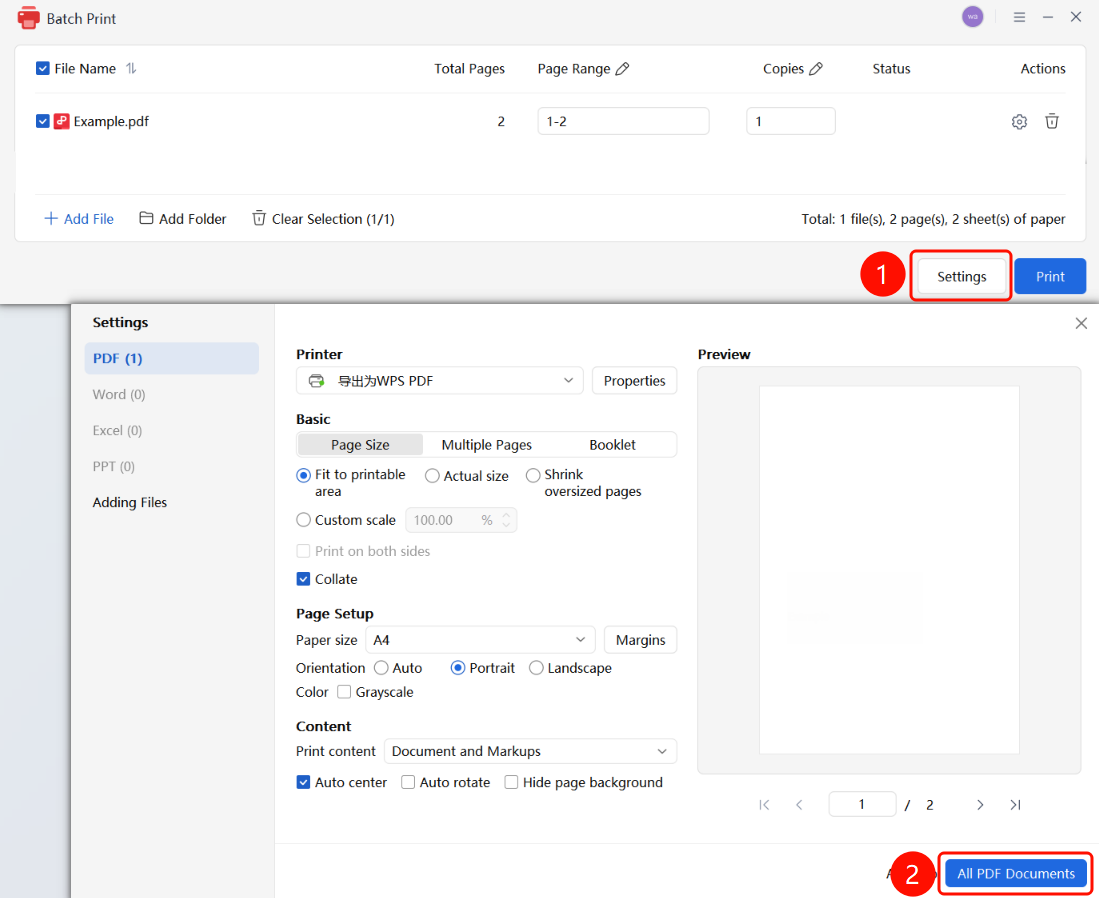
Batch Print Settings
Feature Entry
Batch Print window > Batch Print Settings button
Click Batch Print Settings in the lower-right corner.
You can configure the following settings:
- Printer: Select a printer. Click Properties to configure printer properties.
- Basic Settings:
- Page size
- Multiple pages per sheet/Booklet
- Fit to printable area/Actual size/Shrink oversized pages/Custom scale
- Print on both sides/Collate
- Page Setup:
- Paper size (such as A4)
- Orientation (Auto Landscape/Portrait, Portrait, Landscape)
- Print in grayscale
- Content Settings:
- Print content (Document and markups)
- Auto-center/Auto-rotate/Hide page background
After completing the settings, click Apply to to apply the settings to all documents.
You can view the print effect in the preview window on the right.
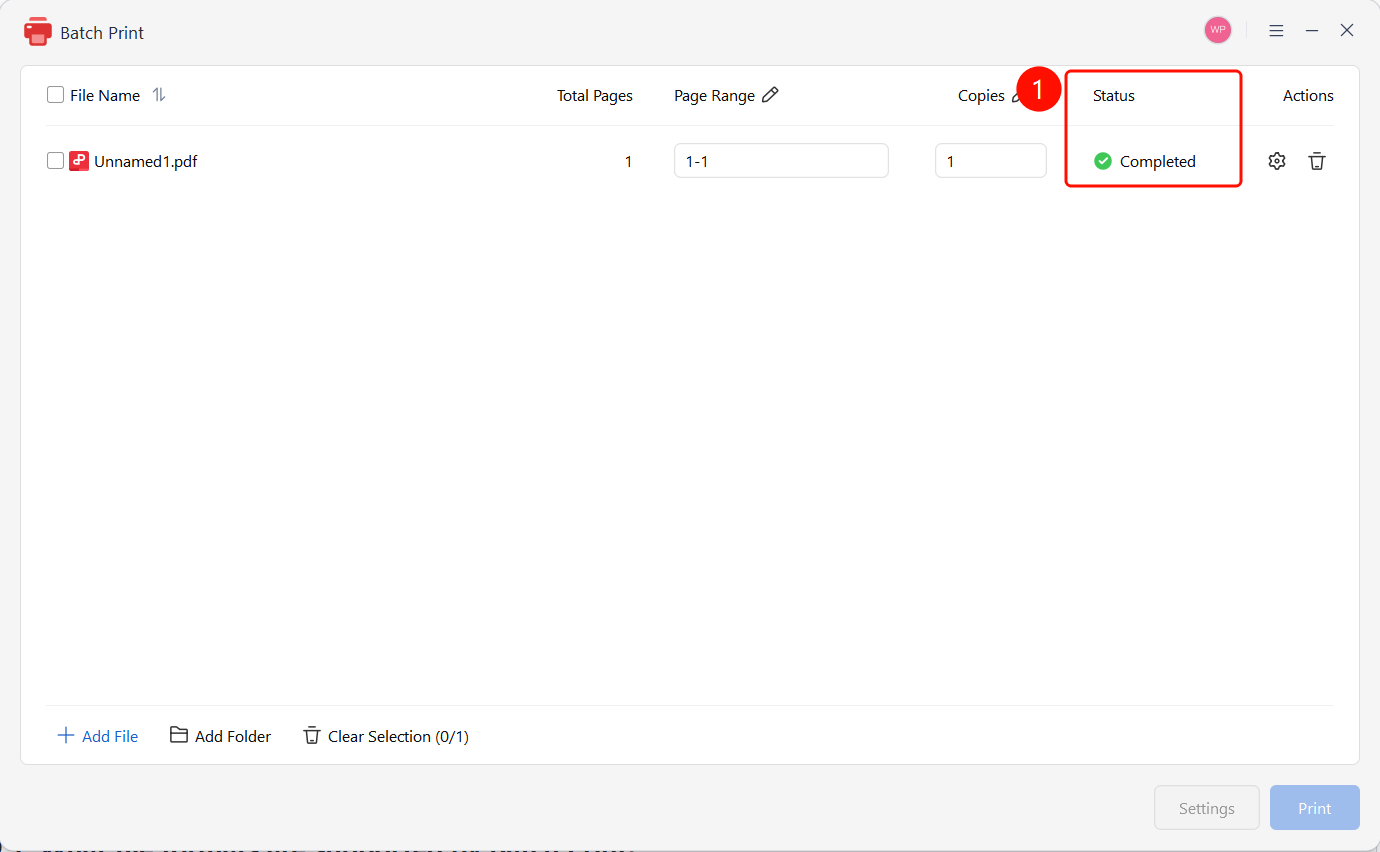
Print Completed
Feature Entry
Batch Print window > Status display
- Click Print to start batch printing.
- During the printing process, the Status column will display the progress.
- Once printing is complete, the status will display Print Completed (with a green checkmark).
- You can continue to add new files for the next batch.
FAQ
FAQ 1: What file formats are supported by Batch Print?
- Solution: It supports common office document formats such as PDF, Word (.doc/.docx), Excel (.xls/.xlsx), and PPT (.ppt/.pptx).
FAQ 2: How do I set it to print only specific pages?
- Solution: Click the Print Range column in the file list, and enter the page range (such as 1-3,5,7-10) to print specified pages.
FAQ 3: How do I set up double-sided printing?
- Solution: Click Batch Print Settings, and check the Print on both sides option under Basic Settings.
Notes
- Batch Print requires a subscription to use.
- We recommend previewing to confirm the print effect before printing.
- Different types of documents (PDF/Word/Excel/PPT) can be mixed for batch printing.
- Batch print settings can be applied to all documents of the same type.