Summary
When a document contains sensitive information such as names, phone numbers, and ID cards, and needs to be shared or presented externally, Document Redaction can identify and process the sensitive content, helping you reduce the risk of information leakage.
Feature Description
| Feature Dimension | Description |
|---|---|
| Membership Limits | Available for both WPS Pro+ and WPS Premium |
| Version Limits | Applicable to the latest version on the WPS official website |
Operating Steps
Start Redaction
Feature Entry
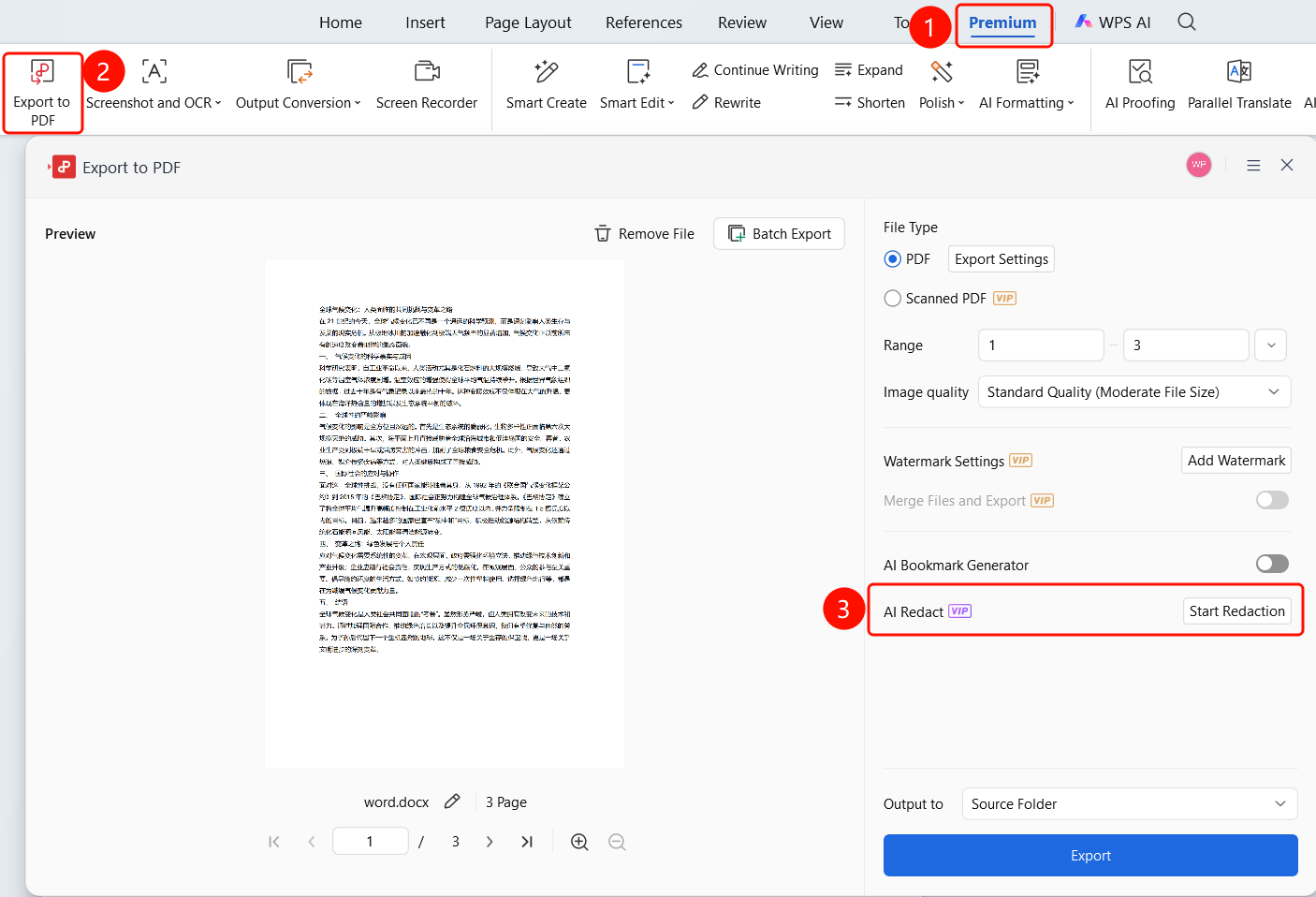
Premium -> Export as PDF -> AI Document Redaction
- Open the WPS Docs document that needs to be redacted.
- Click the Premium tab on the top menu bar.
- Click the Export as PDF button.
- Select the AI Document Redaction option.
- The redaction app will automatically start and parse the document.
Parse Document
Feature Entry
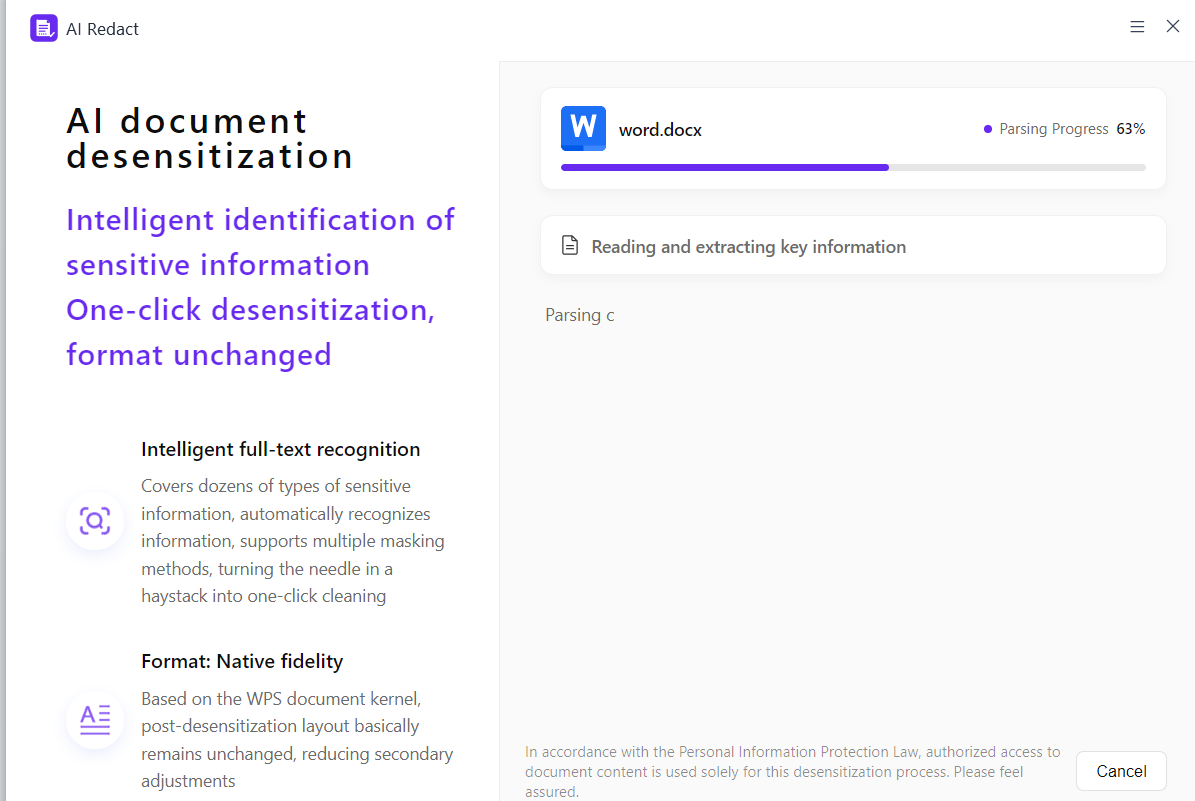
AI Document Redaction parsing interface
The system automatically loads the AI Document Redaction app.
Display parsing progress bar (e.g., 41%, 50%, 90%)
Feature highlights are displayed on the left:
- Smart Document Recognition: Covers dozens of categories of sensitive information, automatically recognizes information, and supports multiple masking methods.
- Original Layout Preservation: Based on the WPS document core, the formatting remains basically unchanged after redaction.
- Reversible Redaction: The original text can be restored, and the original version is securely retained.
After parsing is complete, a prompt is displayed: "After completing the document content analysis, manually select the content to replace or click One-click Redact to quickly complete the redaction."
Select Redaction Types
Feature Entry
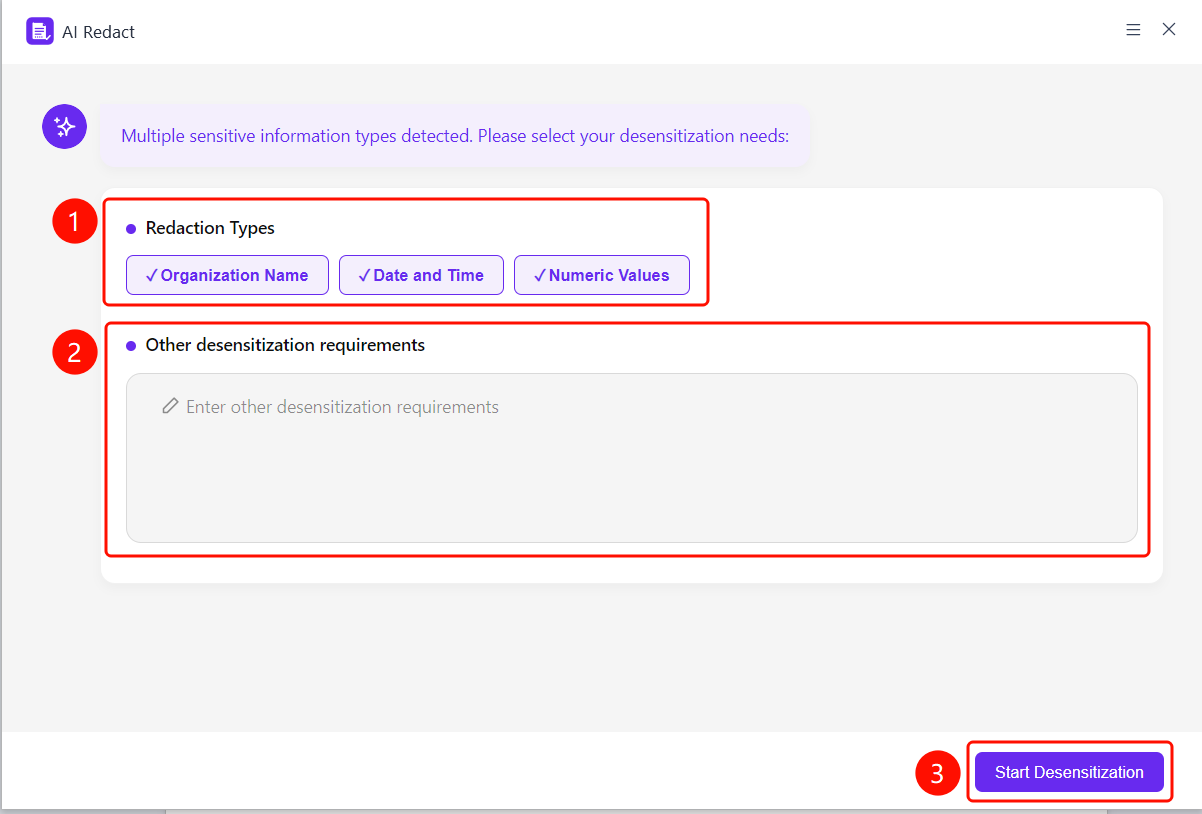
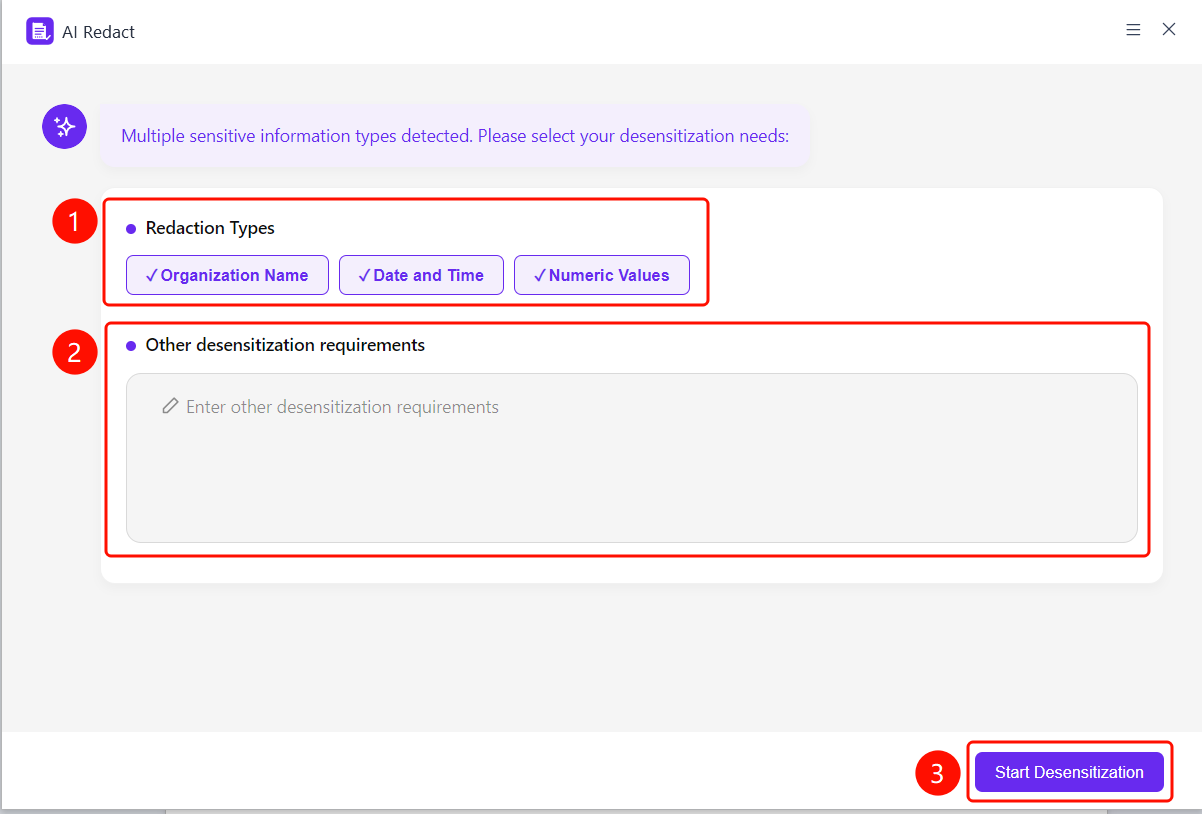
Redaction type selection window
After parsing is complete, a type selection window pops up.
You can select the types of information that need to be redacted:
- Address: Current location/Location/Detailed address
- Email: Email/Email address
- Name: Name/Personal name
- Phone Number: Phone number/Phone
- Company Name: Organization name/Company name
- Company Abbreviation: Abbreviation/Shorten
- Job Title: Position name/Job title
- ID Number: ID card number/ID card
Click Select All to select all types.
Click OK to start redaction.
Preview Redaction Results
Feature Entry
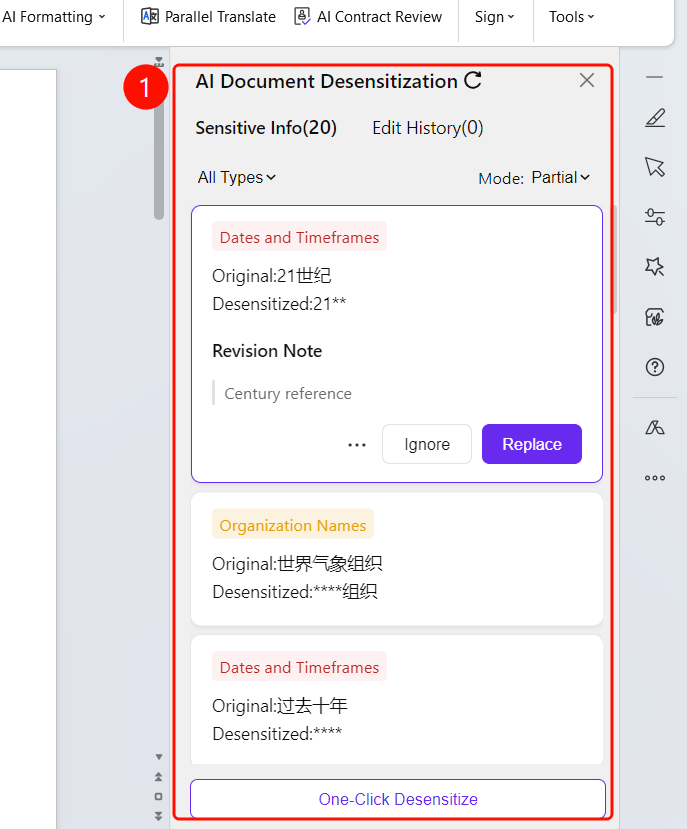
Right-side redaction information panel
After redaction is complete, the redaction information panel is displayed on the right.
The number of detected sensitive items is displayed (e.g., "Redacted Info (1)").
Each item displays:
- Type Label (e.g., "School Name")
- Original: Original content (e.g., "Xiamen University")
- Redacted: Replaced content (e.g., "** University")
- Revision Note: Reason for redaction (e.g., "Full school name")
You can choose Ignore or Replace.
Click One-click Redact at the bottom to process in bulk.
Complete Redaction
Feature Entry
Completion prompt dialog box
- After redaction is complete, a prompt pops up: "Redaction complete. Save the redacted document."
- The system automatically creates a copy of the redacted document.
- The original document remains unchanged, and the redacted document is saved as a new file.
- You can continue to edit or save the redacted document.
FAQ
Q1: What types of sensitive information does Document Redaction support?
- Solution: It supports the automatic recognition of dozens of categories of sensitive information, including addresses, emails, names, phone numbers, company names, company abbreviations, job titles, and ID numbers.
Q2: Can the document be restored after redaction?
- Solution: Yes. Reversible redaction technology is used. The original document remains unchanged, and the redacted content is saved as a new document, allowing you to view the original text at any time.
Q3: Will the document formatting change after redaction?
- Solution: Processed based on the WPS document core, the formatting remains basically unchanged after redaction, reducing the need for secondary adjustments.
Notes
- WPS Plus and Grand VIP members can use the Document Redaction feature with no limit on the number of times.
- We recommend confirming the types of information that need to be redacted before starting to avoid omissions.
- The redacted document and the original document are saved separately. Pay attention to distinguish them.
- According to the Personal Information Protection Law, authorization to read document content is only used for this redaction processing.