Feature Overview
When you need to perform data cleaning, categorization, summarization, chart generation, or other operations in a spreadsheet but are unfamiliar with the steps, the AI Table Assistant can help you complete various table tasks through natural language conversations, enabling you to master spreadsheet tools in the most intuitive way.
Feature Description
| Feature Dimension | Description |
|---|---|
| Membership Limits | Available for both WPS Pro+ and WPS Premium |
| Version Limits | Applicable to the latest version on the WPS official website |
Operating Steps
Table Assistant - Operate Tables
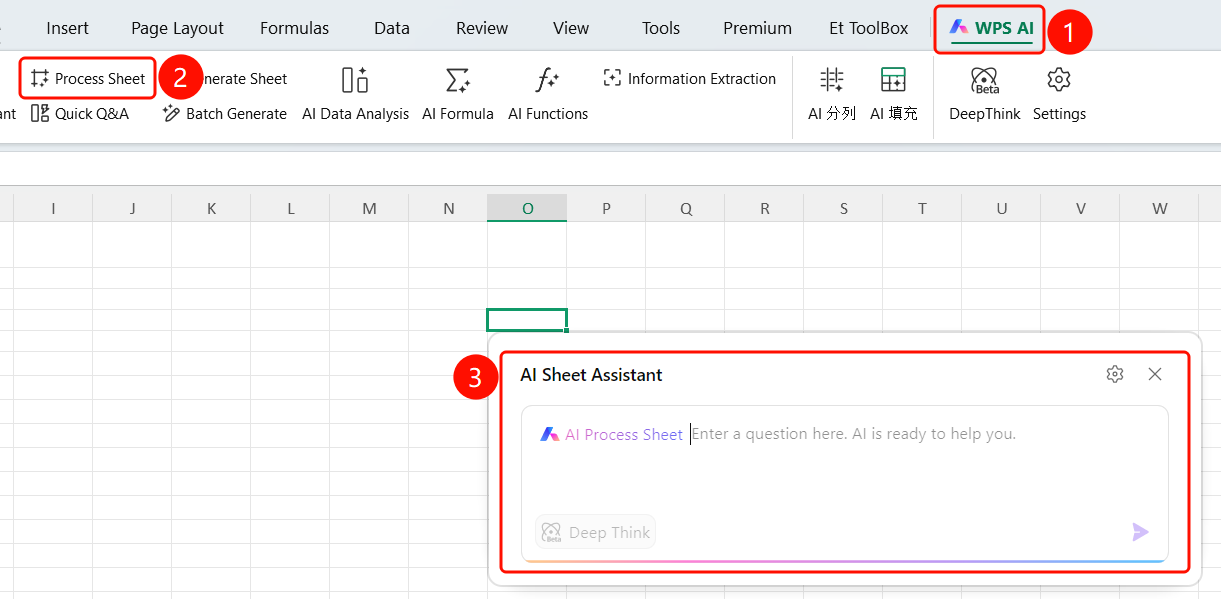
Access Method「WPS AI」Tab → 「Operate Tables」
- Open a WPS Spreadsheet document
- Click the 「WPS AI」 tab in the top menu bar
- Click the 「Operate Tables」 button
- The AI Table Assistant input box will appear
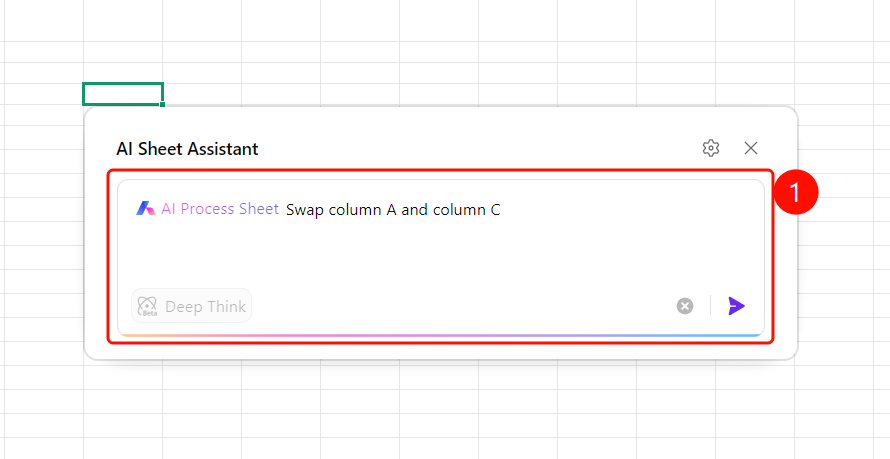
Input Operation Requirements
Feature Access PointAI Table Assistant input box
- Describe your table operation request in natural language within the input box (e.g., "Swap column A and column D")
- Click the Send button on the right to submit the task
- The AI will automatically analyze and execute the operation
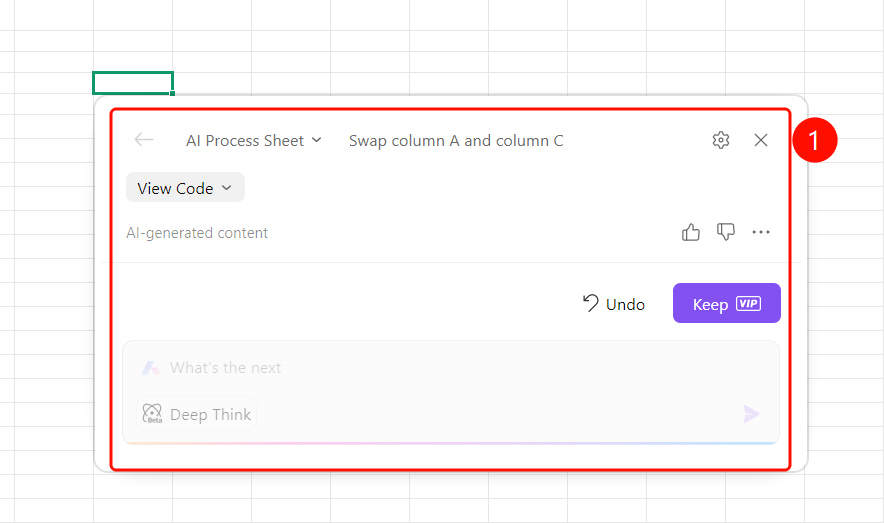
Confirm Operation Result
Feature Access PointOperation Result Panel
After the AI completes execution, table data is automatically updated (e.g., data in columns A and D have been swapped).
The result panel displays a description of the operation (e.g., "AI swapped columns A and D in the table").
Provides a "View Code" button to inspect the code generated by the AI.
Displays a "Content generated by AI" label at the bottom.
Offers two actions:
- "Undo": Reverts the current operation and restores original data.
- "Keep": Confirms and retains the operation result.
You can continue entering new tasks in the input box, and the AI will execute them sequentially.
Frequently Asked Questions
Question 1: What types of operations does the table manipulation support?
- Solution: Supports various table operations such as data cleaning, column rearrangement, sorting, filtering, grouping and summarizing, chart generation, etc. Simply describe your request in natural language.
Question 2: Can I undo an operation if I find it incorrect after execution?
- Solution: Yes. Click the "Undo" button in the result panel to restore the original data. Once confirmed correct, click "Keep."
Question 3: Can I perform multiple operations consecutively?
- Solution: Yes. After confirming to keep the current operation, simply enter a new instruction in the input box. The AI will execute them in sequence.
Notes
- It is recommended to back up your data before performing any operations to prevent accidental changes.
- Membership verification is required to confirm operations.