Feature Summary
Copy, Paste, and Cut are the most basic data manipulation features in WPS Sheets. They support quickly moving and copying cell content and formatting. Combined with shortcut keys, they can significantly improve data processing efficiency.
Feature Description
| Feature Dimension | Description |
|---|---|
| Membership Restriction | No membership restriction |
| Version Restriction | No version restriction |
Operation Steps
Copy
Feature Entry
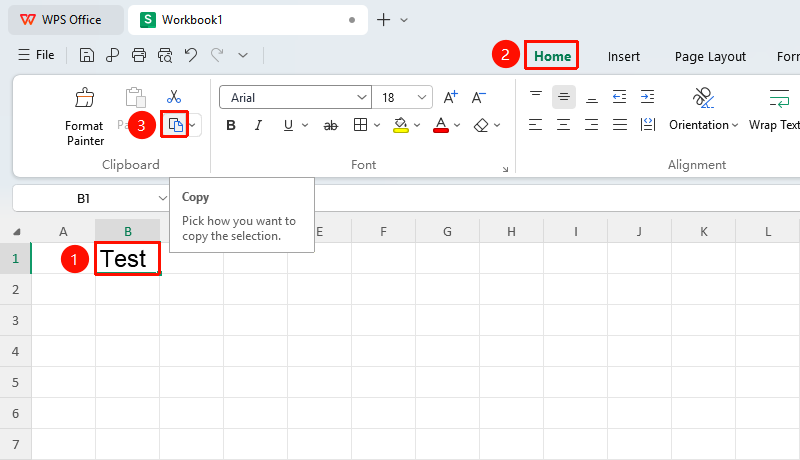
"Home" tab → "Copy" button
- Select the cell or cell range you want to copy
- Click the "Copy" button in the Home tab
- A dashed selection box appears around the selected area, indicating the content has been copied to the clipboard
Copy as Picture
Feature Entry
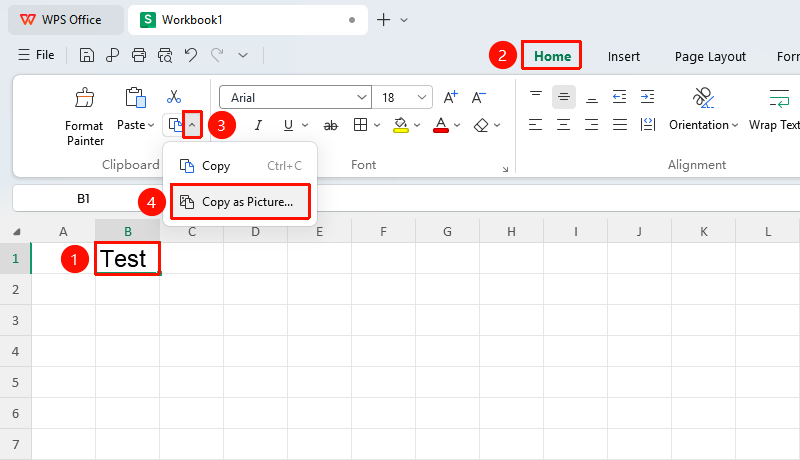
"Home" tab → Dropdown arrow next to the "Copy" button → "Copy as Picture" button
- Select the cell or text within the cell you want to copy
- Click the arrow next to the Copy button in the Home tab
- Click the "Copy as Picture" button in the pop-up dropdown menu
- In the pop-up dialog box, select the picture format for copying, and click OK to complete the copy
Right-Click Menu Copy
Feature Entry
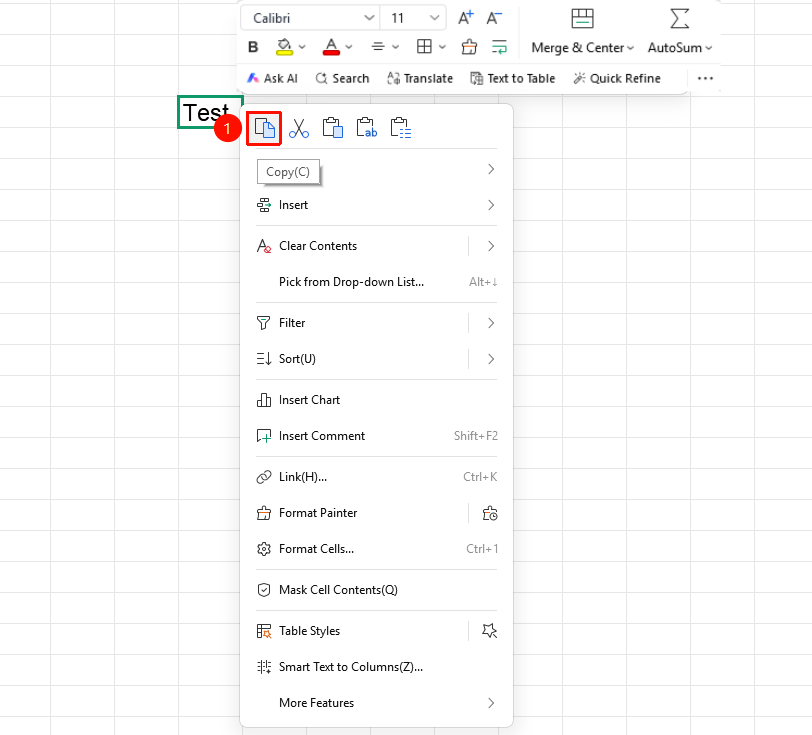
Right-click context menu → "Copy" button
- Select the cell or text within the cell you want to copy
- Right-click to bring up the context menu
- Click the "Copy" button in the context menu
- A dashed selection box appears around the selected area, indicating the content has been copied to the clipboard
Cut
Feature Entry
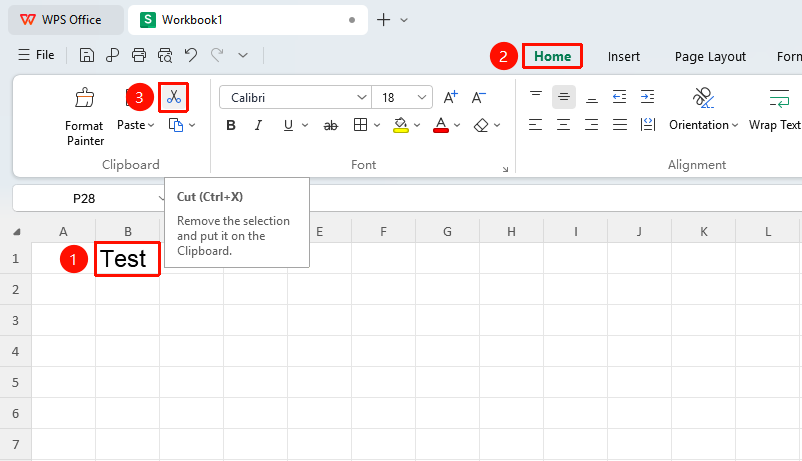
"Home" tab → "Cut" option
- Select the cell or text within the cell you want to move
- Click the "Cut" button in the Home tab
- A dashed selection box appears around the selected area, indicating the content has been temporarily stored in the clipboard. After pasting, the content in the original cell will be deleted
Right-Click Menu Cut
Feature Entry
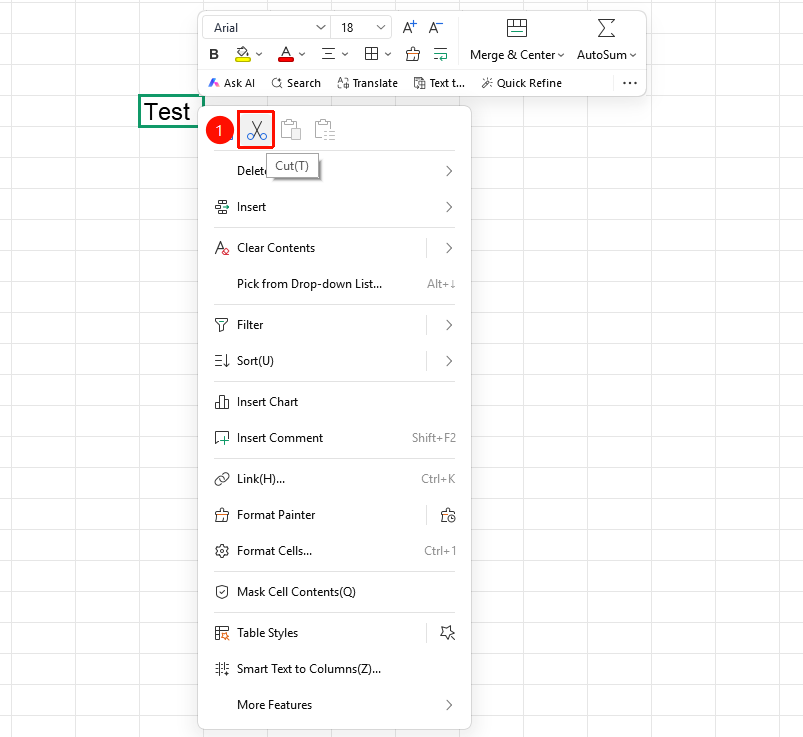
Right-click context menu → "Cut" button
- Select the cell or text within the cell you want to move
- Right-click to bring up the context menu
- Click the "Cut" button in the context menu
- A dashed selection box appears around the selected area, indicating the content has been temporarily stored in the clipboard. After pasting, the content in the original cell will be deleted
Paste
Feature Entry
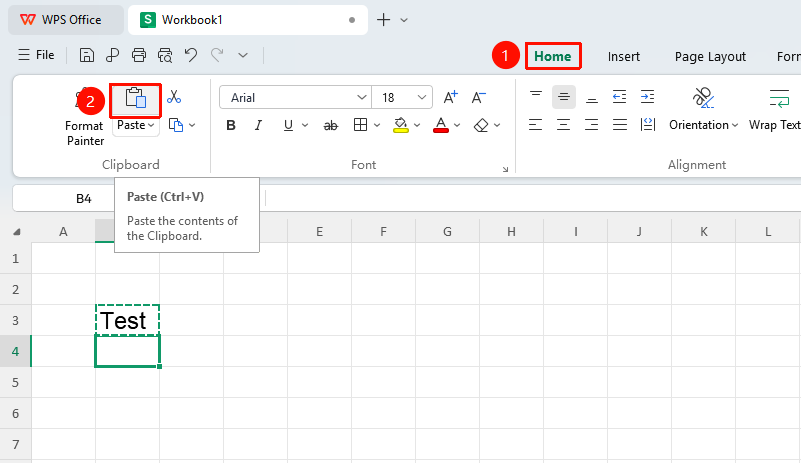
"Home" tab → "Paste"
- Click the target cell where you want to place the content
- Click the "Paste" button in the Home tab
- To cancel the operation, press the Esc key
Paste Special
Feature Entry
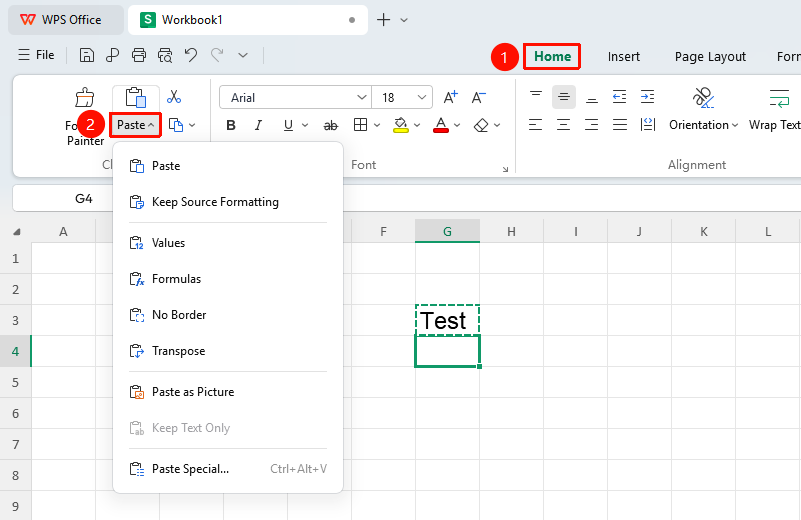
"Home" tab → Dropdown arrow next to the "Paste" button → "Paste Special" button
- After copying or cutting content, click the target cell
- Click the dropdown arrow next to the Paste button in the Home tab
- Select "Paste Special", where you can choose options such as pasting values only, pasting formatting only, or pasting links
Right-Click Menu Paste
Feature Entry
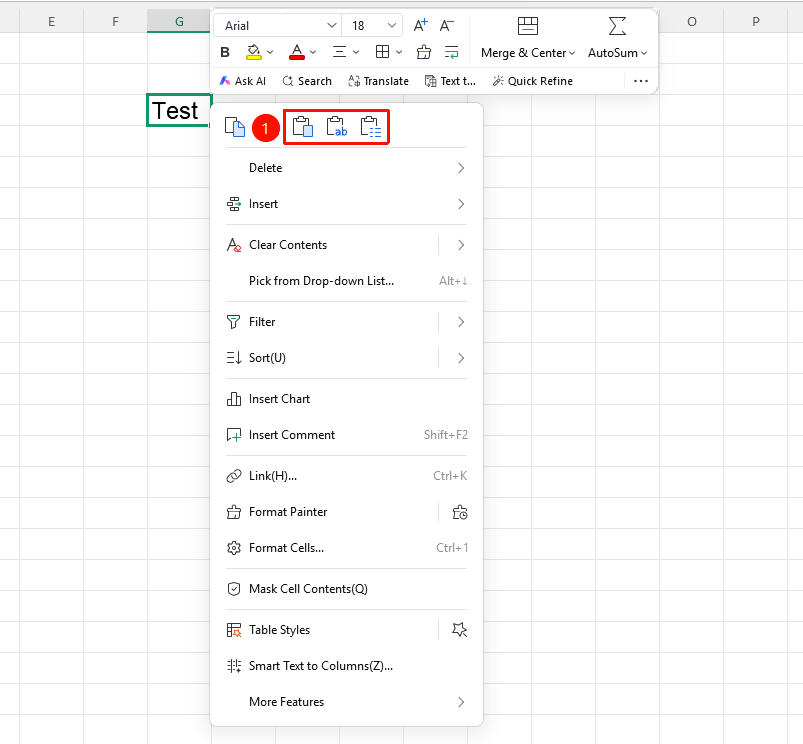
Right-click context menu → "Paste" button
- After copying or cutting content, click the target cell
- Right-click to bring up the context menu
- Click the "Paste" button in the context menu
In addition to the Paste button, you can also choose the "Paste Text Only" and "Paste Special" options
Copy Shortcut:
Ctrl + C
Cut Shortcut:
Ctrl + X
Paste Shortcut:
Ctrl + V
FAQ
Question 1: How to quickly move cell content?
- Solution: After selecting a cell, hold down the mouse button and drag the cell border to the target position to move it directly; hold down Ctrl while dragging to quickly copy.
Question 2: How to cancel the copy/cut selection marquee?
- Solution: Press the Esc key to cancel the current copy or cut state.
Notes
- When copying, selecting an entire row/column may cause paste failure
- Copying while multiple worksheets are selected simultaneously may cause errors
- When worksheet and cell protection is enabled, paste operations may be restricted
- Using Paste Special can avoid format conflict issues