Feature Summary
The Side-by-Side Comparison feature allows you to display two workbook windows side by side and scroll them synchronously, making it easy to compare data differences between two spreadsheets.
Feature Description
| Feature Dimension | Description |
|---|---|
| Membership Restriction | No membership restriction |
| Version Restriction | No version restriction |
Steps
Enabling Side-by-Side Comparison
Feature Entry
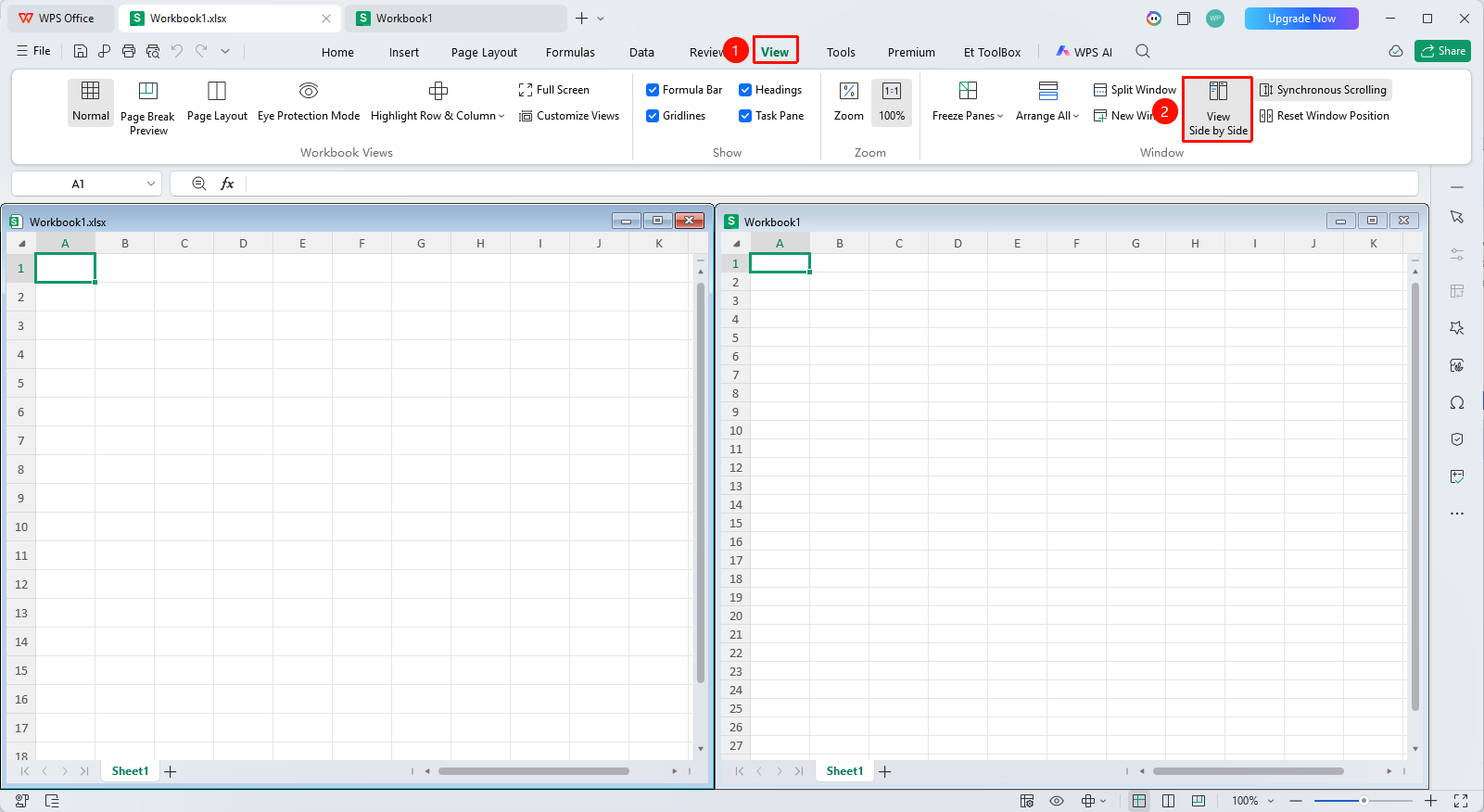
"View" tab → "Side-by-Side Comparison"
- Open the workbooks you want to compare
- Click the View tab
- Click the Side-by-Side Comparison button
- The two windows will automatically be displayed side by side
- Click Side-by-Side Comparison again to close the comparison window
Synchronous Scrolling
Feature Entry
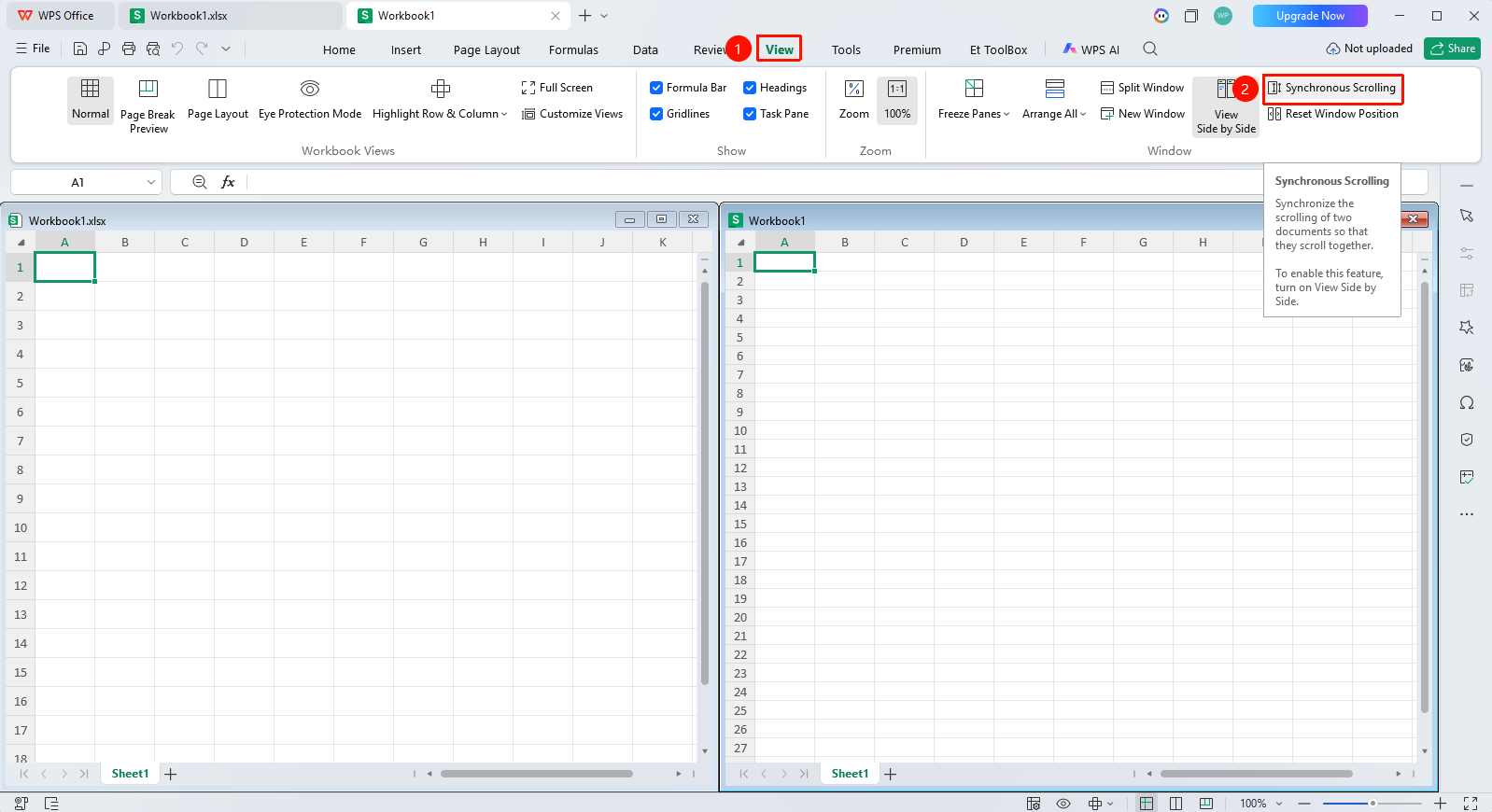
"View" tab → "Synchronous Scrolling"
- After enabling Side-by-Side Comparison
- Synchronous Scrolling is automatically enabled
- Scrolling one window will synchronously scroll the other
- You can click the Synchronous Scrolling button to toggle it on/off
Resetting Window Position
Feature Entry
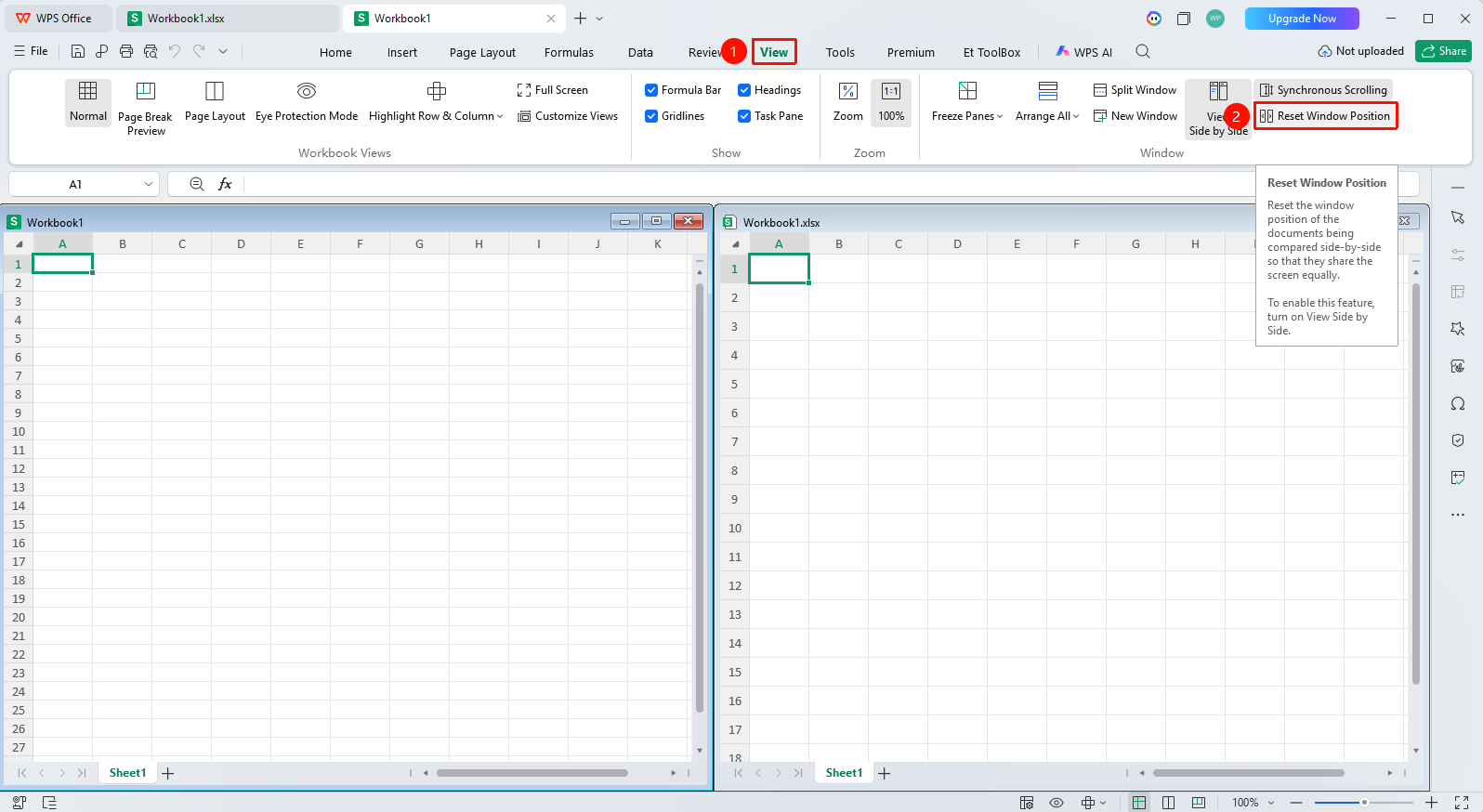
"View" tab → "Reset Position"
- Click Reset Position
- The two windows will restore to the default side-by-side layout
- Suitable for use when window positions become disordered
FAQ
Q1: What should I do if the Side-by-Side Comparison button is grayed out?
- Solution: You need to open at least two workbook windows first to use the Side-by-Side Comparison feature.
Notes
- Side-by-Side Comparison requires two workbooks to be open
- Synchronous Scrolling keeps the scroll positions of the two windows consistent
- Closing Side-by-Side Comparison does not close the workbook windows