Feature Summary
The WPS Sheets interface consists of the title bar, menu bar (ribbon), editing area, status bar, and task pane. These areas work together to provide users with a complete spreadsheet editing environment.
I. Title Bar
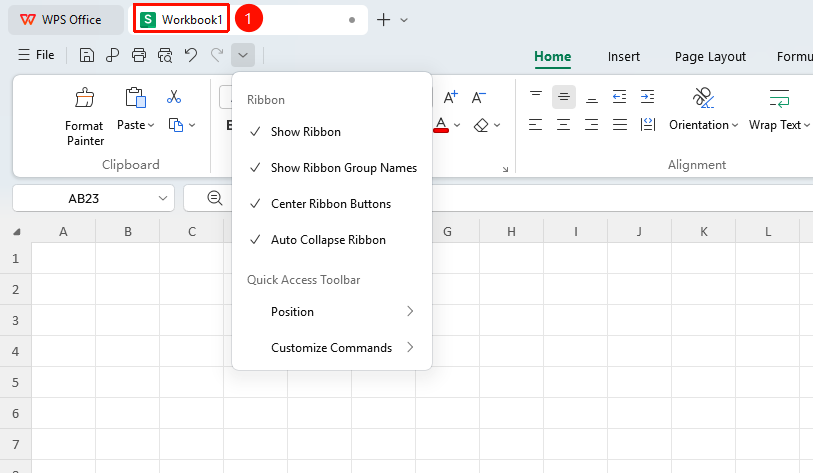
The title bar is located at the very top of the WPS Sheets window. It displays the current document name and software name, and provides window control buttons and quick access functions.
Viewing the Document Name
Feature Entry
Title bar at the top of the window
- Open a WPS Sheets document
- The current document name is displayed in the center of the title bar
- When the document has not been saved, a default name such as "Book1" is displayed
Using Window Control Buttons
Feature Entry
Right side of the title bar
- Click the Minimize button to minimize the window to the taskbar
- Click the Maximize/Restore button to toggle full-screen display
- Click the Close button to close the current document window
Using the Quick Access Toolbar
Feature Entry
Left side below the title bar
- The Quick Access Toolbar is displayed on the left side of the title bar
- It contains commonly used buttons such as Save, Undo, and Redo by default
- Click the drop-down arrow to customize and add frequently used commands, or to change the position of the Quick Access Toolbar
II. Menu Bar (Ribbon)
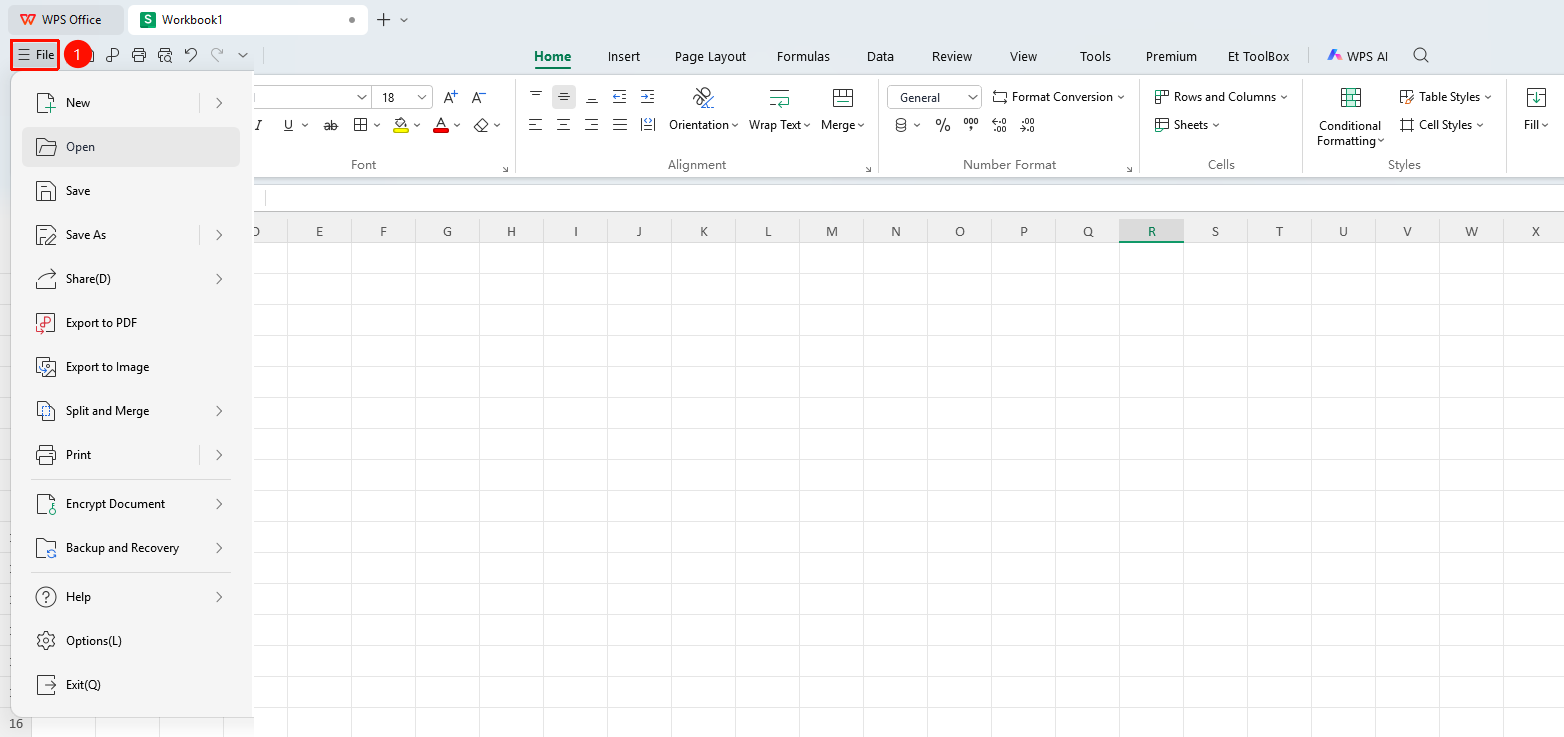
The menu bar is located below the title bar. It contains main function tabs such as File, Home, Insert, Page Layout, Formulas, Data, Review, and View, serving as the primary entry point for accessing all features of WPS Sheets.
Using the File Menu
Feature Entry
"File" tab
- Click the File tab
- Perform document operations such as New, Open, Save, and Save As
- Includes functions like Print, Share, and Export
III. Ribbon
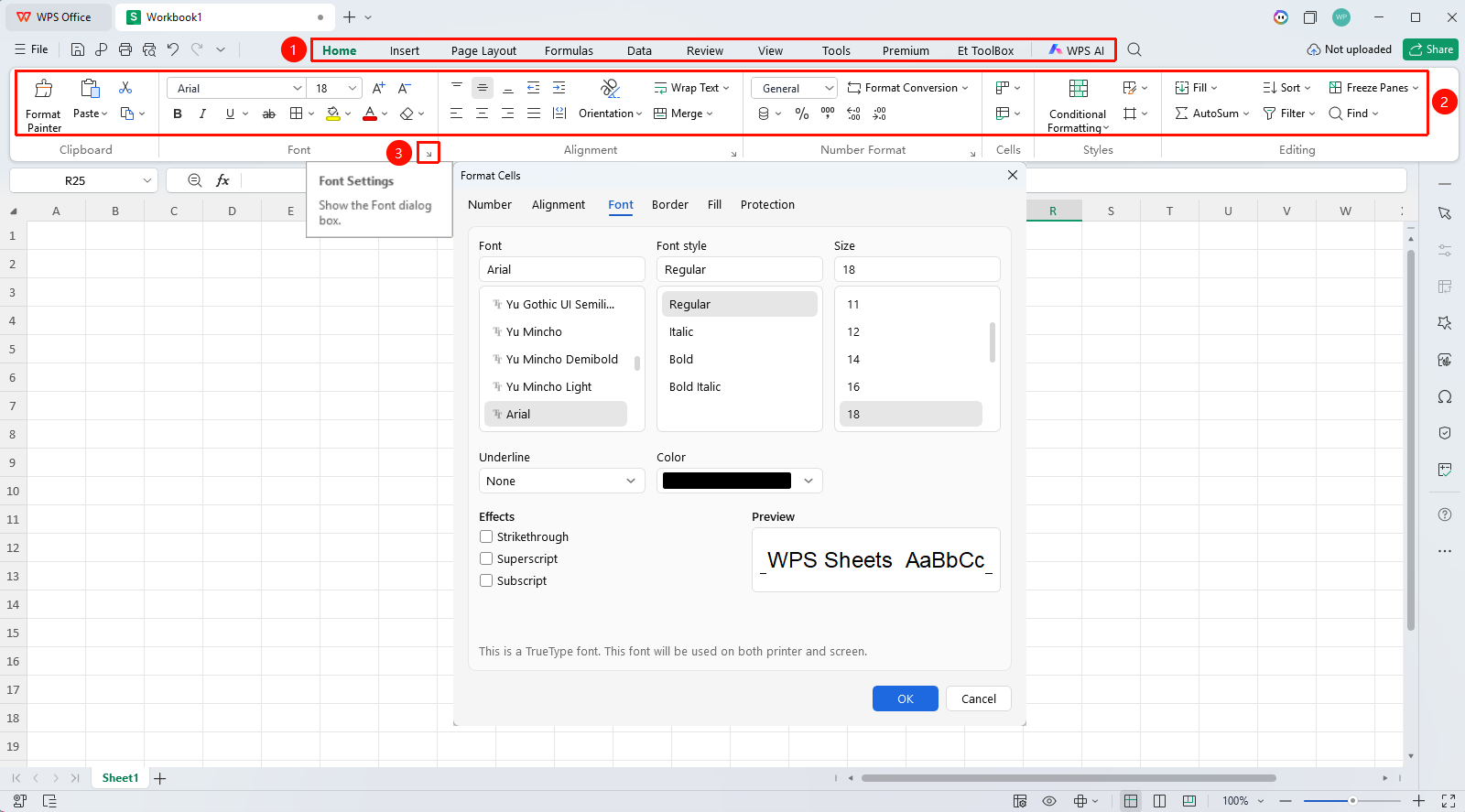
The ribbon is the main operation area below the menu bar. It organizes various functions by tabs, providing an intuitive graphical interface that allows users to quickly find and use the required features.
Expanding/Collapsing the Ribbon
Feature Entry
Quick Access Toolbar
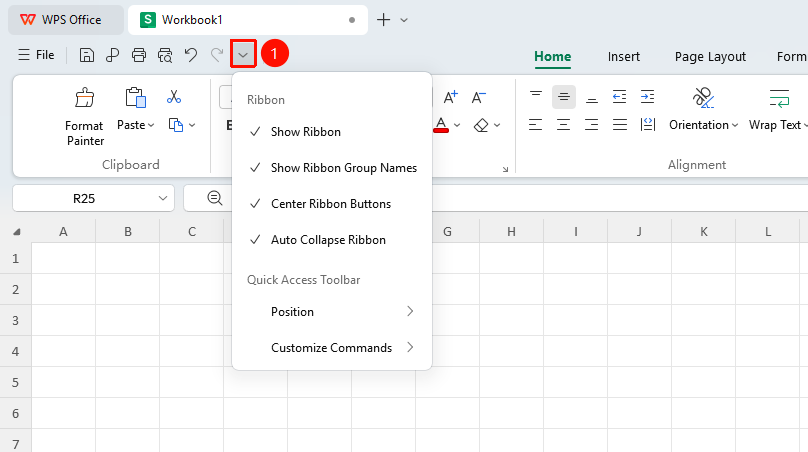
- Click the drop-down arrow on the Quick Access Toolbar and click "Show Ribbon" to collapse the ribbon
- Double-click again to expand the ribbon
Using Function Groups
Feature Entry
Function groups under each tab
- The ribbon organizes related functions into function groups
- For example, the "Home" tab contains groups such as Clipboard, Font, and Alignment
- Click the arrow in the bottom-right corner of a group to open the detailed settings dialog box
Using Contextual Tools
Feature Entry
Appears after selecting a specific object
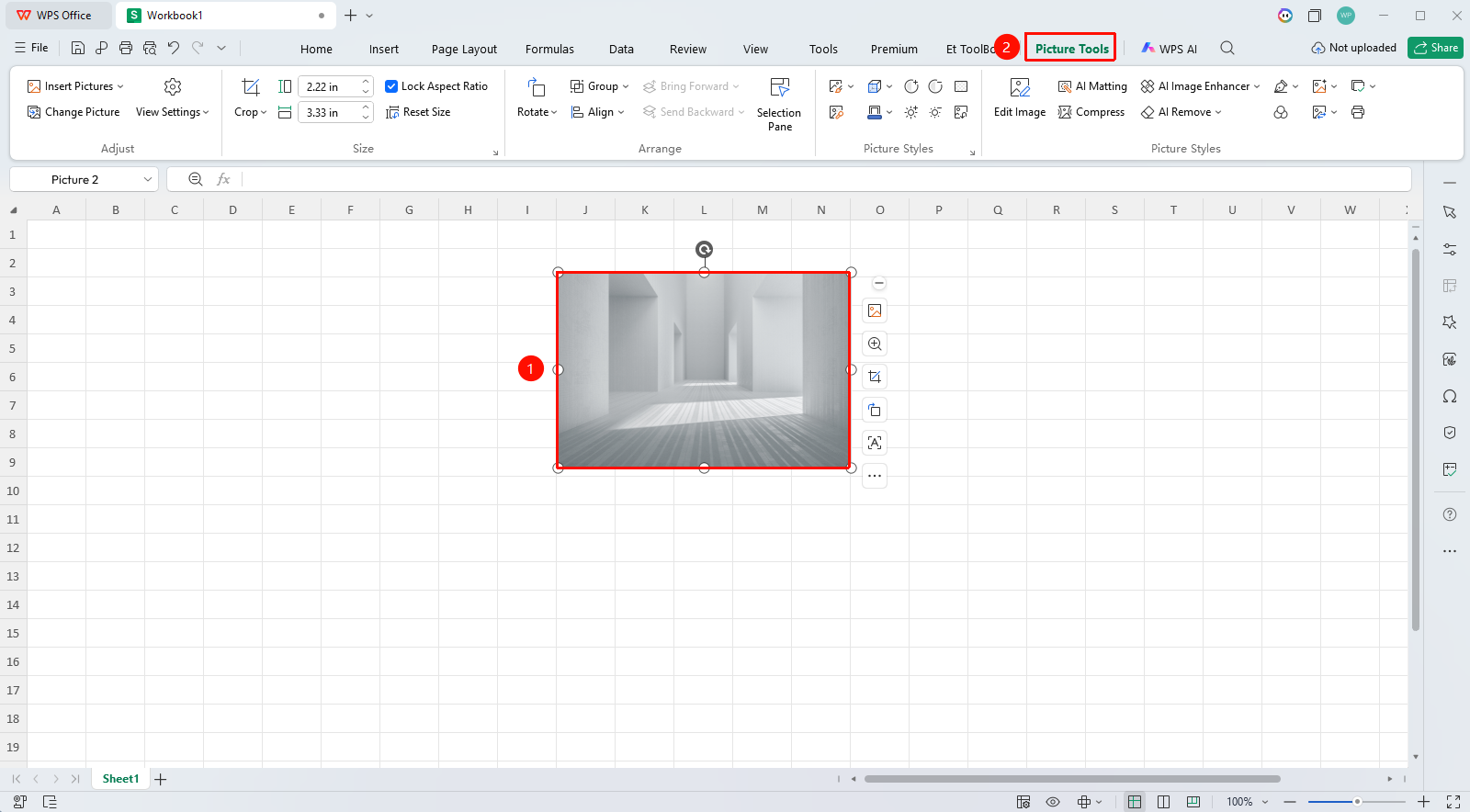
- When selecting objects such as pictures, charts, or tables
- The ribbon automatically displays the corresponding contextual tool tab
- For example, selecting a picture displays the "Picture Tools" tab
IV. Editing Area
The editing area is the core workspace of WPS Sheets. It is used to display and edit cell content, supporting operations such as data entry, formula calculation, and formatting.
Selecting Cells
Feature Entry
Cells in the editing area
- Click a cell to select a single cell
- Hold and drag the mouse to select a continuous range
- Hold the Ctrl key and click to select non-adjacent cells
Entering Data
Feature Entry
Cells in the editing area
- Double-click a cell or select it and start typing directly
- Press Enter to confirm the input and move to the cell below
- Press Tab to confirm the input and move to the cell to the right
Editing Cell Content
Feature Entry
Cells in the editing area or the formula bar
- Double-click a cell to enter edit mode
- Or select a cell and modify the content in the formula bar
- Press Esc to cancel editing
Using Scroll Bars
Feature Entry
Right side and bottom of the editing area
- Drag the vertical scroll bar to browse up and down
- Drag the horizontal scroll bar to browse left and right
- Use the mouse wheel to scroll quickly "Screenshot placeholder"
5. Status Bar
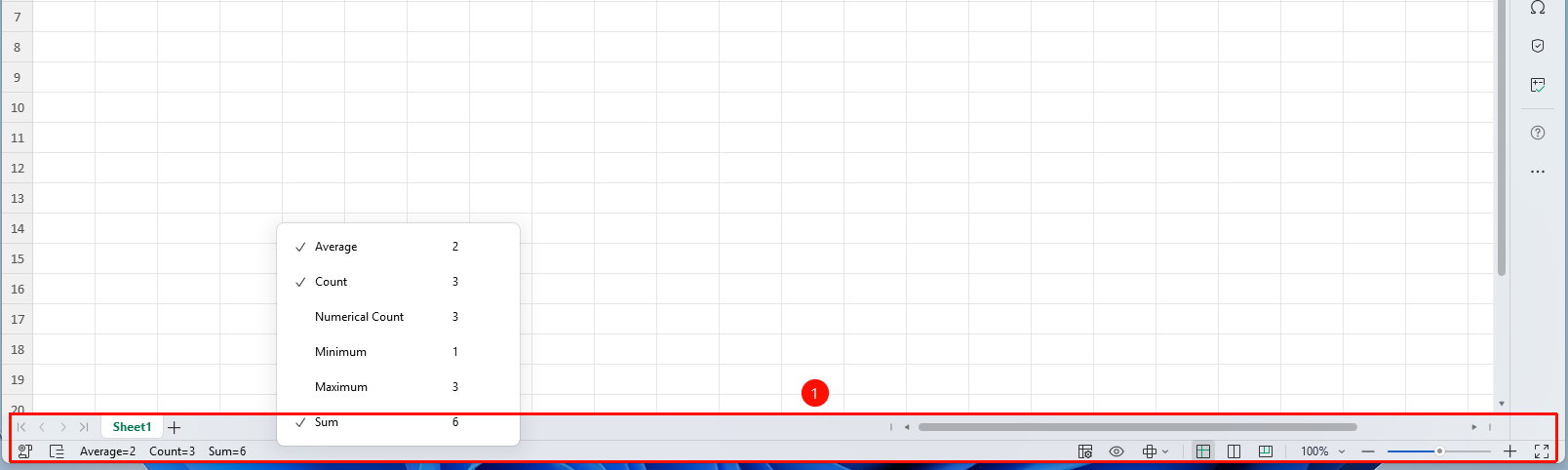
The status bar is located at the bottom of the WPS Sheets window, displaying the current operation status, selection statistics (such as sum, average, count), as well as view switching and zoom controls.
View Selection Statistics
Function Location
Middle of the status bar
- Select a range of cells containing numerical values
- The status bar automatically displays statistical information such as Sum, Average, and Count
- Right-click the status bar to customize the displayed statistical items
Switch View Mode
Function Location
Right side of the status bar
- Click the Normal View button to switch to the normal editing view
- Click the Page Layout button to view the start/end of the document and view headers/footers
- Click the Page Break Preview button to view the print pagination effect
- Click the Full Screen Display button to enter full screen display mode
Adjust Zoom Level
Function Location
Far right of the status bar
- Drag the zoom slider to adjust the display scale
- Click the + / - buttons to fine-tune the zoom
- Click the zoom percentage to directly enter an exact value
6. Task Pane
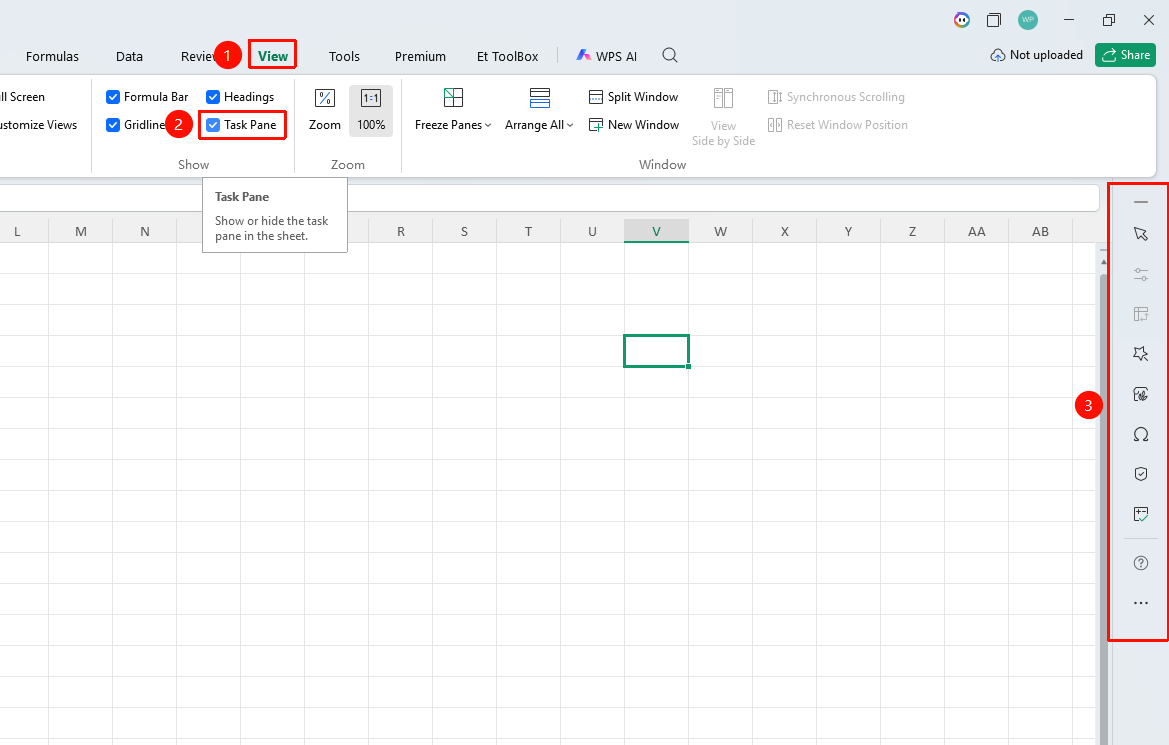
The task pane is an auxiliary function panel in WPS Sheets, providing quick access tools such as styles, clipboard, and properties. It can float next to the editing area for convenient use.
Open the Task Pane
Function Location
"View" tab → "Task Pane"
- Click the View tab
- Click the Task Pane button to expand/collapse the task pane
Frequently Asked Questions
Q1: What should I do if the title bar is not displayed?
- Solution: The window may be in full screen mode. Press the Esc key to exit full screen.
Q2: What should I do if the ribbon is missing?
- Solution: Click the drop-down arrow on the Quick Access Toolbar and click "Show Ribbon" to collapse the ribbon.
Q3: What should I do if a ribbon tab is missing?
- Solution: Click the "File" tab → "Options" → "Customize Ribbon", and check the tabs you want to display.
Q4: What should I do if the editing area is not fully displayed?
- Solution: Adjust the window size, or use the zoom function (View → Zoom) to adjust the display scale.
Q5: What should I do if a cell displays "####"?
- Solution: The column width is insufficient to display the content. Adjust the column width or enable text wrapping to display it.
Q6: What should I do if the status bar does not display statistical information?
- Solution: Right-click the status bar and check the statistical items you want to display (Sum, Average, Count, and so on).
Notes
- Menu items may vary slightly between different versions of WPS Sheets. Some advanced features require membership privileges.
- The editing area supports switching between multiple worksheets (via the sheet tabs at the bottom). You can freeze panes to fix row and column headers.
- Status bar statistics are only valid for numerical data. Different selection ranges will display different statistical results.
- The task pane can be shown or hidden as needed. The position and state of the pane will be remembered.