Feature Summary
The New Document feature is used to create a new WPS Sheets workbook, supporting quick creation from a blank document or using templates.
Feature Description
| Feature Dimension | Description |
|---|---|
| Membership Restriction | Some features require a membership to use |
| Version Restriction | No version restriction |
| New Shortcut | Press Ctrl+N within the document editing page |
Operation Steps
Method 1: Quick New from Main Interface
Feature Entry
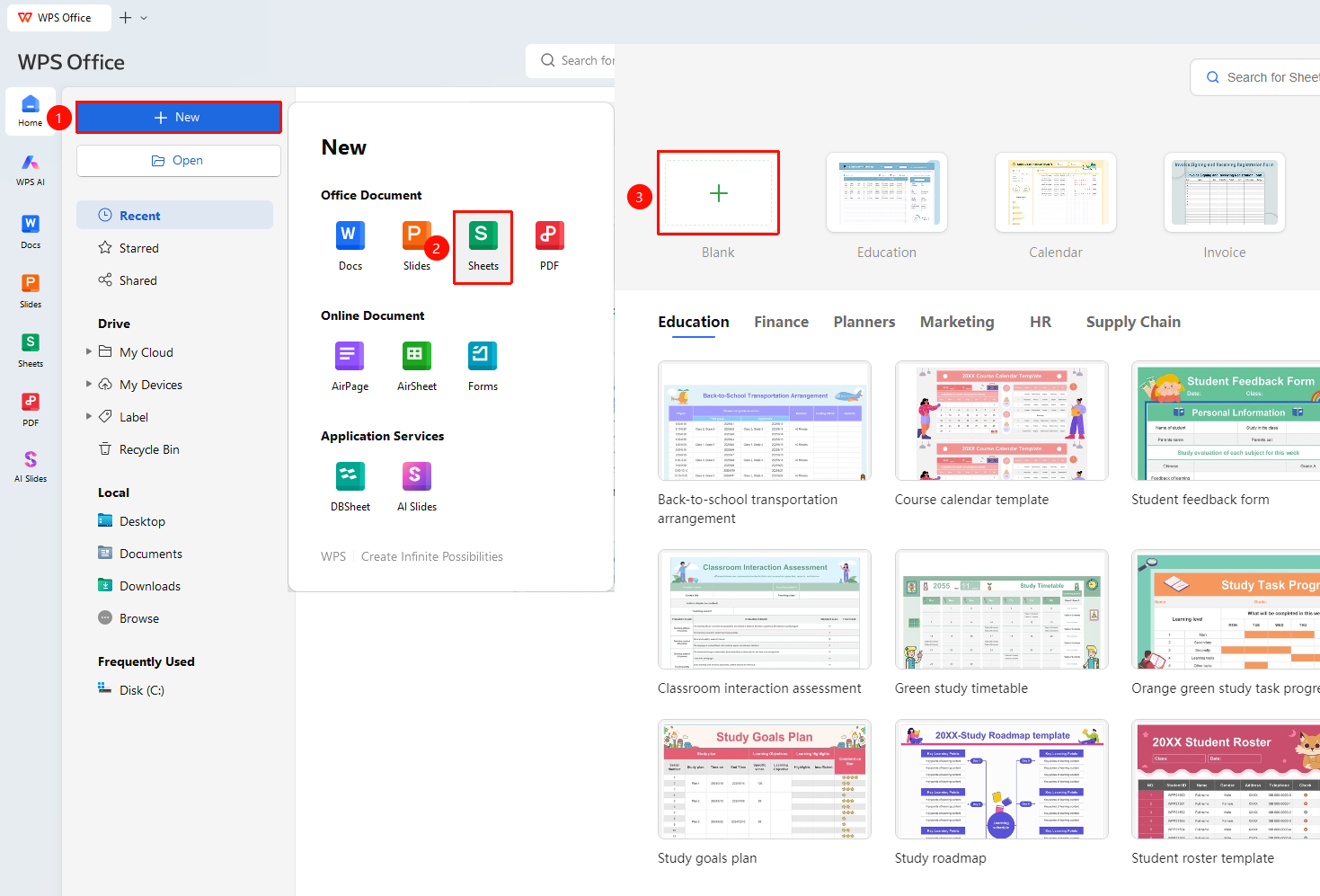
Homepage "New" → "Spreadsheet" → "Blank Document"
- Double-click the WPS icon on the desktop to launch the software and enter the main interface
- Click "New" in the left navigation bar, then select "Spreadsheet"
- Select "Blank Document"
- A new blank spreadsheet will be created
Method 2: New from Menu Bar (Applicable when a document is already open)
Feature Entry
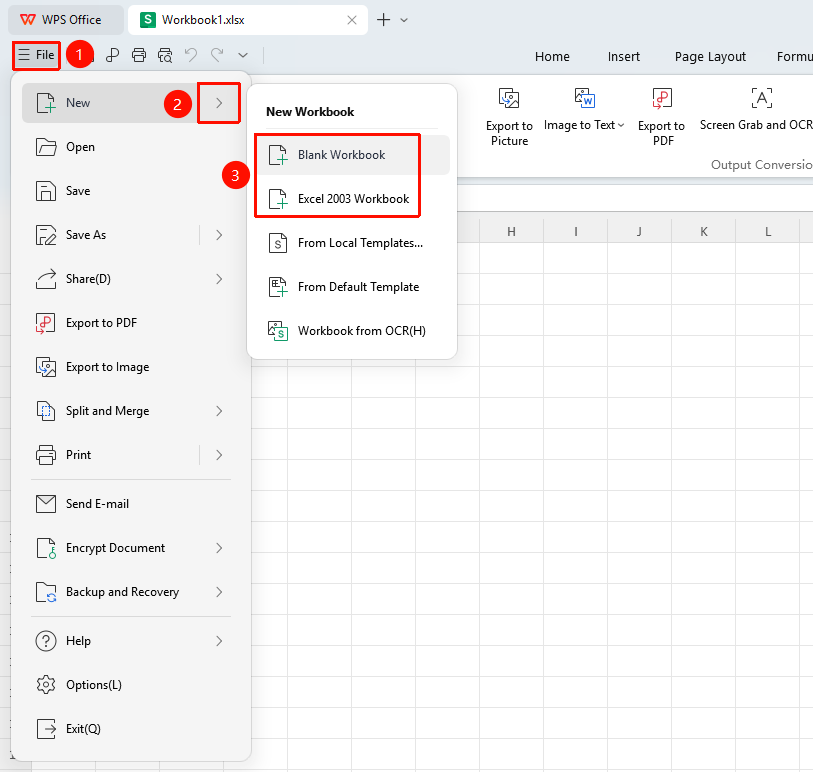
"File" button → "New" → "New Excel 2003 File"
- In the open WPS Sheets interface, click the "File" button in the upper left corner
- In the drop-down list, select "New" → "New" / "New Excel 2003 File"
Method 3: Quick New from Tab Bar
Feature Entry
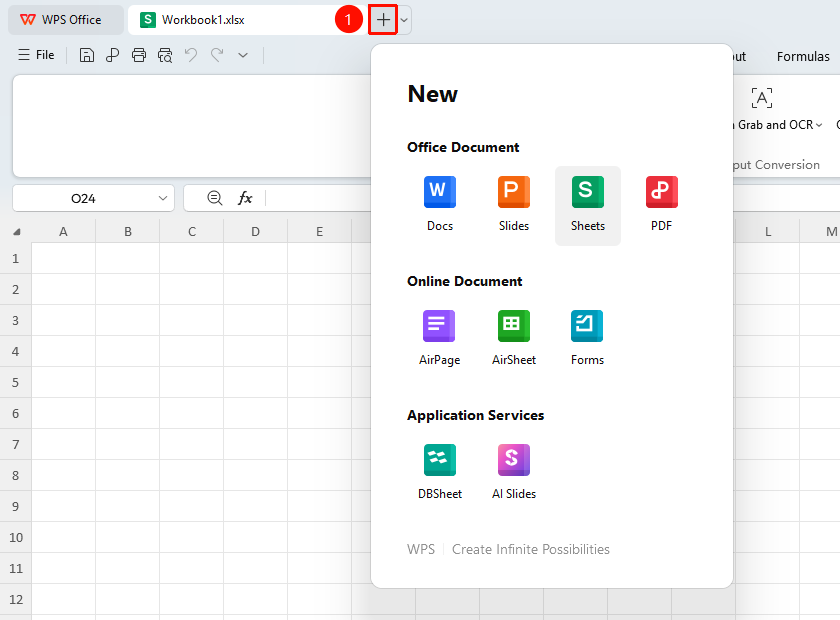
Tab bar at the top of the page
- In the open WPS software, click the + icon to the right of the current tab at the top tab bar
- In the pop-up panel, select "Spreadsheet"
Method 4: New via Shortcut Key (Fastest Method)
Press Ctrl + N within the document editing page
to directly create a blank spreadsheet without any mouse operation.
Method 5: New from Template
New from Online Template
Some templates require a membership to use. Before using, you can check the membership identifier on the template details page. If you need to use a paid template, you must activate the membership rights. Once activated, you can use paid template resources.
Feature Entry
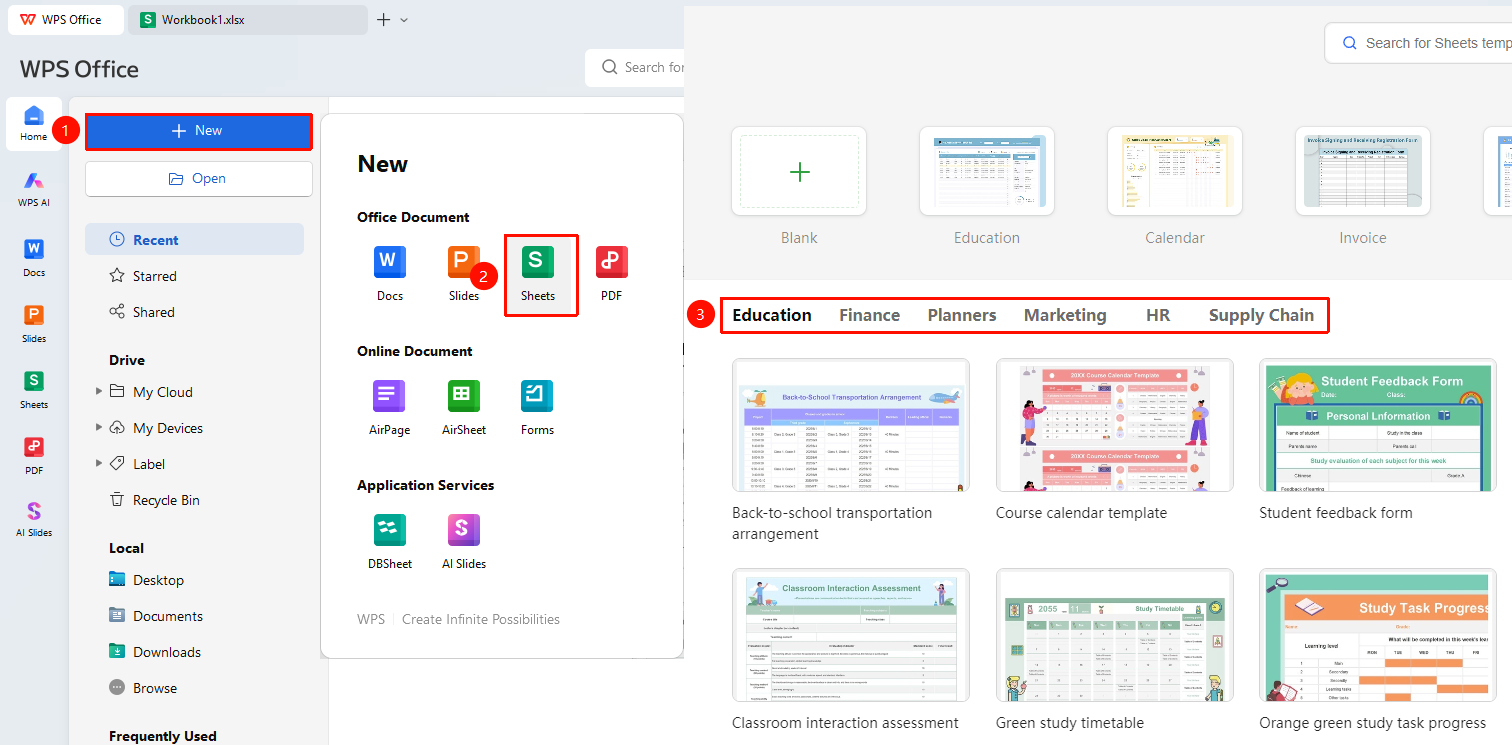
Homepage "New" → "Spreadsheet" → "Choose Template"
- After launching WPS, click "New" in the left navigation bar, select "Spreadsheet", and choose your preferred template to create
- Enter keywords in the search box, or browse by category
- After selecting the target template, click "Use Now" to automatically generate a new document based on the template, then modify the corresponding content
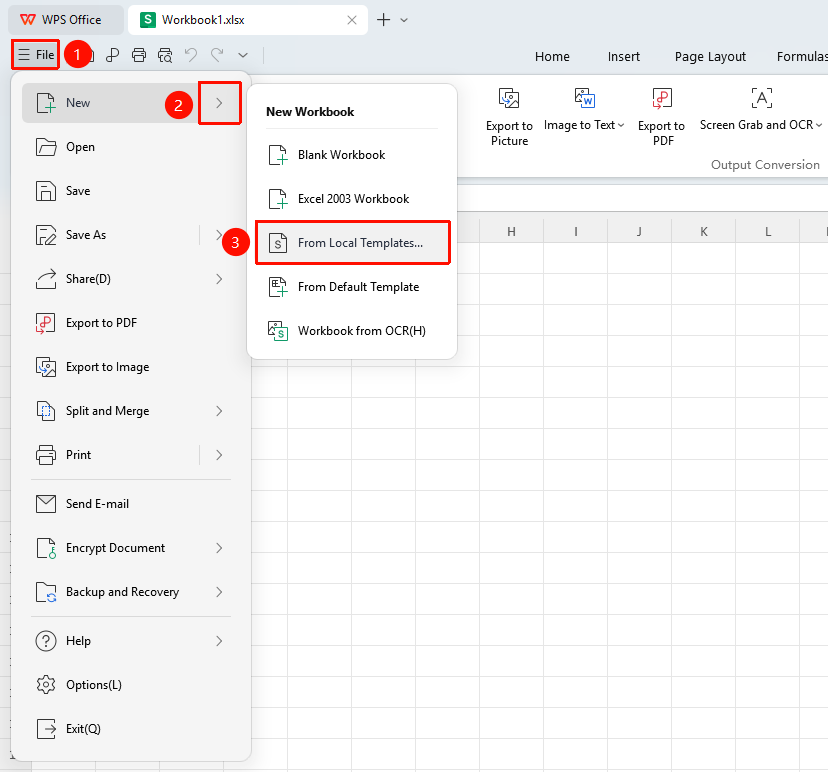
New from Local Template
Feature Entry
"File" button → "New" → "Local Templates"
- In any spreadsheet file, click the "File" menu in the upper left corner,
- In the drop-down list, select "New" → "Local Templates"
- Choose the desired template to create a new document
Notes
- It is recommended to save the new document promptly after creation
- Online templates require an internet connection to download
- Frequently used documents can be saved as templates