Feature Summary
The New Window feature is used to create a new window view for the current workbook. Both windows display different parts of the same document, making it convenient to view and edit simultaneously.
Feature Description
| Feature Dimension | Description |
|---|---|
| Membership Restriction | No membership restriction |
| Version Restriction | No version restriction |
Steps
Create a New Window
Feature Entry
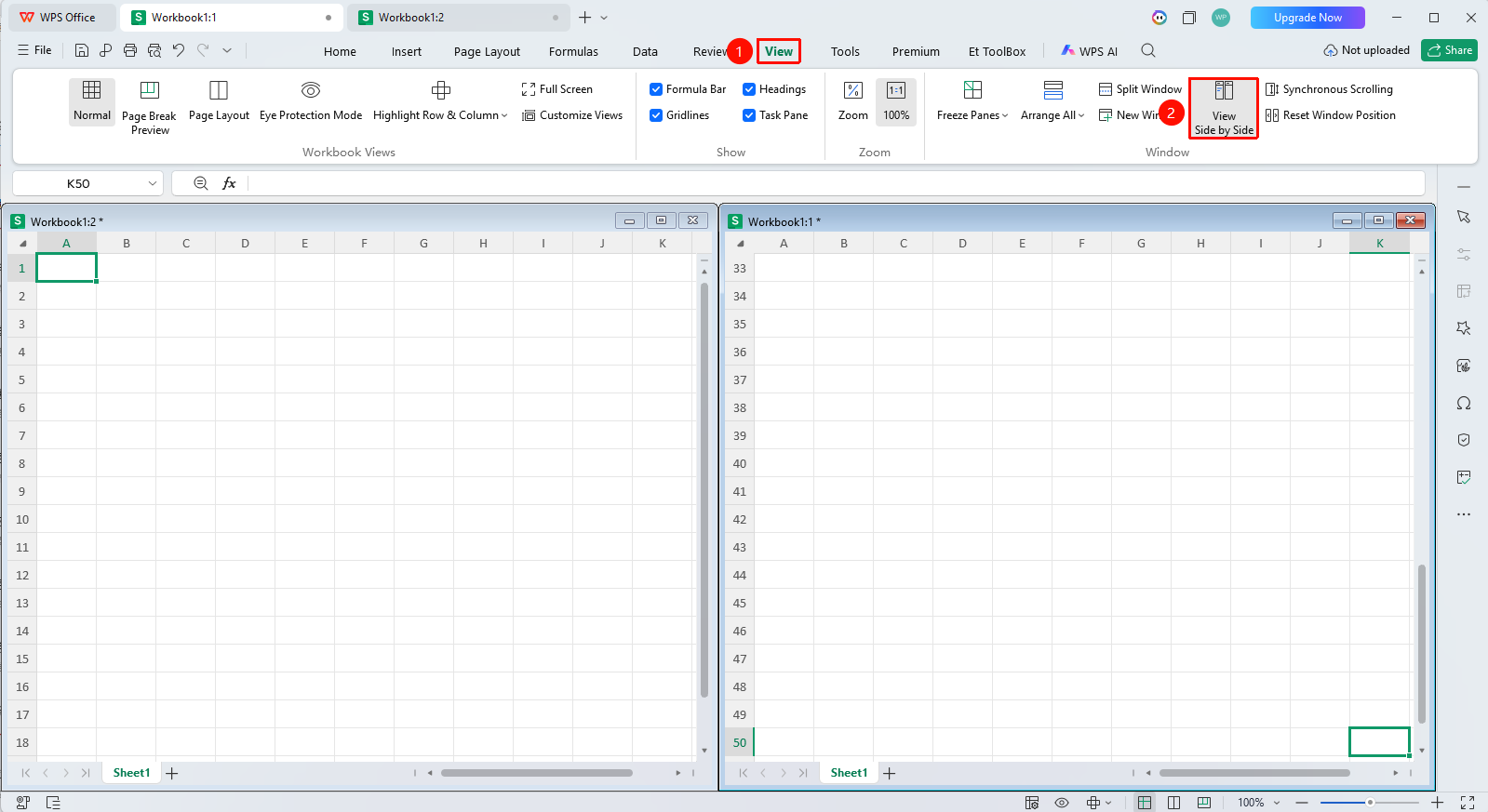
"View" tab → "New Window"
- Click the View tab
- Click the New Window button
- The system creates a new window for the same workbook
- The window titles are displayed as "File Name:1" and "File Name:2"
- When multiple files are open, all open spreadsheet file windows will be displayed
View Different Areas in Different Windows
Feature Entry
Each window
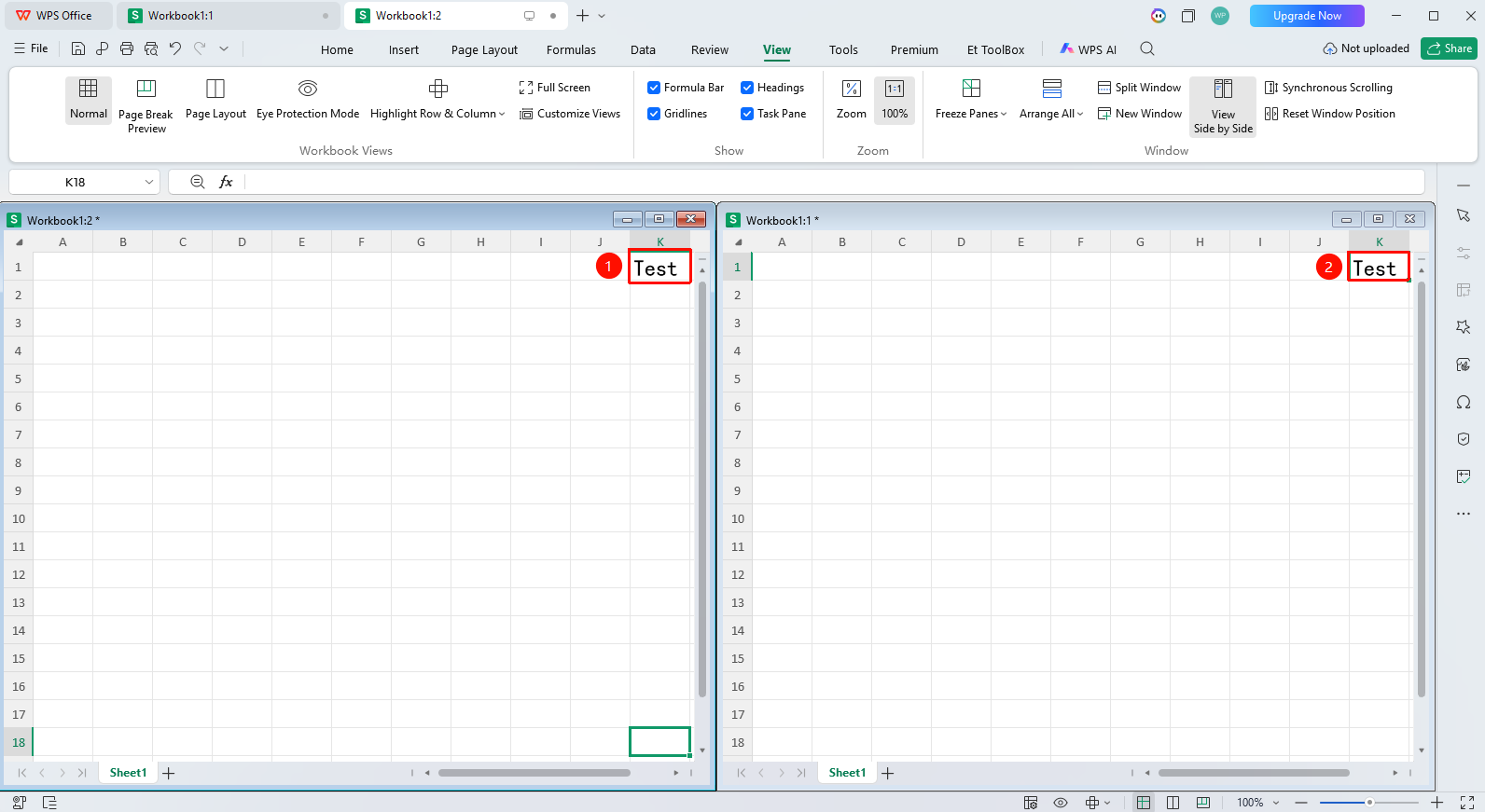
- In the first window, scroll to the area you want to view
- In the second window, scroll to another area
- Both windows can be operated independently
- Modifications are synchronized to both windows
Close the New Window
Feature Entry
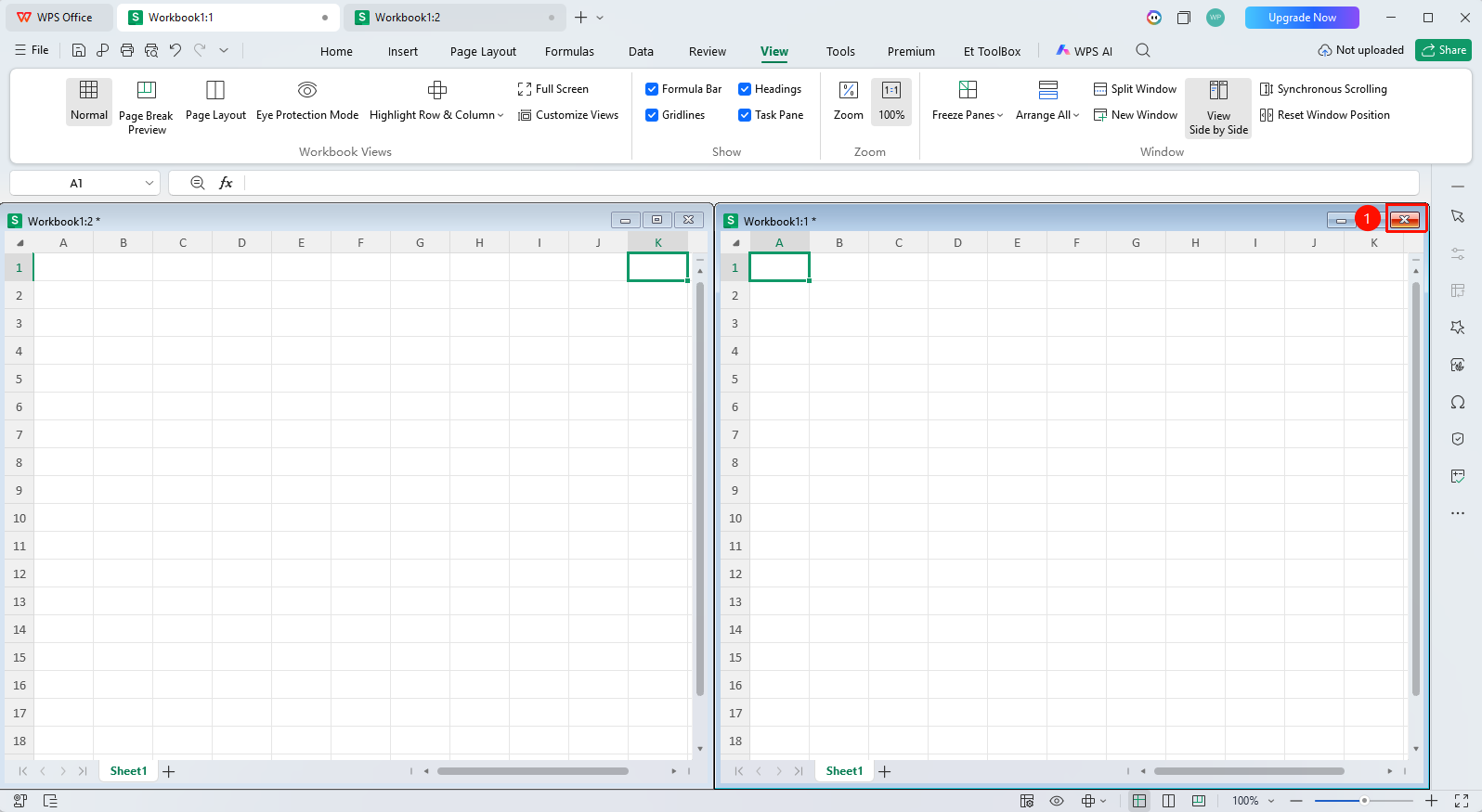
Window close button
- Click the close button of the new window
- Only the new window is closed, without affecting the original window
- Alternatively, when closing the original window, a save prompt will appear
FAQ
Q1: What should I do if modifications are not synchronized after creating a new window?
- Solution: The new window displays the same document, so modifications are automatically synchronized. If they are not synchronized, please check whether different files have been opened.
Q2: How to distinguish which is the original window?
- Solution: In the window title, ":1" indicates the original window, and ":2" indicates the new window.
Notes
- The new window and the original window are two views of the same document
- Modifications in any window will be reflected in the other window
- You can use the Arrange Windows feature to display both windows simultaneously