Feature Summary
When you need to export a WPS Sheets document to PDF format for sharing, printing, or archiving, WPS can help you quickly complete the PDF format conversion, ensuring a fixed document format and consistent display across platforms.
Feature Description
| Feature Dimension | Description |
|---|---|
| Membership Restriction | Some features require a membership to use |
| Version Restriction | No version restriction |
Operation Steps
Some features require a membership to use. Before use, you can check the membership identifier of the feature.
Method 1: Export via the "Member Exclusive" Menu
Feature Entry
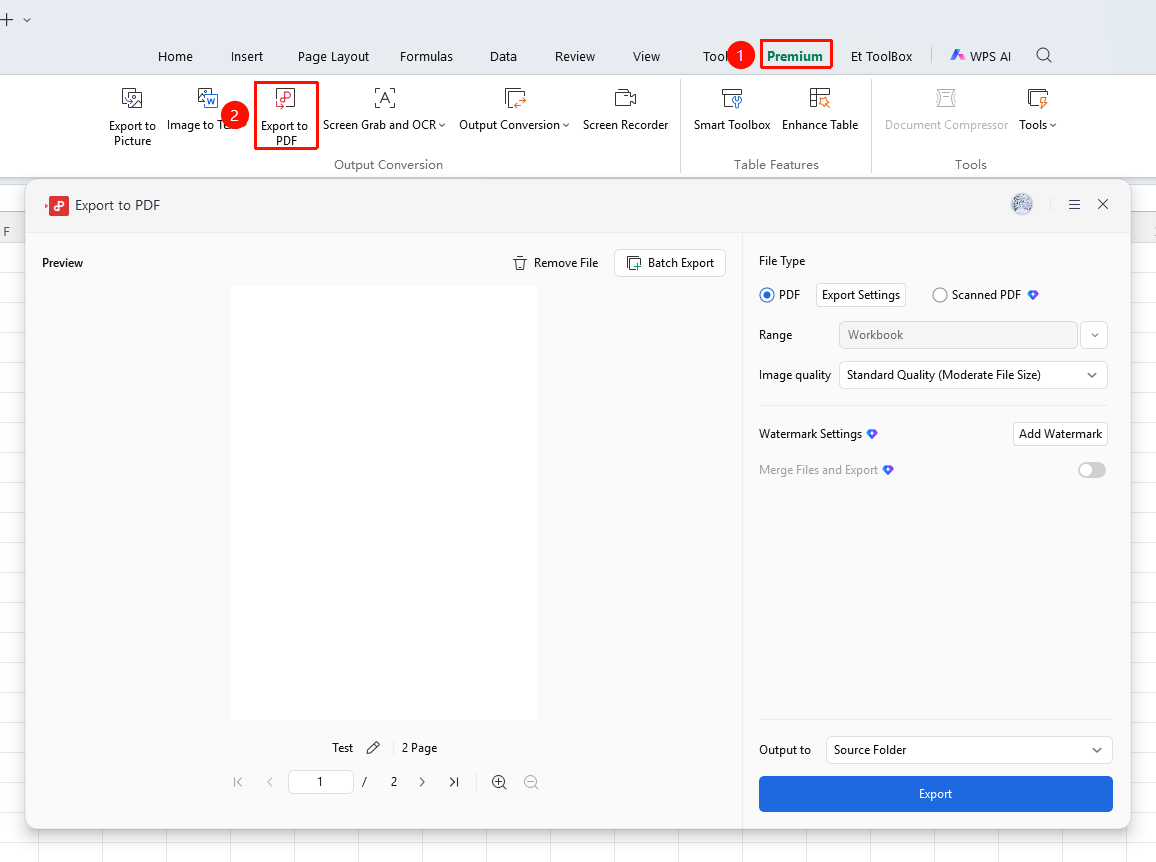
Open the spreadsheet → "Member Exclusive" tab → "Export to PDF"
- Use WPS Office to open the spreadsheet you need to convert
- Click the "Member Exclusive" tab in the top menu bar
- Click "Export to PDF"
- In the pop-up dialog, you can set options such as export range, image quality, and save path
- Click "Start Export" to complete the export
Method 2: Export via the "File" Menu
Feature Entry
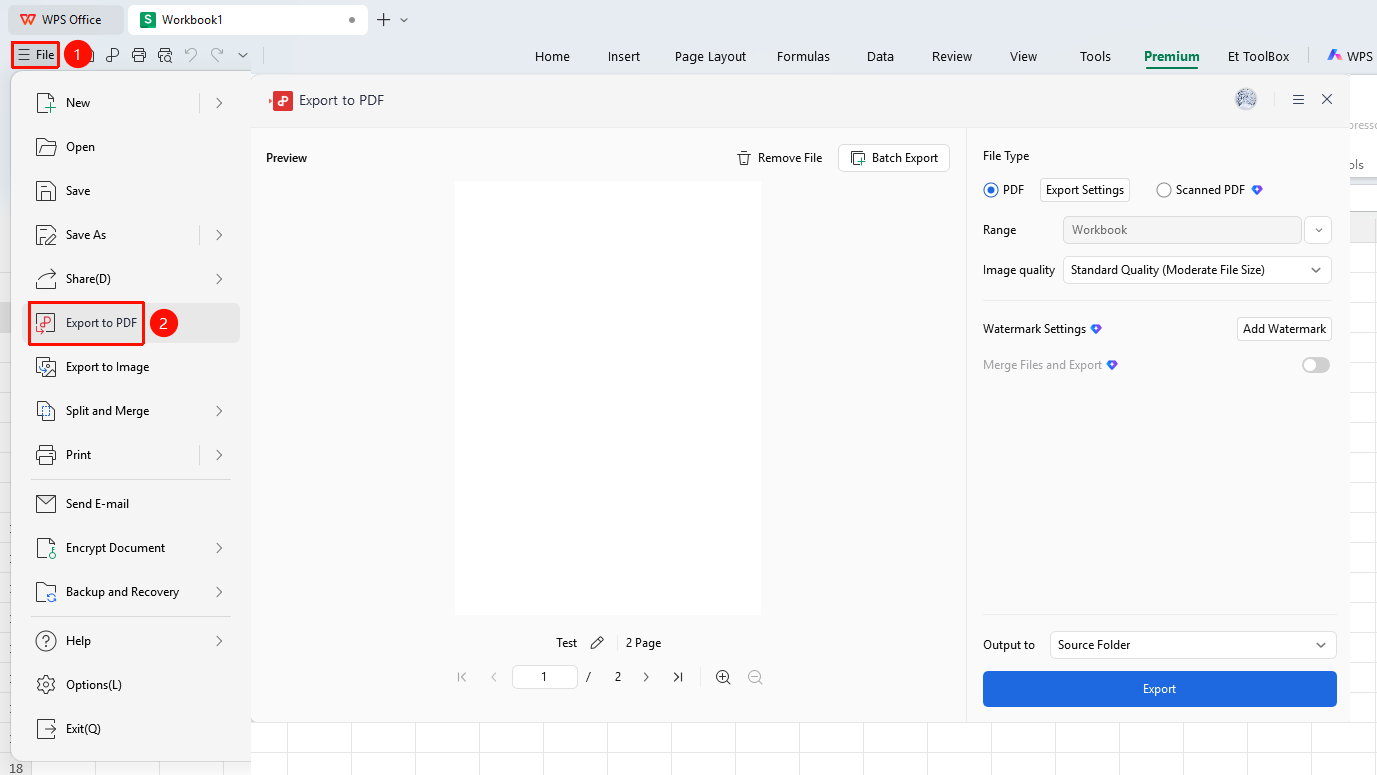
Open the spreadsheet → "File" menu in the upper left corner → "Export to PDF"
- Use WPS Office to open the spreadsheet you need to convert
- Click the "File" menu in the upper left corner
- Select "Export to PDF"
- After setting the export parameters, click "Start Export"
Method 3: Export by Right-Clicking the File
Feature Entry
On the computer desktop or in a folder, right-click the spreadsheet you want to export to PDF, and click "Convert to PDF Format" in the menu
Advanced Settings
Feature Entry
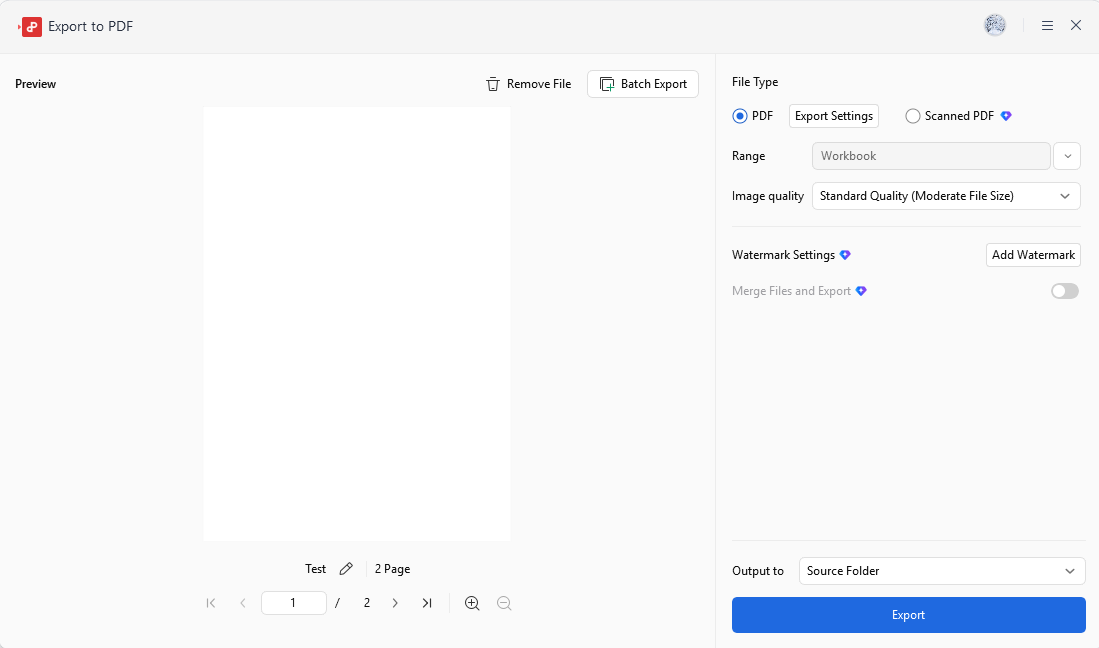
The Export to PDF settings window
In the Export to PDF dialog, click the following settings to configure:
- Multi-File Export (Membership required): Select this to export multiple spreadsheets into one PDF
- Scanned PDF (Membership required): Select this to convert the file into a scanned PDF, which helps protect document content
- Export Range: You can choose to export the entire workbook / current worksheet / custom (multiple selections allowed)
- Export Settings: You can set whether to export content such as comments and author information within the document, and encrypt the exported PDF document
- Image Quality: You can choose High Definition / Standard / Low Quality. The higher the quality, the larger the converted file size
- Watermark Settings (Membership required): You can set a watermark to be added to the generated file
Notes
- After outputting as a scanned PDF file, the document format will be fixed and cannot be directly edited. If editing is required, please keep the original document.
- PDF password protection can be set to secure the document.
- It is recommended to preview the print effect before outputting, or check the preview in the output interface.