Feature Summary
The WPS Slides local mode task pane is located on the right side of the window, providing detailed settings panels for properties, animations, transitions, and other features.
Feature Description
| Feature Dimension | Description |
|---|---|
| Membership Restriction | No membership restriction |
| Version Restriction | No version restriction |
Operation Steps
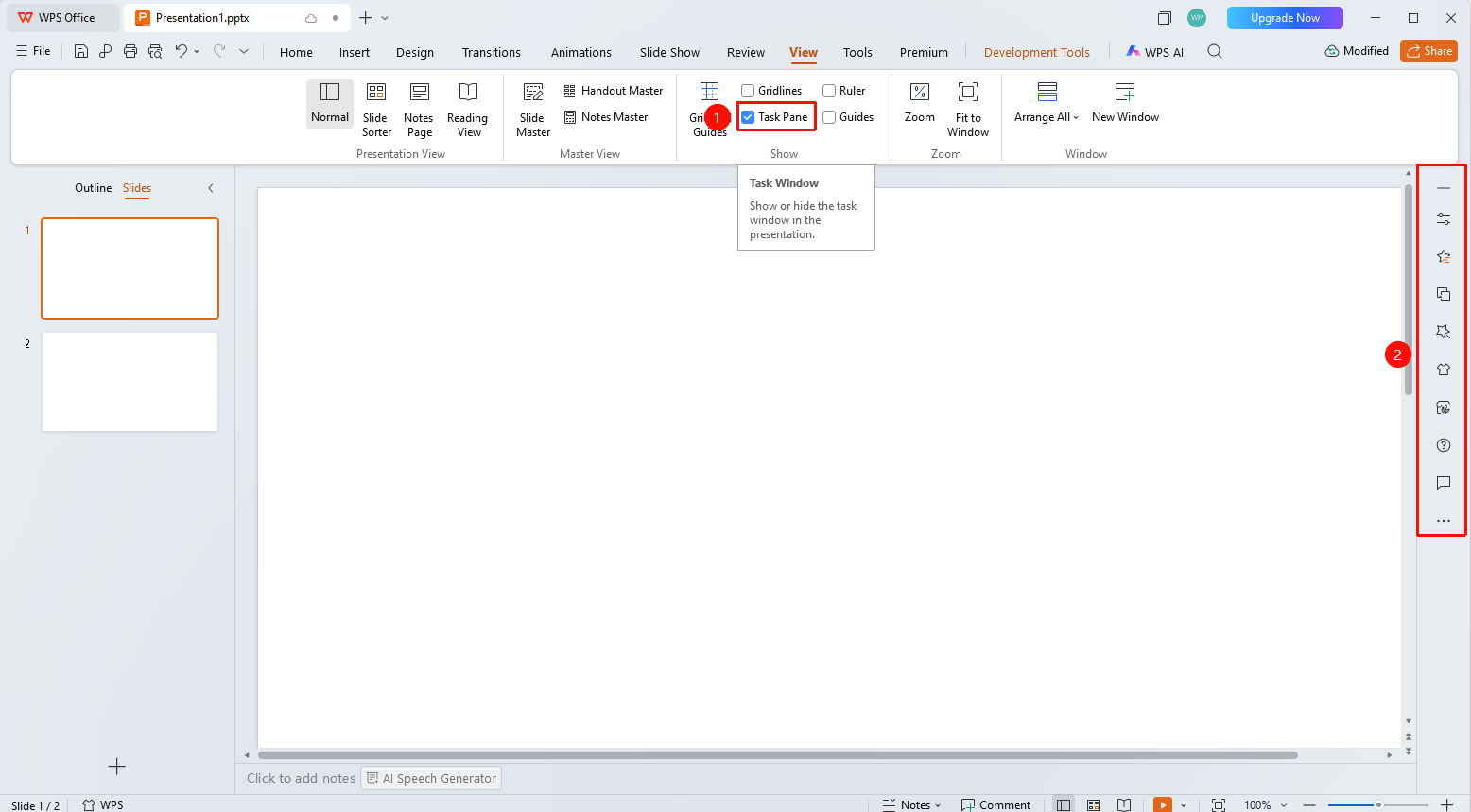
Open the Task Pane via the View Tab
Feature Entry
"View" tab → "Task Pane" checkbox
- Click the "View" tab in the top menu bar
- Check the "Task Pane" checkbox
- The task pane panel will appear on the right side of the window, allowing you to switch between different function panels
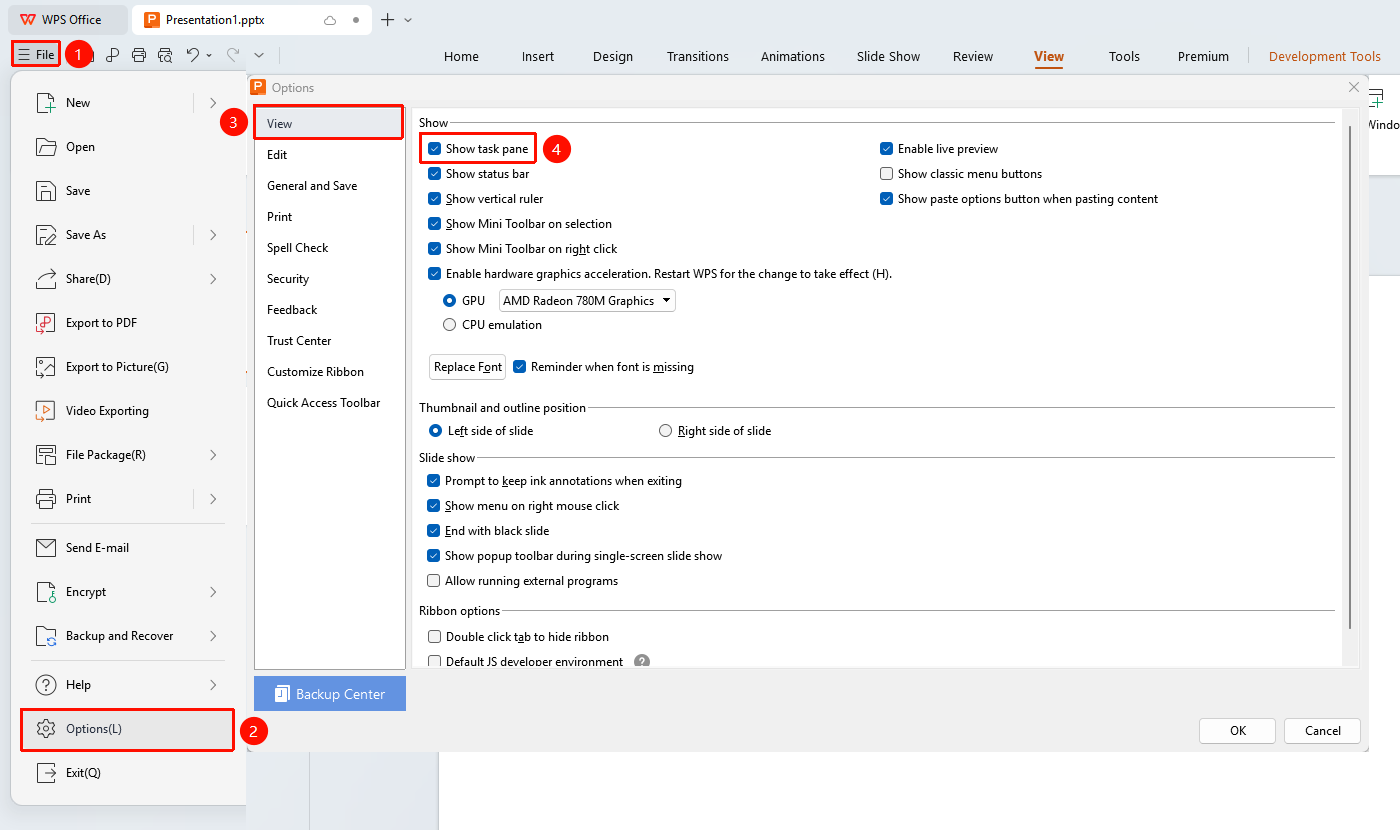
Open the Task Pane via WPS Presentation Options Settings
Feature Entry
Top-left "File" option → "Options" button → "View" tab → "Task Pane"
- Click the "File" option in the top-left corner
- Click the "Options" button
- Select the "View" tab on the left side
- Check the "Task Pane" checkbox
- The task pane panel will appear on the right side of the window, allowing you to switch between different function panels
Frequently Asked Questions
Q1: Can the task pane be closed?
- Solution: Uncheck the Task Pane option in the View tab, or click the close button in the upper-right corner of the panel.
Q2: What should I do if the task pane blocks the editing area?
- Solution: You can drag the edge of the task pane to adjust its width, or temporarily close the task pane.