Feature Summary
WPS Slides local mode supports saving the current document or saving it as a new file to ensure your work is not lost.
Feature Description
| Feature Dimension | Description |
|---|---|
| Membership Restriction | No membership restriction |
| Version Restriction | No version restriction |
Operation Steps
Save via Menu Bar
Feature Entry
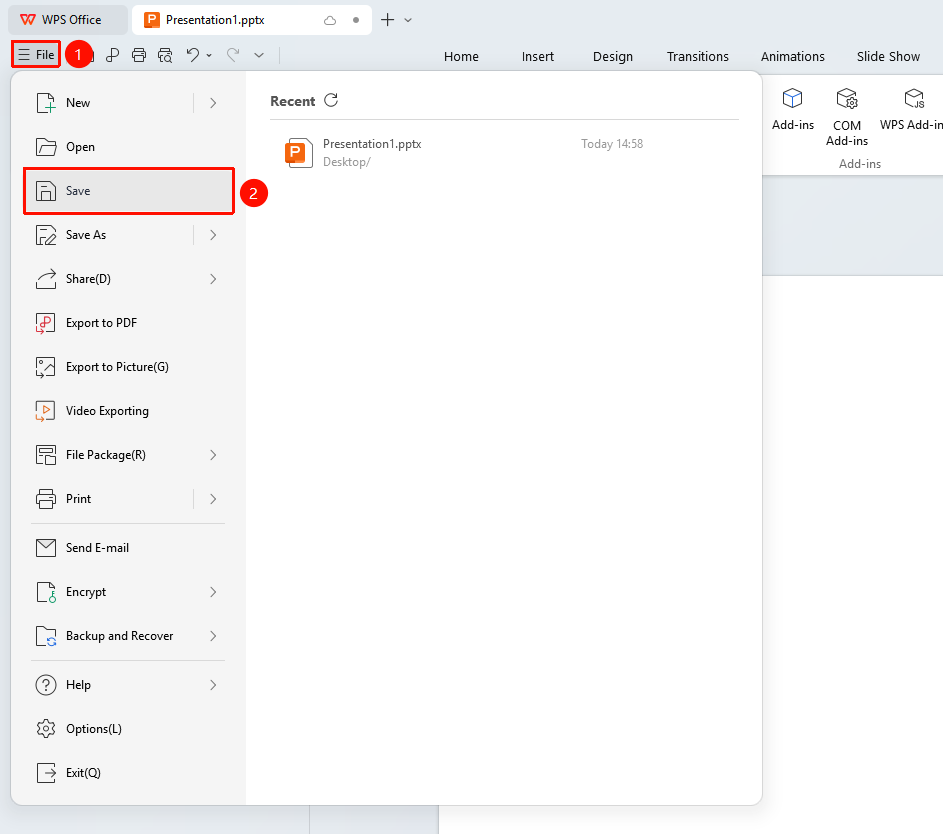
"File" menu → "Save" button
- Click the "File" menu in the upper left corner
- Click the "Save" button
- The Save As dialog box will pop up upon the first save
- Choose a save location and enter a file name
- Click the "Save" button to complete saving
Save via Shortcut Key
Feature Entry
Keyboard shortcut: Windows: Ctrl+S, Mac: Cmd+S
- Press the Windows:
Ctrl+S(Mac:Cmd+S) shortcut key - If it is a new document, the Save As dialog box will pop up
- Choose a save location and enter a file name
- Click the "Save" button
Save as New File
Feature Entry
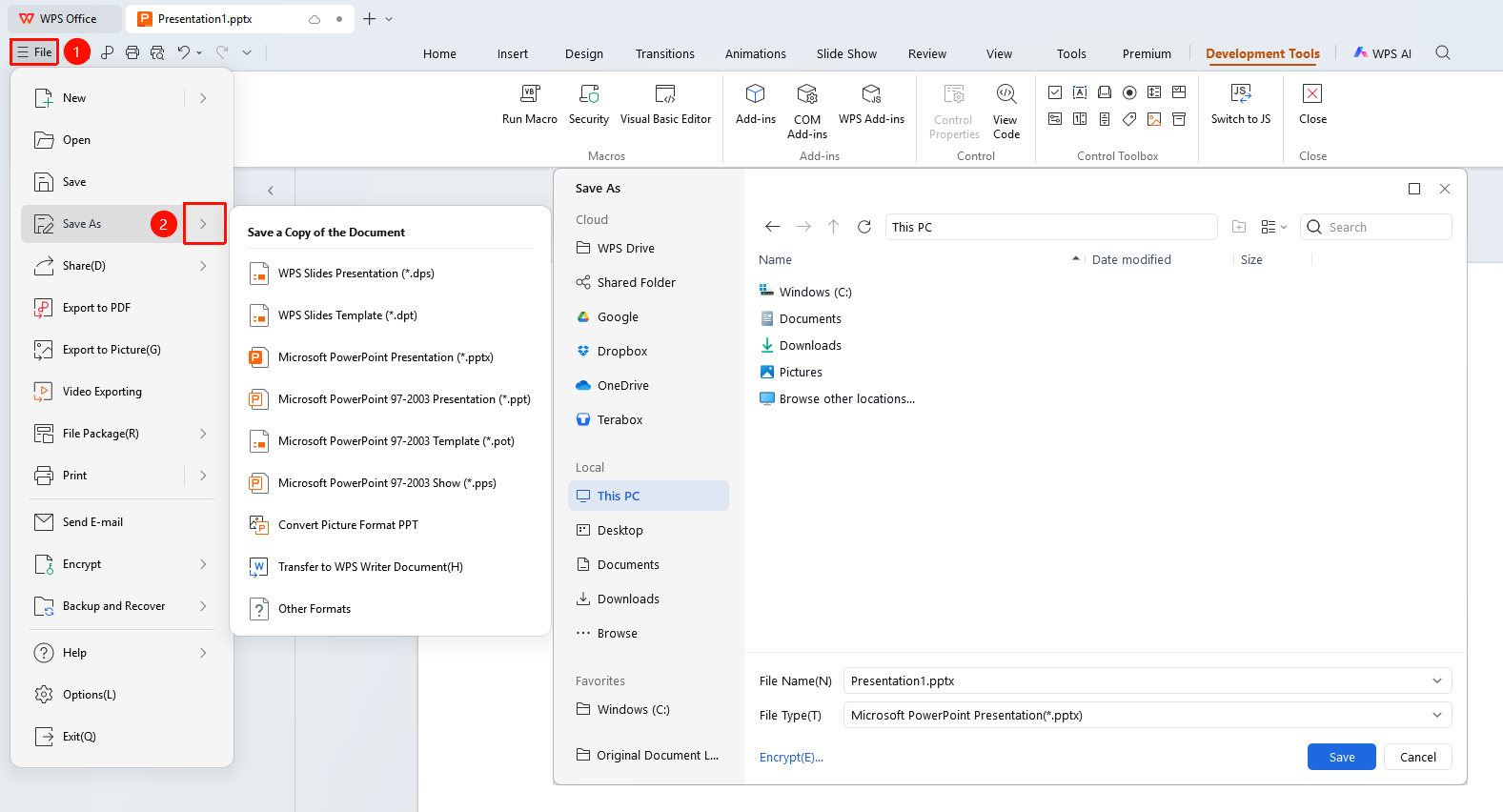
"File" menu → "Save As" button
- Click the "File" menu
- Click the "Save As" button
- Choose a new save location
- Enter a new file name
- Click the "Save" button
Frequently Asked Questions
Q1: What is the difference between Save and Save As?
- Solution: Save overwrites the original file, while Save As creates a new file and leaves the original file unchanged.
Q2: What should I do if a file-in-use prompt appears when saving?
- Solution: Close other programs that may be using the file, or save the file under a different name.
Precautions
- It is recommended to save documents frequently to avoid data loss
- It is recommended to use Save As to create backup copies for important documents