Feature Summary
WPS Slides local mode supports encrypting documents to prevent unauthorized access.
Feature Description
| Feature Dimension | Description |
|---|---|
| Membership Restriction | No membership restriction |
| Version Restriction | No version restriction |
Operation Steps
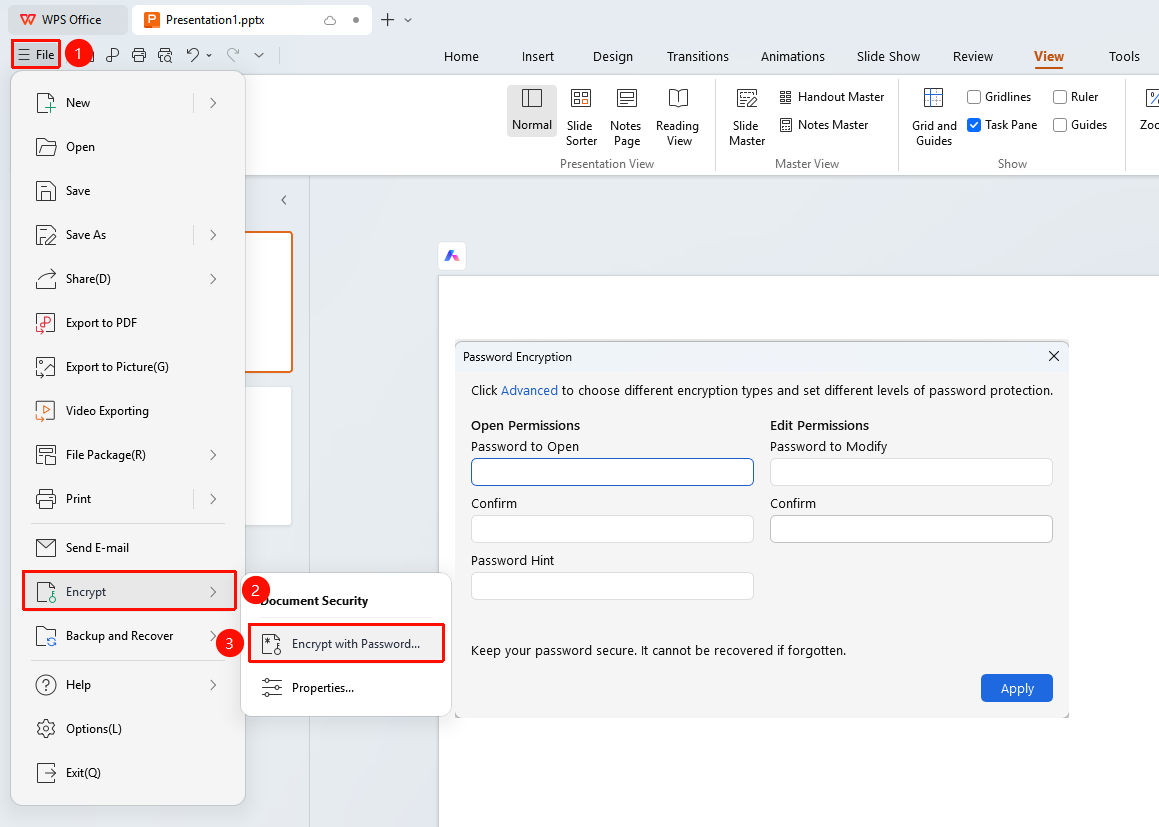
Encrypt via File Menu
Feature Entry
"File" menu → "Document Encryption" button
- Click the "File" menu
- Click the "Document Encryption" button
- Set a password in the pop-up dialog box
- Confirm the password and click the "OK" button
Encrypt via File Options
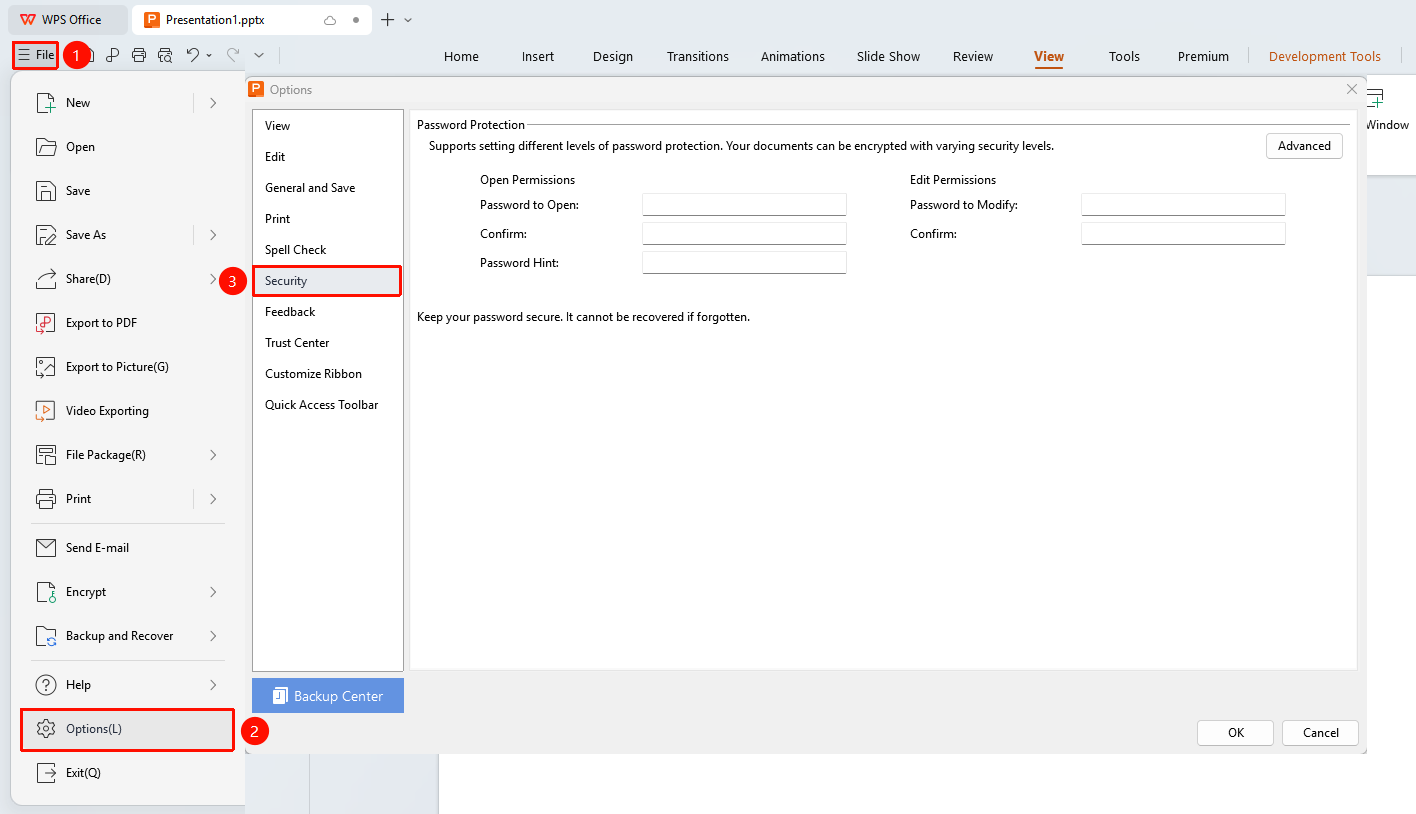
Feature Entry
"File" menu → "Options" button → "Security" tab
- Click the "File" menu in the upper left corner
- Select the "Options" button
- Click the "Security" tab on the left
- Set a password and confirm
FAQ
Q1: What should I do if I forget the password?
- Solution: The password cannot be recovered. It is recommended to save the password in a safe place.
Q2: How do I remove the document password?
- Solution: After opening the document, go to the document encryption settings, clear the password, and save.
Q3: Can I still edit the document after setting a password?
- Solution: You can edit normally after entering the correct password. The password prevents unauthorized access.
Notes
- Please keep the password safe. The document cannot be recovered if the password is forgotten.
- It is recommended to use a complex password to enhance security.