Feature Summary
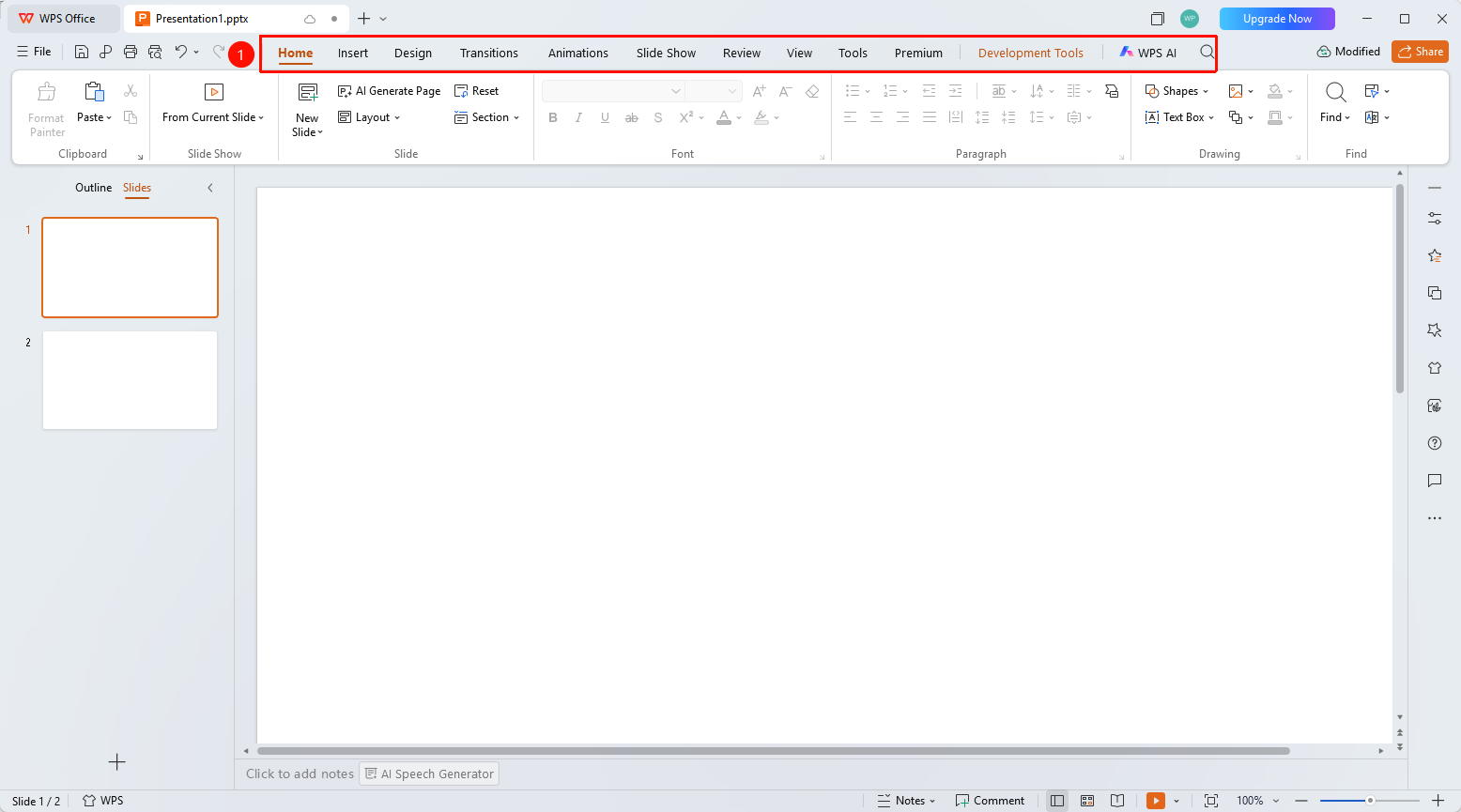
The WPS Slides local mode menu bar includes tabs such as File, Home, Insert, Design, Transitions, Animations, Slide Show, Review, View, and Tools.
Feature Description
| Feature Dimension | Description |
|---|---|
| Membership Restrictions | No membership restrictions |
| Version Restrictions | No version restrictions |
Operation Steps
Viewing the Menu Bar
Feature Entry
Below the title bar
- The menu bar contains multiple tabs, each corresponding to a different functional category
- Click different tabs to switch and display the corresponding function buttons
- Commonly used tabs include: Home, Insert, Design, Transitions, Animations, Slide Show, etc.
Frequently Asked Questions
Q1: What should I do if some buttons in the menu bar are grayed out?
- Solution: Grayed-out buttons indicate that they are unavailable in the current state. You need to select the corresponding object first to use them.
Q2: How do I customize the menu bar?
- Solution: You can customize the toolbar display content through the right-click menu or Options settings.
Q3: Can the menu bar be hidden?
- Solution: You can press the Ctrl+F1 shortcut to collapse or expand the ribbon.
Notes
- The menu bar is the primary operation entry point for WPS Slides
- Different tabs provide different functions; it is recommended to become familiar with the commonly used tabs