Feature Summary
WPS Slides local mode supports exporting slides to PDF format for easy sharing and printing.
Feature Description
| Feature Dimension | Description |
|---|---|
| Membership Restriction | Some features require a membership |
| Version Restriction | No version restriction |
Operation Steps
Export via File Menu
Feature Entry
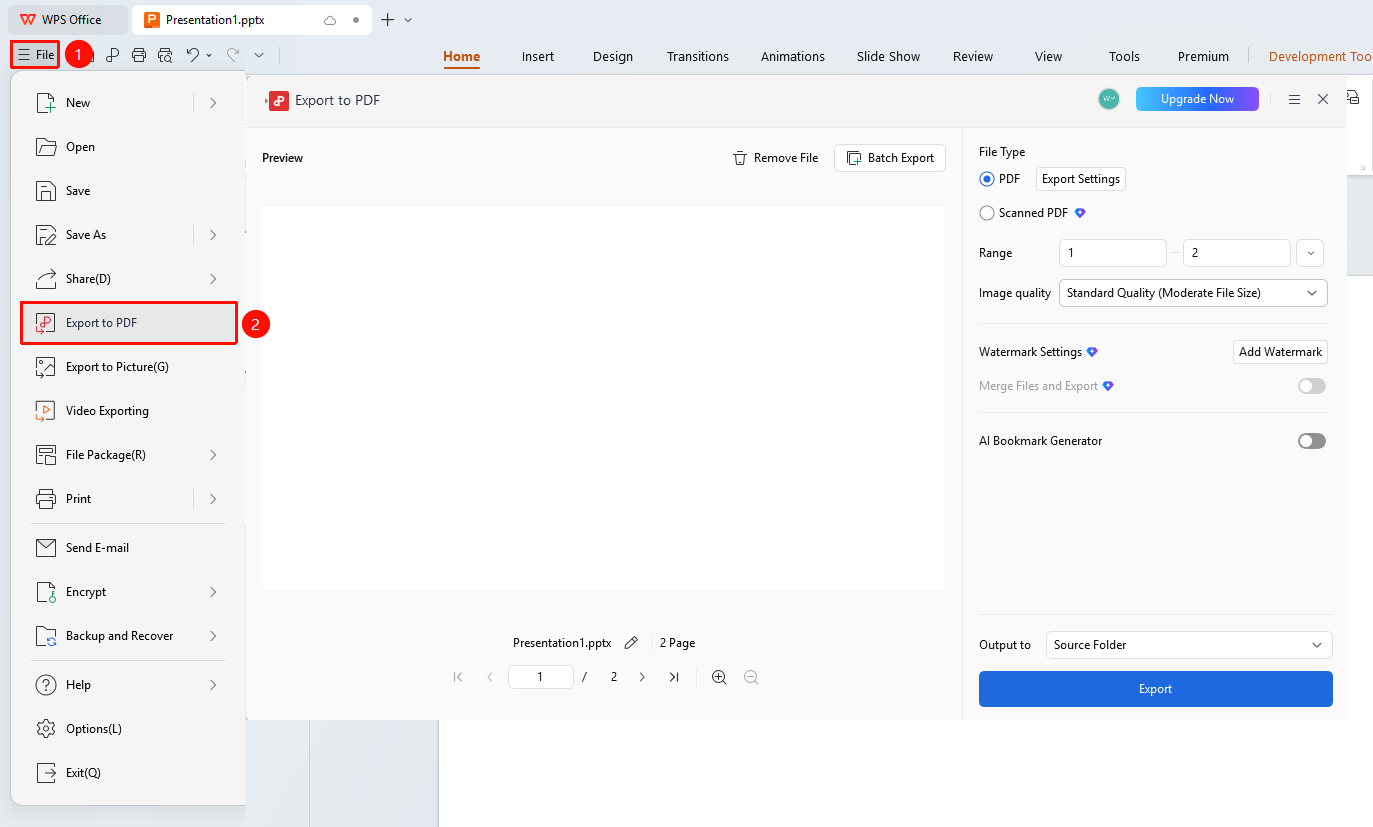
"File" menu → "Export to PDF" button
- Click the "File" menu
- Click the "Export to PDF" button
- Select the output location
- Set the export range (All / Current / Specified Pages)
- Click the "Start Export" button
Set Export Options
Feature Entry
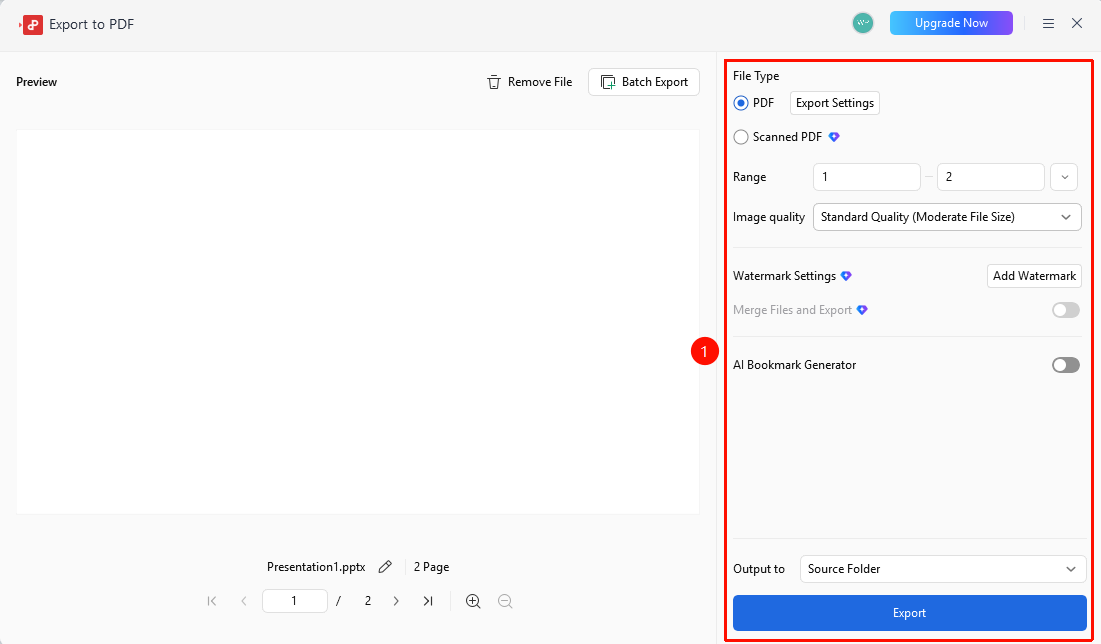
Export to PDF dialog → Export Settings
- Open the Export to PDF dialog
- Click the "Export Settings" option
- You can set the image quality (Standard / High Quality)
- You can set whether to encrypt the PDF
- Confirm the settings and export
FAQ
Q1: What should I do if the exported PDF file is too large?
- Solution: Reduce the image quality in the export settings to decrease the file size.
Q2: How do I export only some of the slides?
- Solution: Select "Specified Pages" in the export range and enter the page range you want to export.
Q3: Can the exported PDF be edited?
- Solution: PDF is a fixed-format file and requires specialized PDF editing tools to modify.
Notes
- PDF format is suitable for sharing and printing
- If you need to edit the content, it is recommended to keep the original PPT file