Feature Summary
After you finish editing a document and need to store the content securely or share it with others, the save and export features in WPS Docs allow you to flexibly save files locally or to the cloud, and support exporting to various formats such as PDF, Word, and TXT.
- Multiple saving methods (shortcut keys, menus, buttons) for convenient operation
- Supports local saving and cloud saving; cloud storage enables multi-device sync and version rollback
- Rich export formats (PDF, Word, TXT, HTML, etc.) to meet different scenario requirements
Feature Description
| Feature Dimension | Description |
|---|---|
| Membership Restriction | No membership restriction |
| Version Restriction | No version restriction |
| Save Shortcut Key | Ctrl+S |
Steps
Save File via Button
Feature Entry
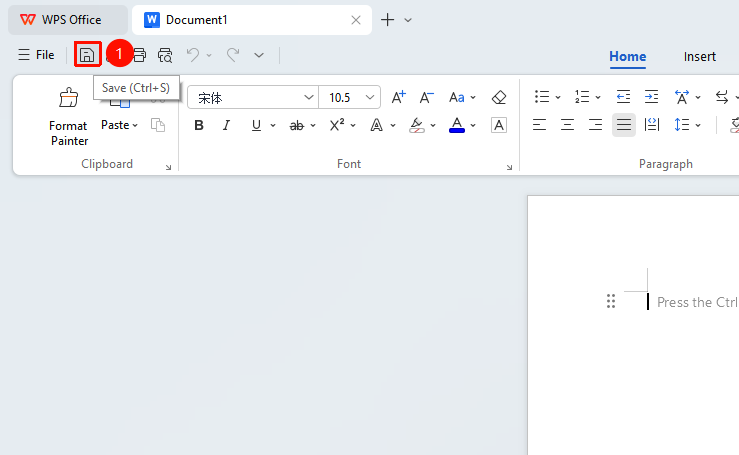
Quick Access Toolbar in the upper-left corner → "Save" button (icon shaped like a floppy disk)
- Save via button: Click the floppy disk icon button on the Quick Access Toolbar in the upper-left corner to save quickly.
Save File via Menu
Feature Entry
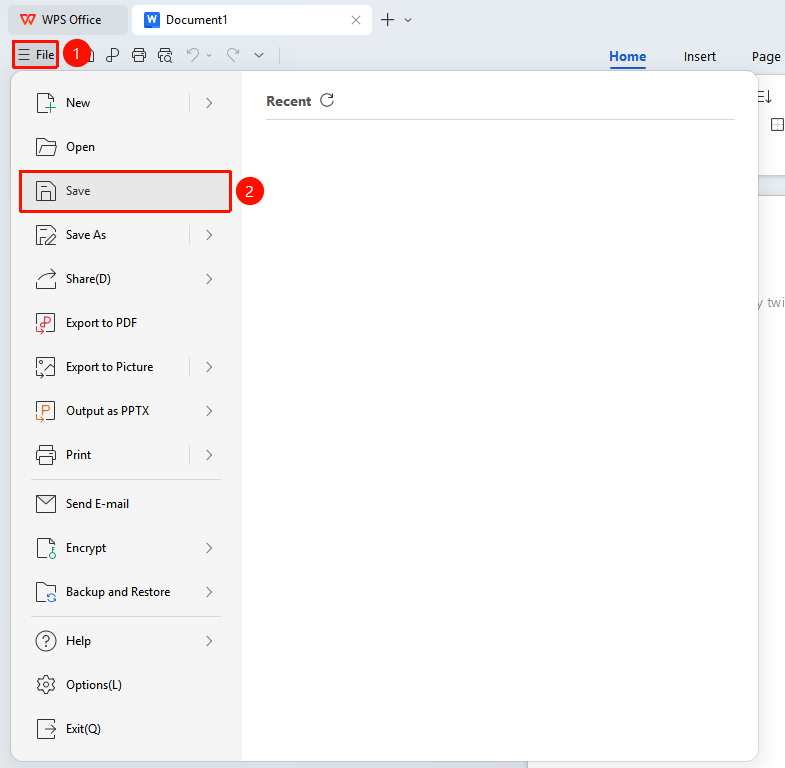
"File" menu → "Save" button
- Click the File menu in the upper-left corner
- Select the "Save" button
Save As
Feature Entry
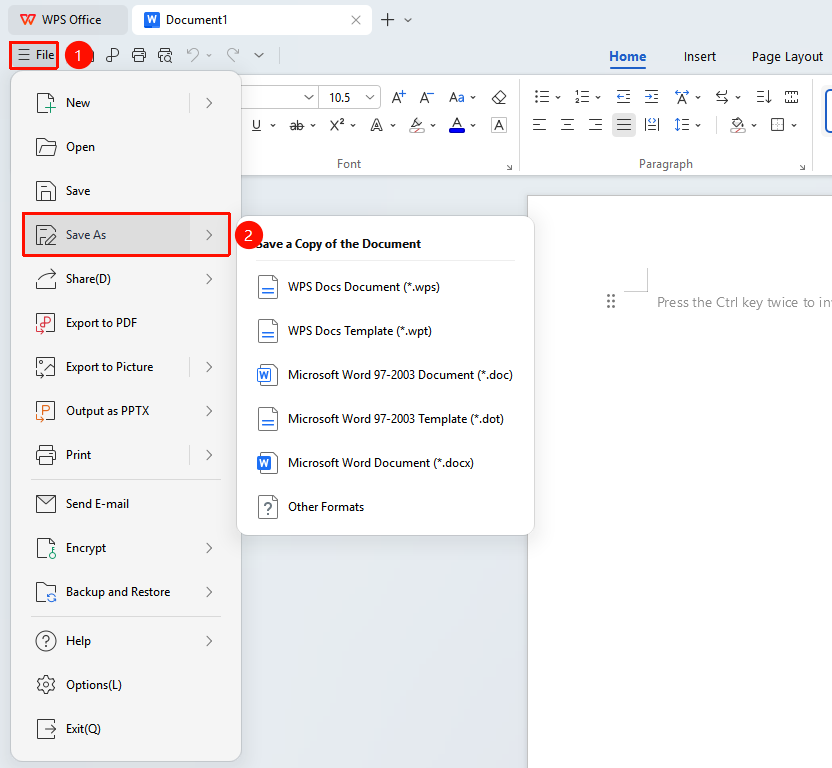
"File" menu → "Save As" button
- Click "File" menu
- Select "Save As"
- Customize the file name and storage path
- Select the target format in "Save as type" (.docx, .wps, .pdf, .txt, .dot, .wpt, .html, etc.)
- Click "OK"
Frequently Asked Questions
Q1: What is the difference between cloud documents and local documents?
- Solution:
- Cloud documents support automatic content saving, multi-device access, multi-person collaborative editing, and historical version rollback;
- Local documents are stored only on the current device, suitable for offline use or scenarios with higher privacy requirements.
Q2: What should I do if the file fails to save?
- Solution:
- Check the error popup window to see the specific failure reason, and ensure there is sufficient space in the save path;
- Keep document cloud sync turned on to achieve real-time cloud backup and facilitate version rollback.
Q3: Can a newly created document be output in other formats?
- Solution: Yes. Click "File" menu → "Export As", select the target format (PDF, PPTX, etc.) to complete the conversion.
Notes
- When exporting to the older .doc format, some new features (such as SmartArt) may not be preserved. It is recommended to prioritize using the .docx format.
- When sharing exported PDF files, if they contain sensitive information, you can set an open password for protection.