Interface Layout and Ribbon Overview
WPS Writer adopts a modern "Tab + Ribbon" interface design. The overall layout is clear and intuitive, mainly consisting of the following areas:
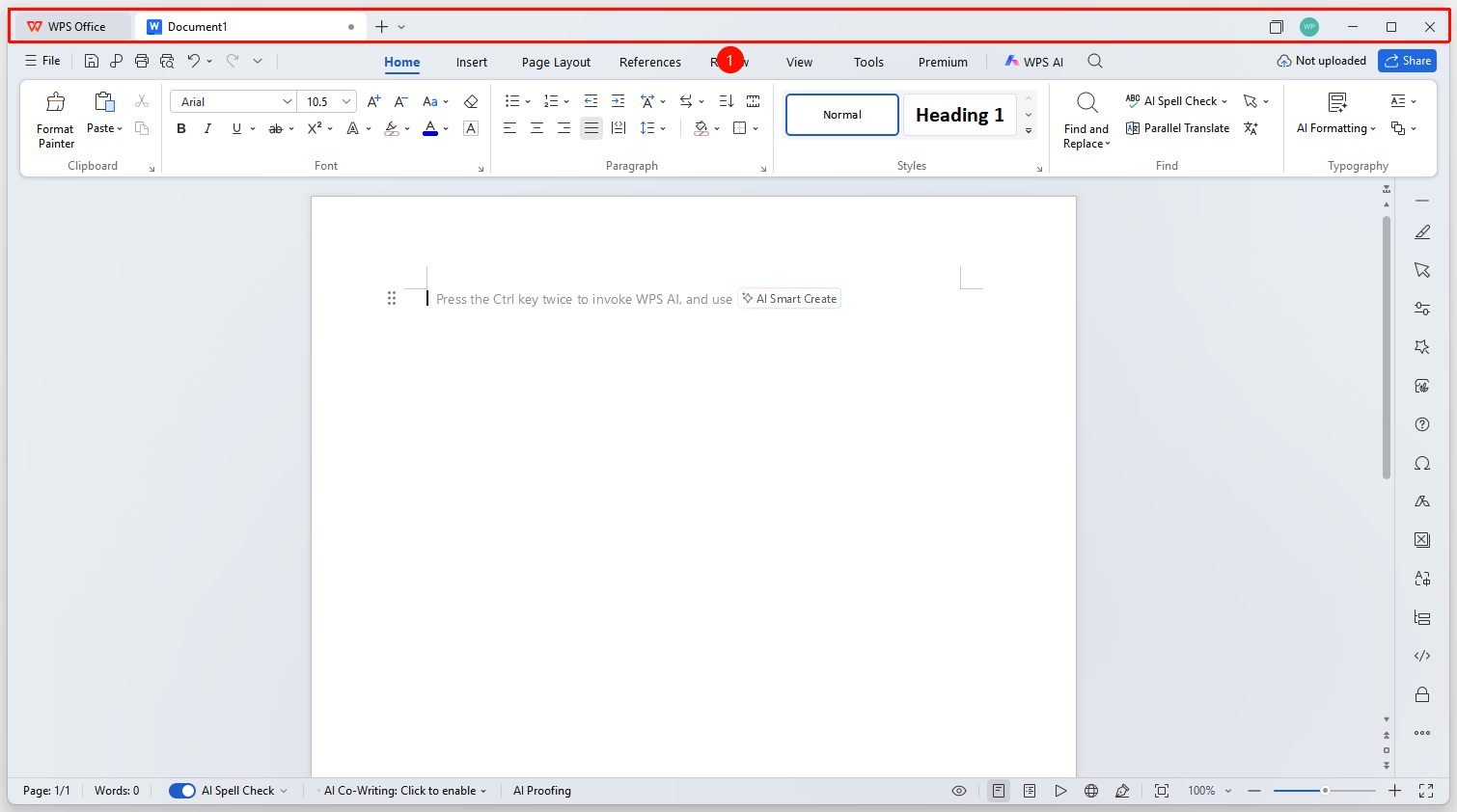
Title Bar
Located at the very top of the interface, it displays the current document name and program identifier. On the left is the WPS Docs program icon; clicking it expands a drop-down menu providing quick actions such as "Export to PDF" and "Save As". On the right are the Minimize, Maximize/Restore, and Close window buttons.
Menu Bar
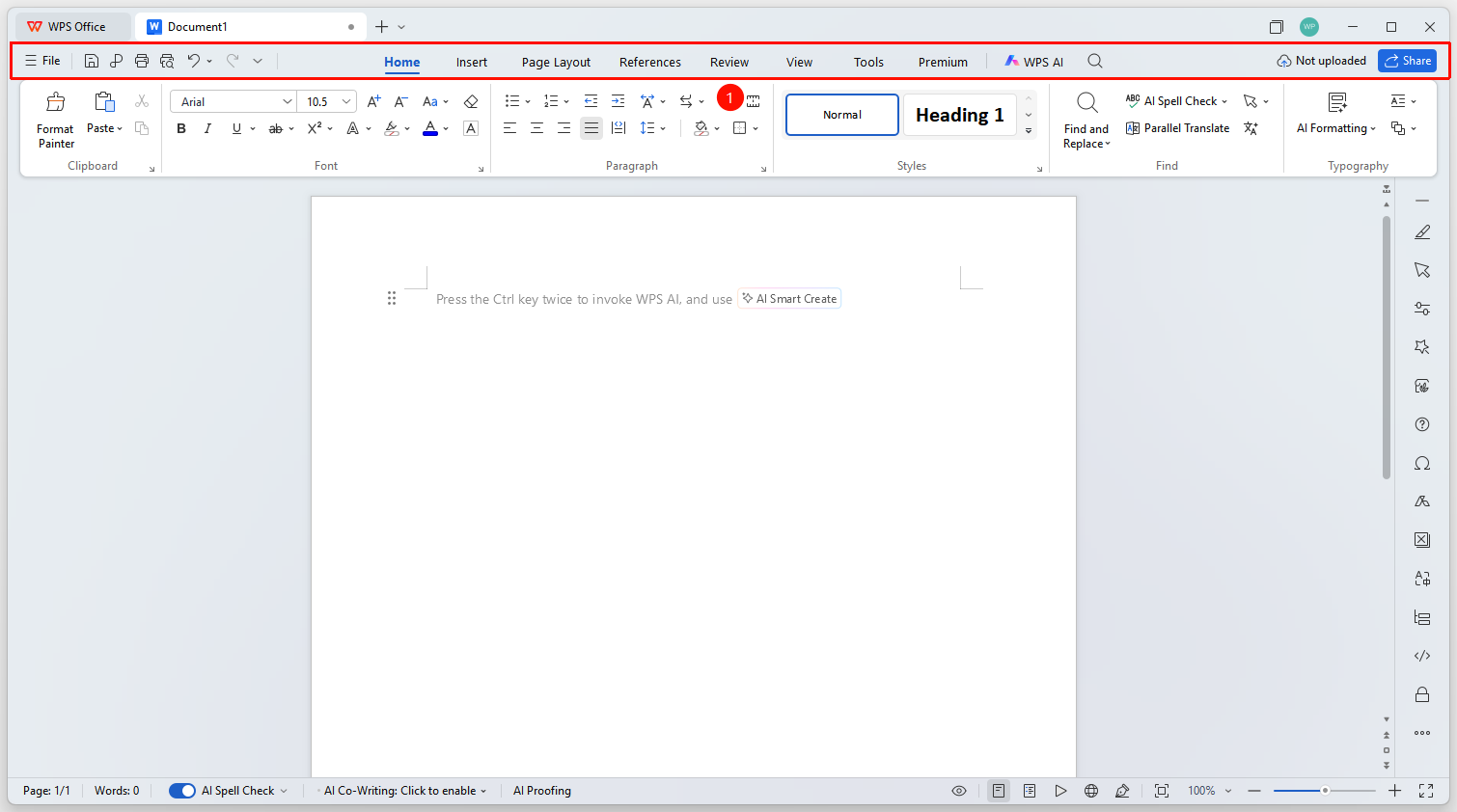
Located below the Title Bar (or in the upper-left corner), it contains common commands such as "Save", "Undo", and "Redo" by default.
You can click the drop-down arrow on the Quick Access Toolbar to customize and add frequently used function buttons, such as "New", "Open", and "Export to PDF", placing high-frequency operations at your fingertips to improve efficiency.
In the middle are common function tabs, such as "Home", "Insert", and "Page Layout".
Ribbon
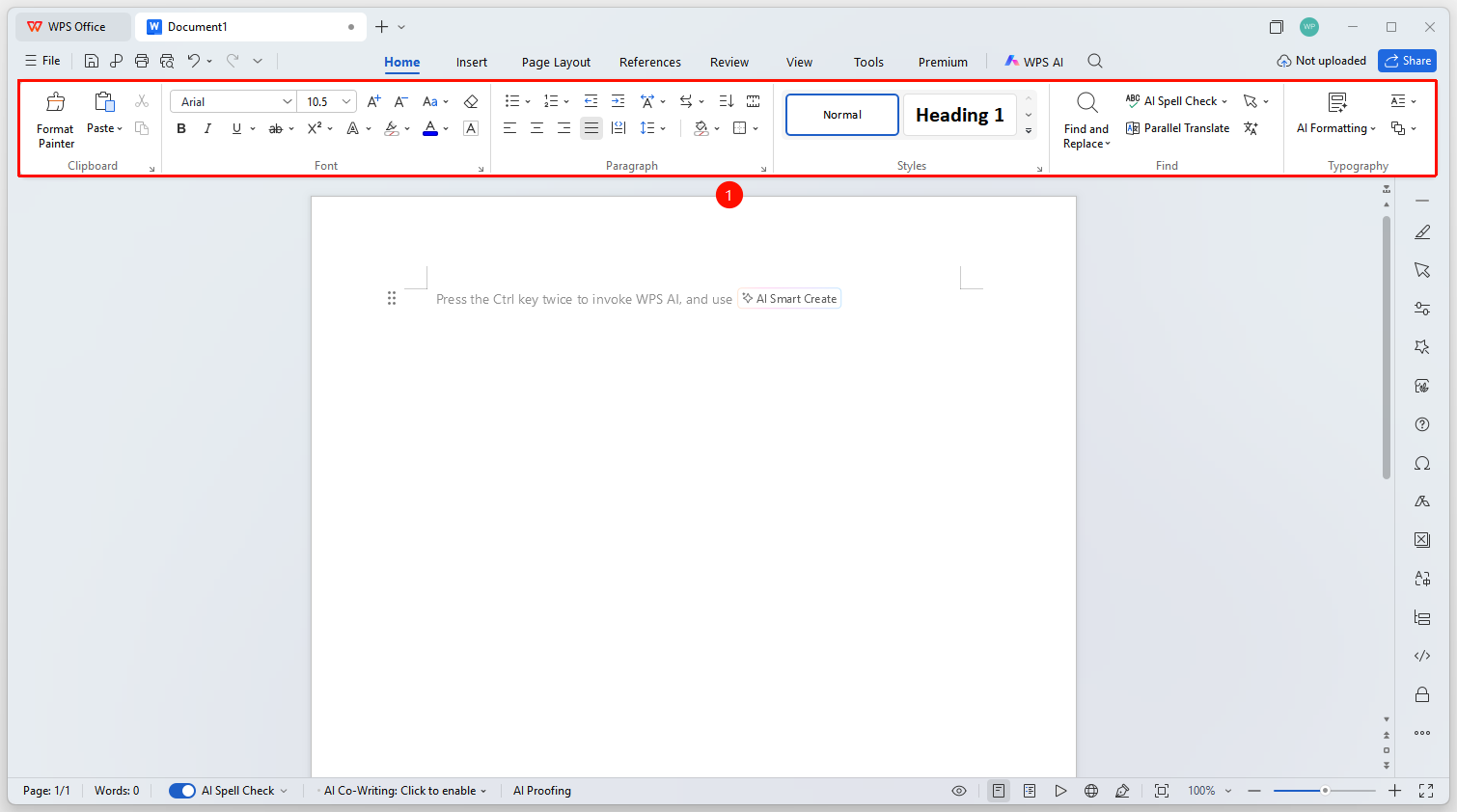
Located below the Title Bar, this is the core operation area of WPS Docs.
The Ribbon can be collapsed or expanded by checking the option in the Quick Access Toolbar drop-down arrow. Collapsing it provides a larger editing area.
Editing Area
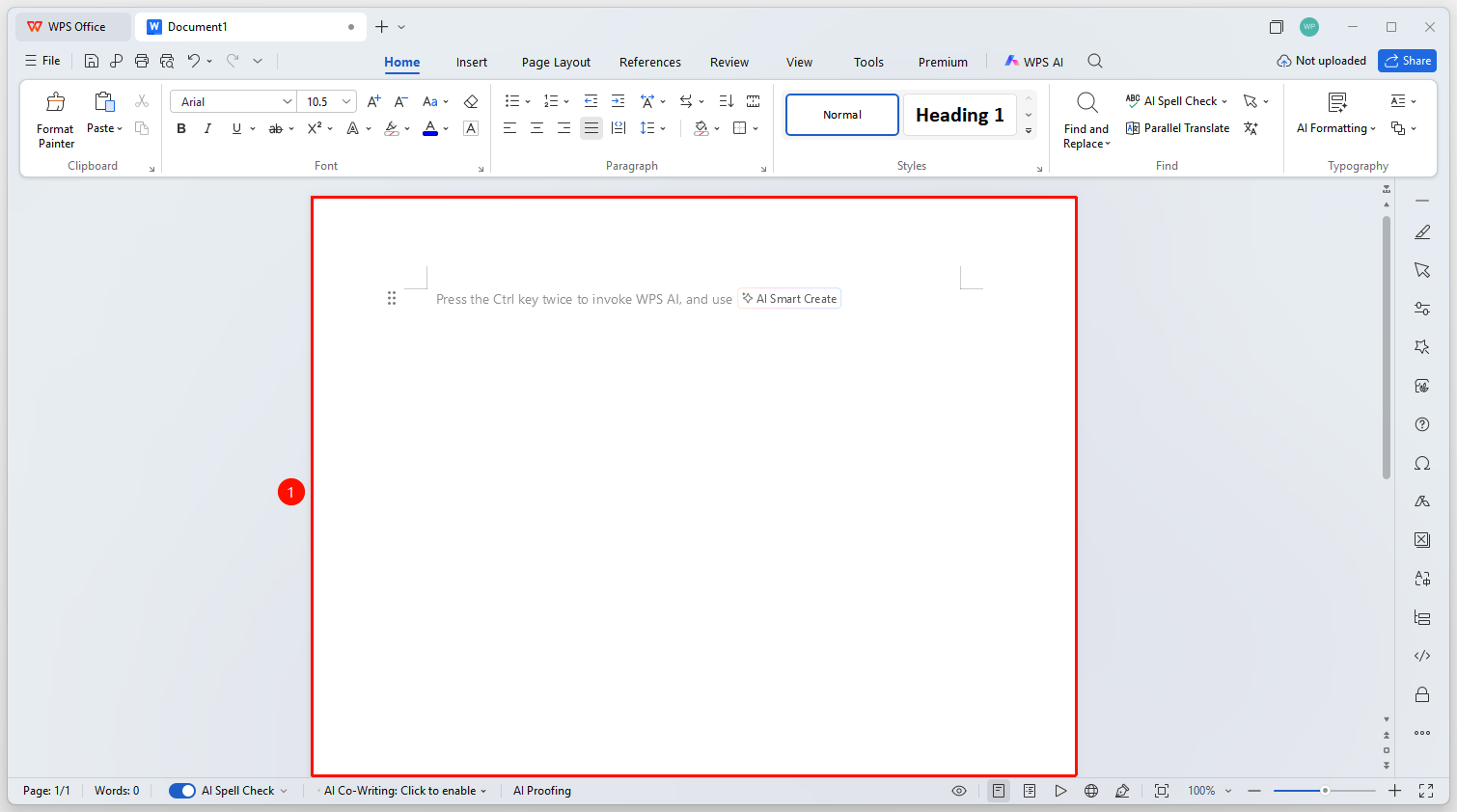
The blank area in the center of the interface is the main place for entering and editing text. A blinking cursor indicates the current editing position. The editing area supports the following auxiliary tools:
- Rulers: Includes horizontal and vertical rulers for precisely adjusting indentation, margins, and tab stops.
- Scroll Bars: Includes vertical and horizontal scroll bars for quickly browsing document content.
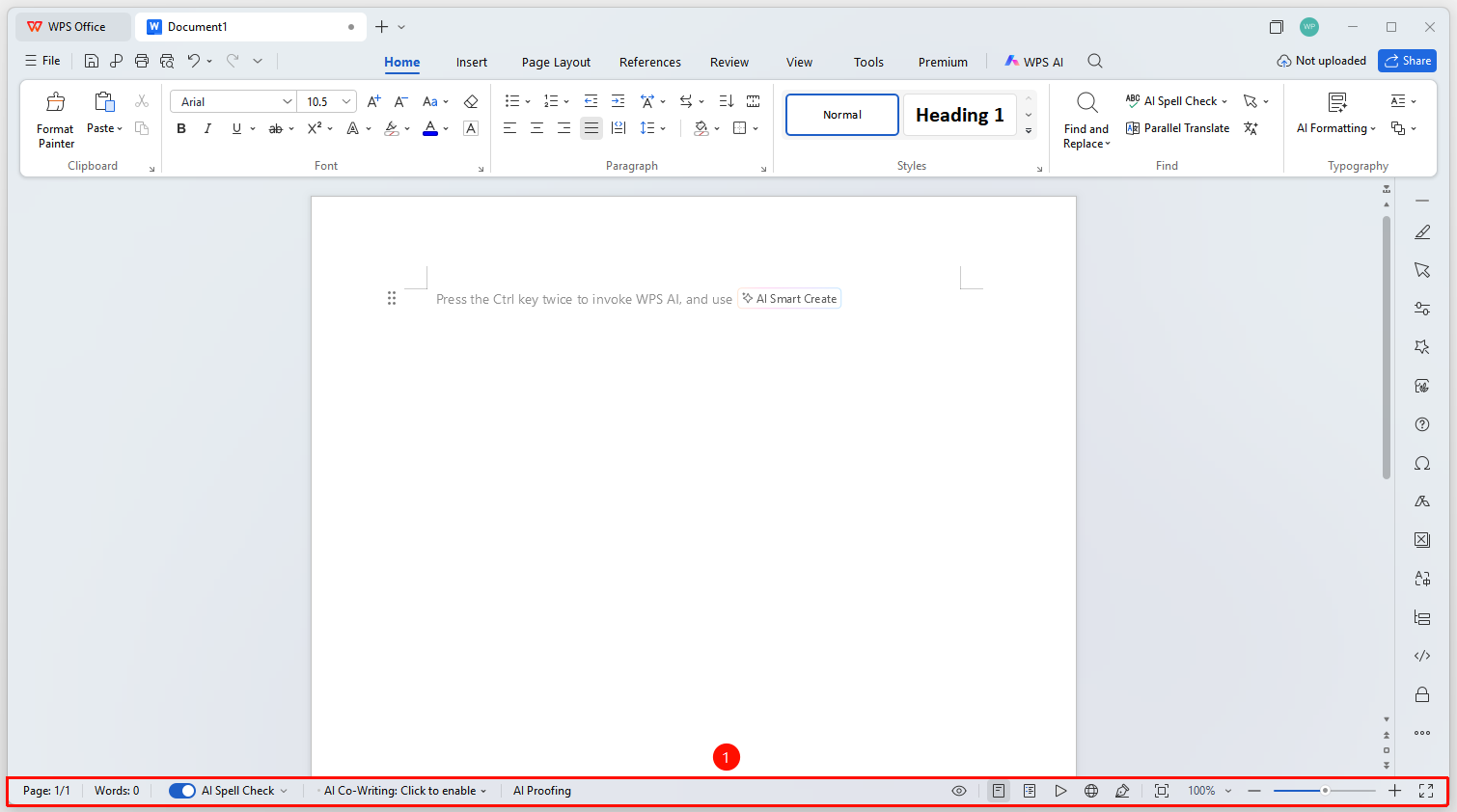
Status Bar
Located at the bottom of the interface, it displays key information about the current document in real time:
- Current Page Number / Total Pages
- Word Count
- Input Method Status
- Spell Check Status
The right side of the Status Bar provides view switching buttons and a display scale adjustment slider:
- Eye Protection Mode: A small eye icon; when enabled, the editing area switches to a green eye-protection mode.
- Page View: The default view, a WYSIWYG editing and layout mode.
- Reading View: An immersive reading mode suitable for document review.
- Outline View: Suitable for structuring long documents and adjusting chapters.
- Display Scale: Adjust the display scale size according to reading habits.
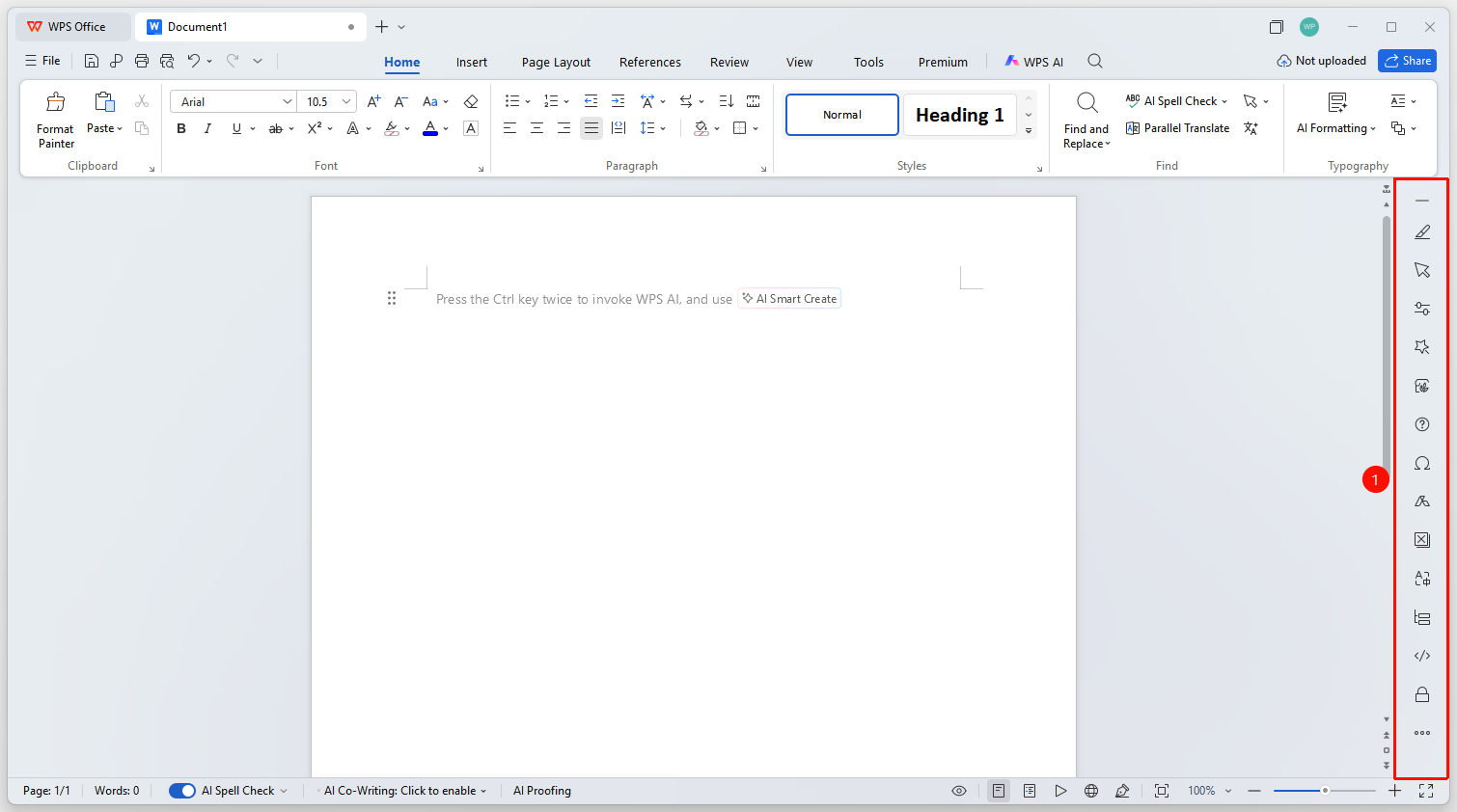
Task Pane
Located on the right side of the page, the Task Pane can be customized to quickly modify styles, obtain templates, beautify the entire document, and view document objects.
Shortcut Key Introduction:
- When you hover your mouse over a specific function button in the Menu Bar or Ribbon, you can find the button name and its Ctrl shortcut key below the cursor.
- When you open certain drop-down menus in the Title Bar or Ribbon, you can see the corresponding shortcut key behind the specific function button. Press the corresponding key on the keyboard to quickly invoke it.