Feature Summary
When you need to convert a WPS Docs document into an image format for social media sharing, quick transfer, or embedding into other platforms, the "Output to Image" feature helps you complete the conversion in one click. Core capabilities include:
- Support for outputting Docs documents to image format
- Support for two output modes: "Page by Page" and "Merge into Long Image"
- Support for custom watermark settings (text, color, transparency, style, etc.)
- Support for multiple output formats and quality options
Feature Description
| Feature Dimension | Description |
|---|---|
| Membership Restriction | Regular users can use basic output features, but the output images will carry a WPS watermark; members can output watermark-free images and enjoy custom watermark and higher quality output |
| Version Restriction | No version restriction |
Operation Steps
Some features require membership to use. Please check the membership indicator on the feature before use.
Output via the "Member Exclusive" Menu
Feature entry
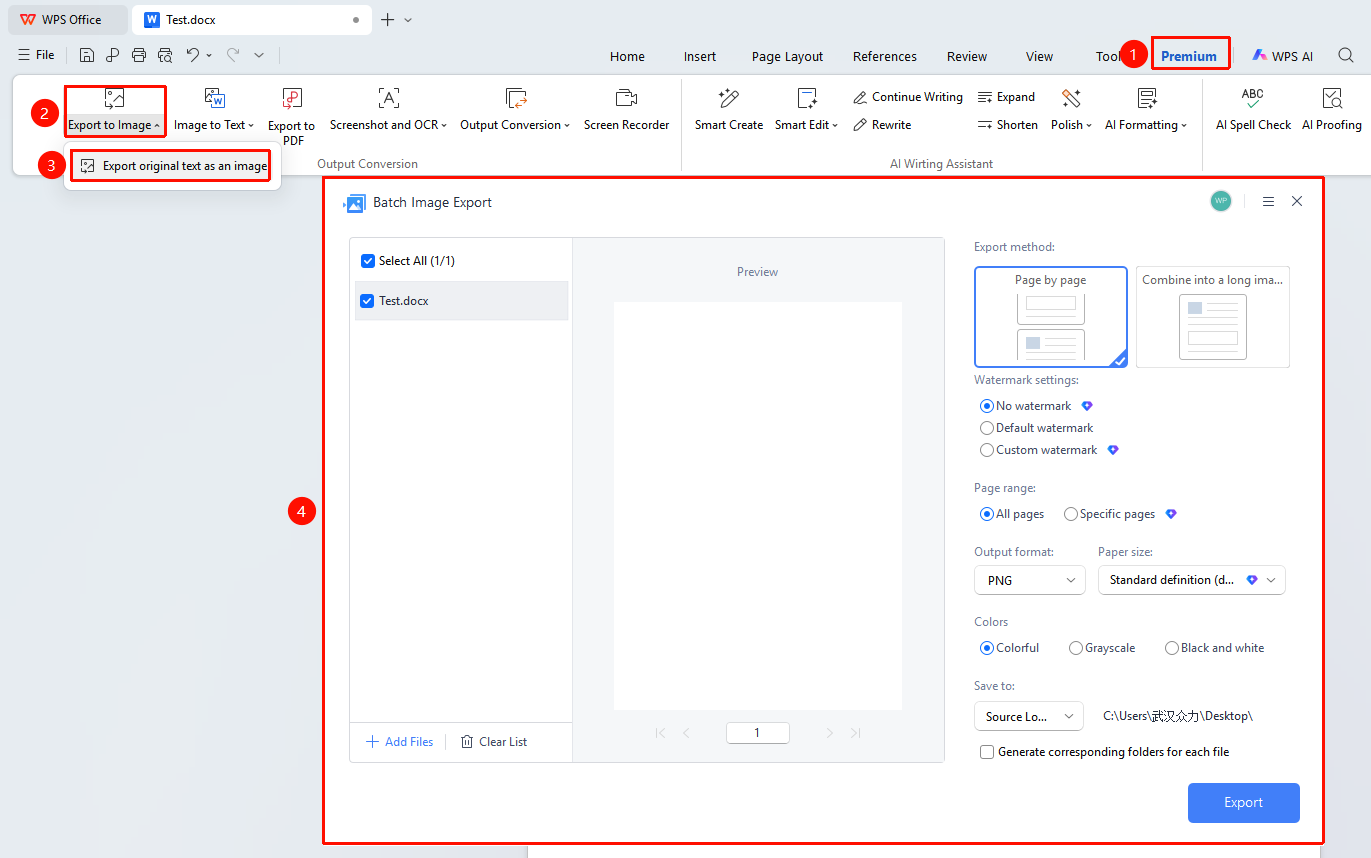
Feature entry path: Open document → "Member Exclusive" tab → "Output to Image" → "Output Original as Image"
- Open the document you want to convert using WPS Office
- Click the "Member Exclusive" tab on the top menu bar
- Click "Output to Image"
- Select "Output Original as Image"
- In the pop-up dialog, select the output mode and parameters
- Click "Start Output" to complete
Output via the "File" Menu
Feature entry
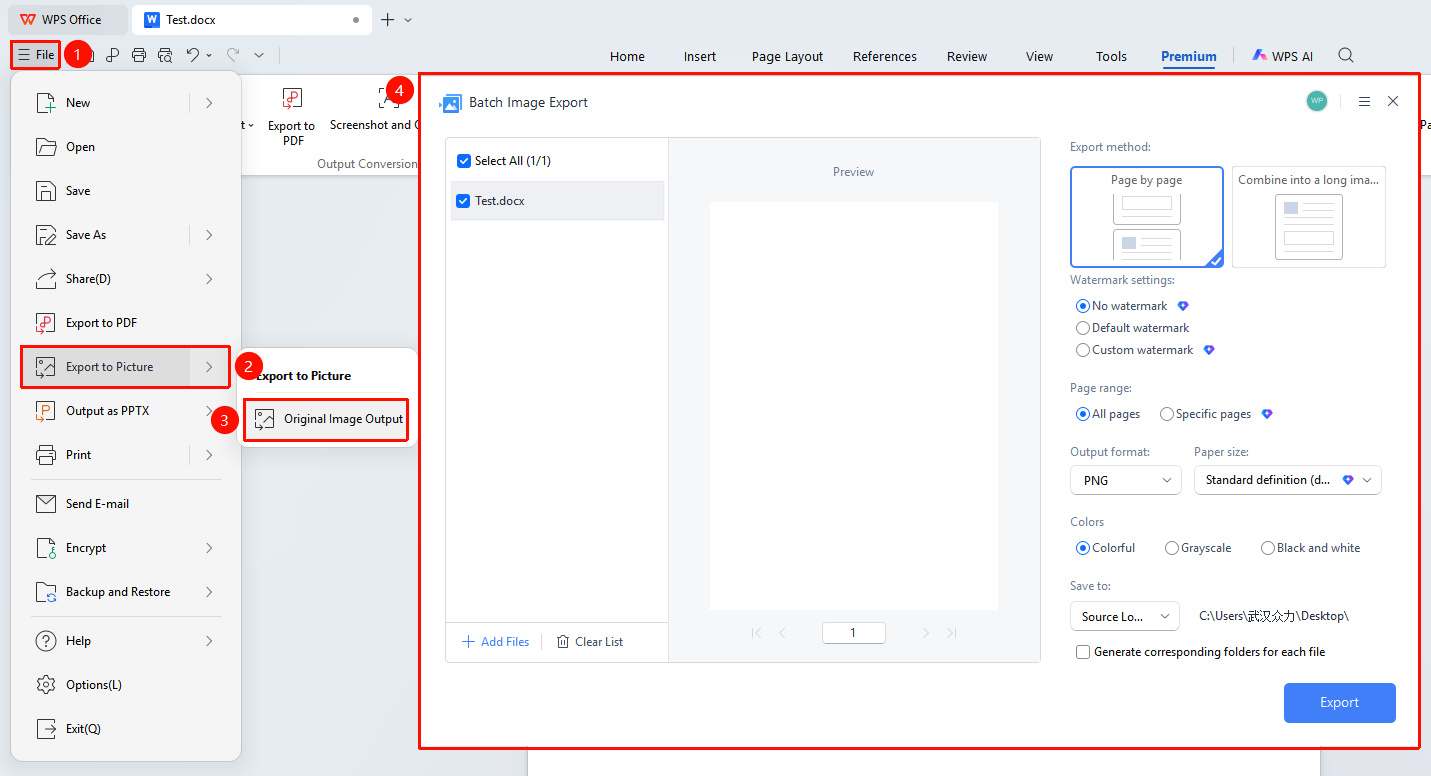
Feature entry path: Open document → "File" menu in the upper left corner → "Output to Image" → "Output Original as Image"
- Open the document you want to convert using WPS Office
- Click the "File" menu in the upper left corner
- Select "Output to Image" → "Output Original as Image"
- Set the output parameters and click "Start Output"
Custom Watermark Settings (Membership Required)
Feature entry
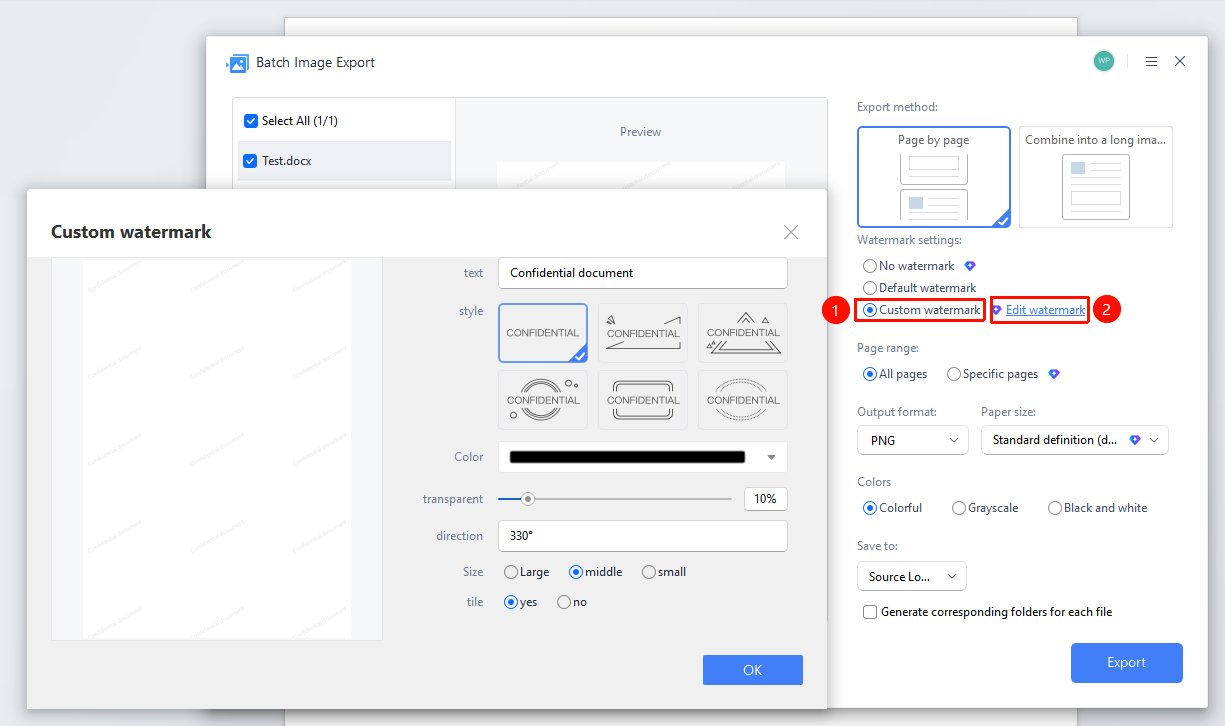
You can choose no watermark or customize the output watermark:
- In the output dialog, check "Custom Watermark"
- Select "Edit Watermark"
- Enter the watermark text (e.g., "WPS Academy")
- Set the watermark color and adjust the watermark transparency
- Choose the watermark style, direction, size, and tiling effect
- Click "OK" to apply the watermark settings
Batch Output (Membership Required)
- In the output dialog, find the file list to be output on the left, click "Add File" → "Open File"
- In the file selection window, you can press and hold the Ctrl key to select multiple files to add
Output Format and Quality
- Supports selecting output format (such as JPG, PNG, etc.)
- Set output quality; members can output higher quality images
- Set the output directory, then click "Start Output" to complete
Frequently Asked Questions
Q1: When outputting as a long image with black and white color selected, small dots and dashed lines appear in the image
- Solution: Try using "Grayscale" output color instead of "Black and White" to effectively avoid this issue.
Q2: What should I do if I am not satisfied with the output image effect?
- Solution: If you are not satisfied with the effect when merging into a long image, try changing the output size.
Q3: How can I output the background of a text document as part of the image?
- Solution: Click the title bar "Print" → "Options" → check "Print background colors and images" → click "OK" to output the background together as an image.
Notes
- Images output by regular users carry a WPS watermark. If you need watermark-free output, please subscribe to WPS Membership.- When generating a long image, the more content the document has, the larger the image will be, which may affect output quality. It is recommended to adjust the output dimensions appropriately.
- When a table document is output as an image, hidden rows and columns are also counted. Currently.
- Before output, please ensure that the output directory has sufficient disk space.