| Functional Dimension | Description |
|---|---|
| Membership Restriction | Some features require a membership subscription |
| Version Restriction | No version restriction; supported on all WPS client versions |
| New Document Shortcut | Press Ctrl+N while in the document editing page |
Steps
Method 1: Quick Create from the Home Screen
Feature Entry
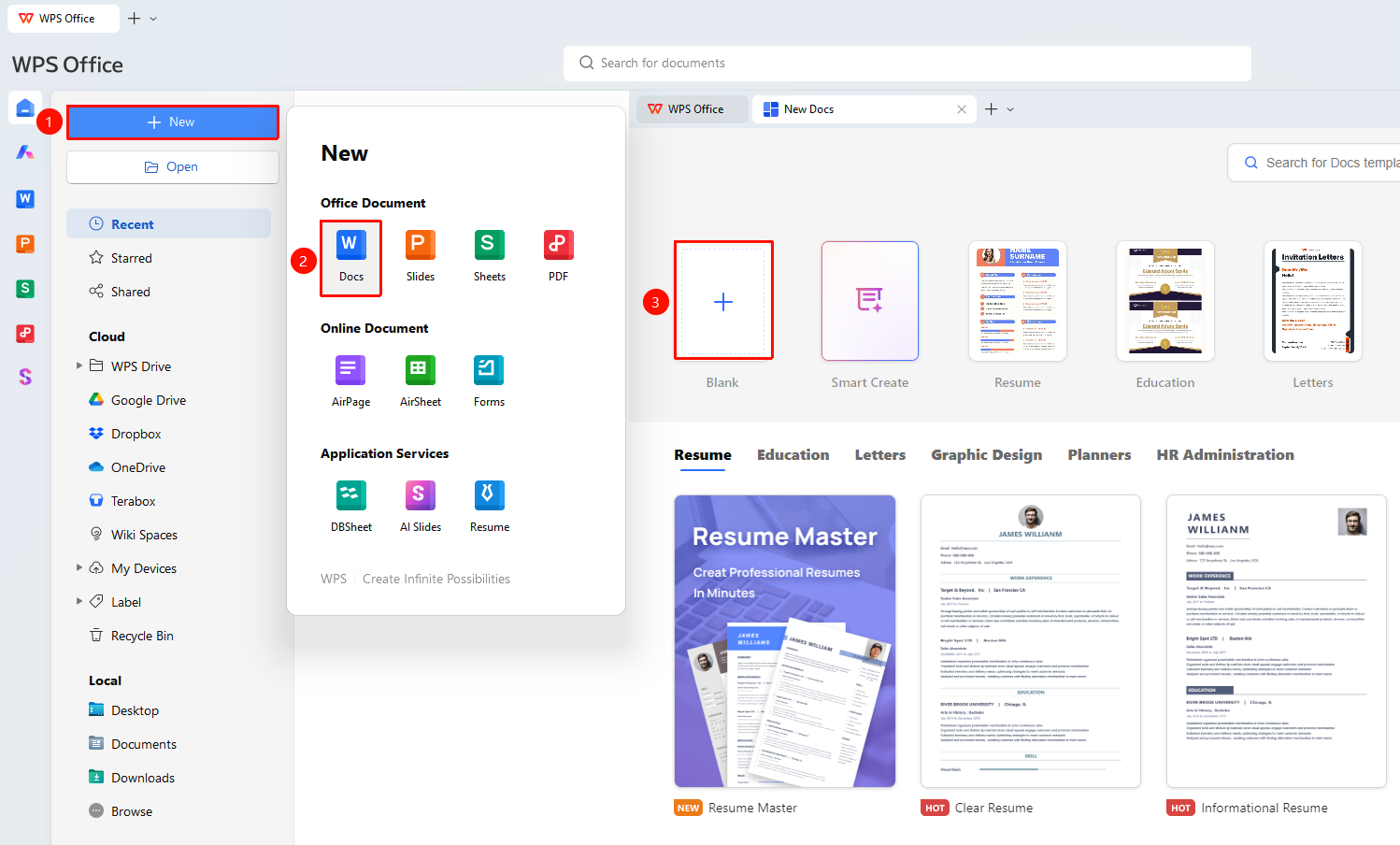
"New" button → "Writer" option → "Blank Writer" button
- Double-click the WPS desktop icon to launch the software and enter the home screen
- Click "New" in the left navigation bar, then select "Writer"
- Click the "Blank Writer" button to finish creating
- An editable blank Writer document will be generated
Method 2: Create via Menu Bar (Applicable when a document is already open)
Feature Entry
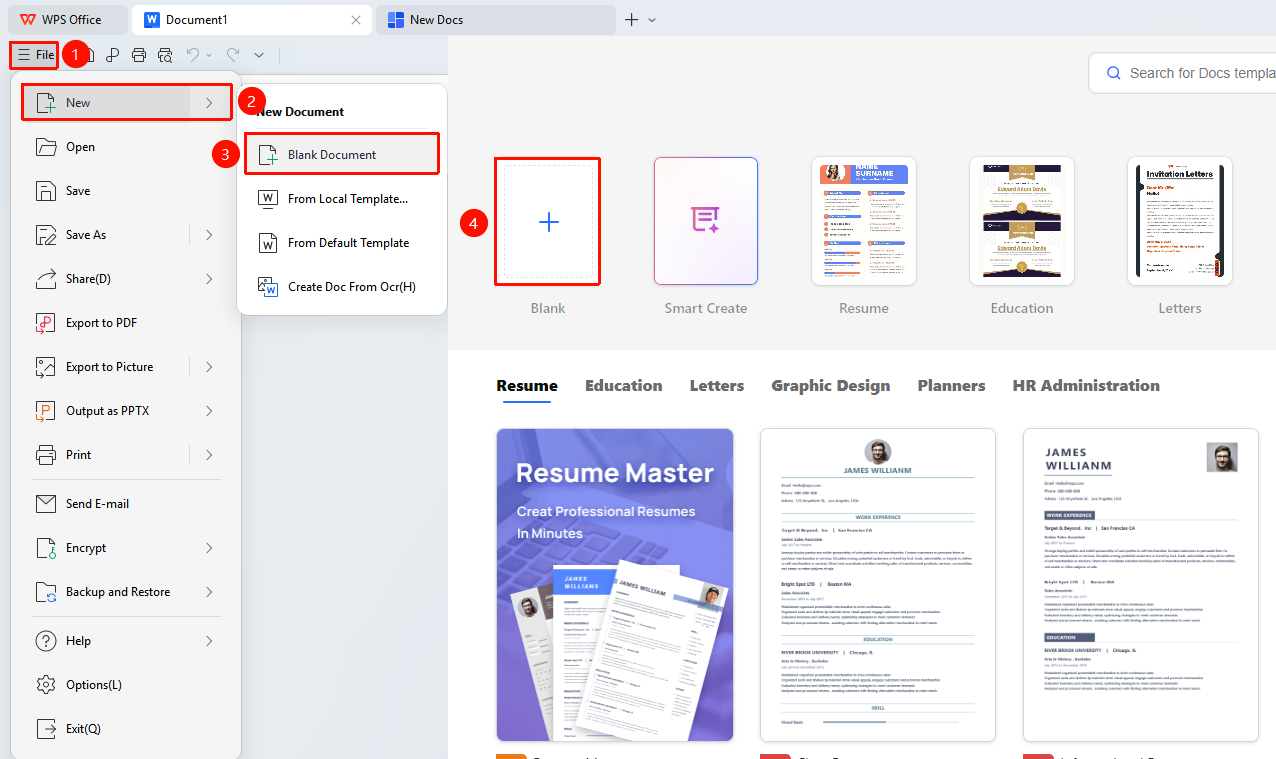
"File" menu → "New" option → "Blank Writer" button
- In an open WPS Writer interface, click the "File" menu in the upper-left corner
- Select "New" from the dropdown list
- Select "Blank Document"
Method 3: Quick Create from Tab Bar
Feature Entry
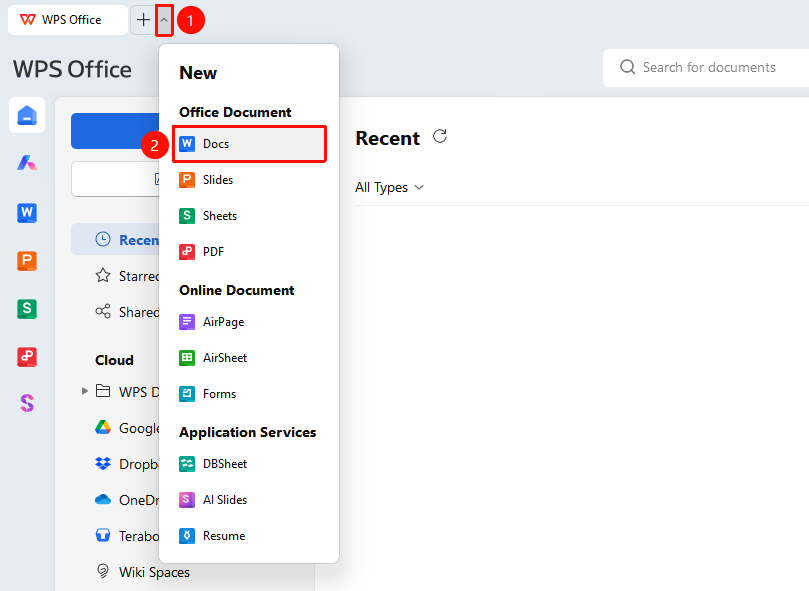
Top "Tab" bar → "+" icon → "Writer" option
- In the document tab bar at the top of the WPS software, click the "+" icon to the right of the current tab
- Select "Writer" from the pop-up panel
Method 4: Right-click to create new in Cloud Space
Feature entry
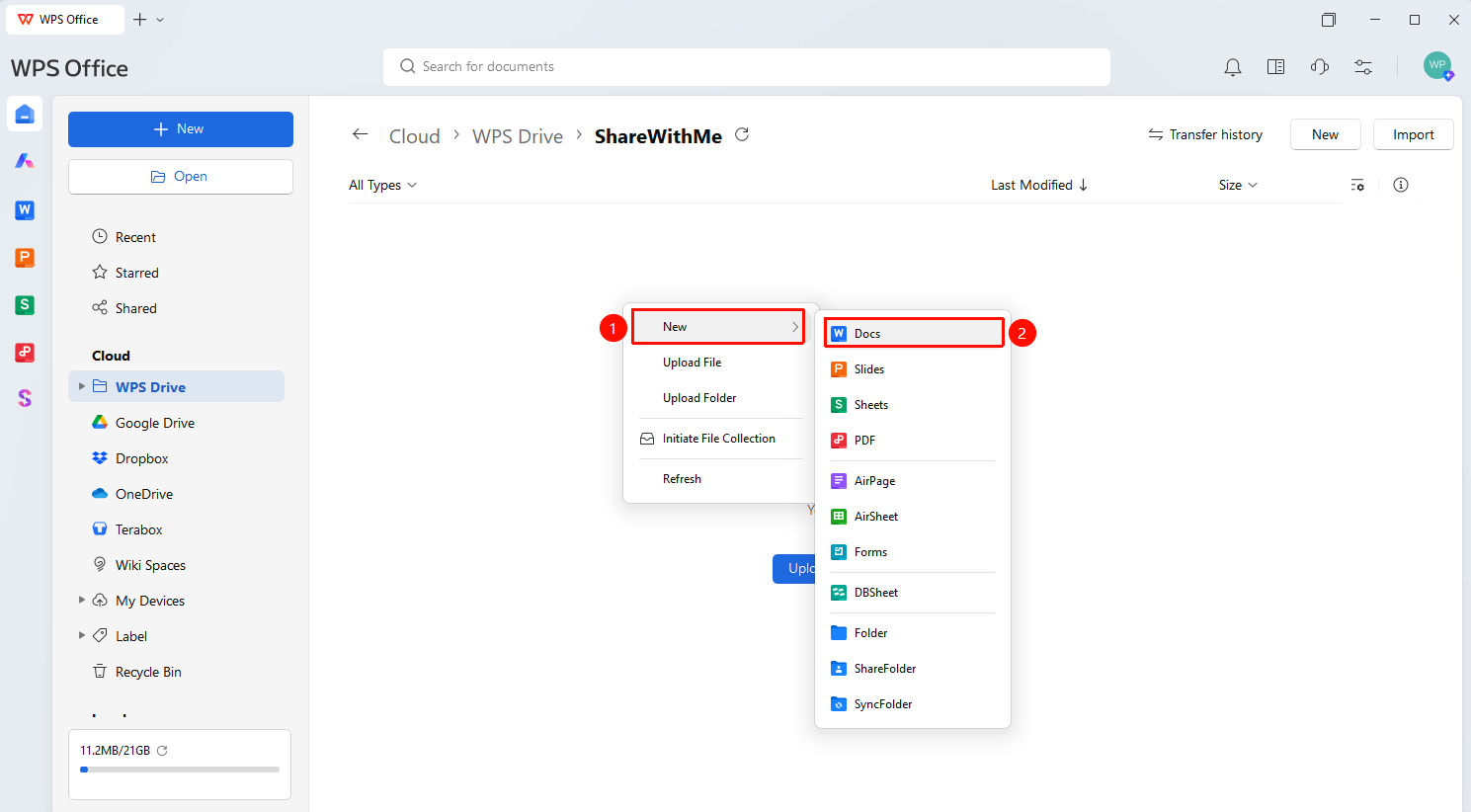
Right-click on a blank area in the Cloud Space interface → Click the "New" button in the right-click menu → "Text" option
- Right-click on a blank area in the WPS Cloud Space interface
- In the pop-up right-click menu list, click the "New" button
- Select the "Text" option in the pop-up panel
Method 5: Create new via the top-right New button in Cloud Space
Feature entry
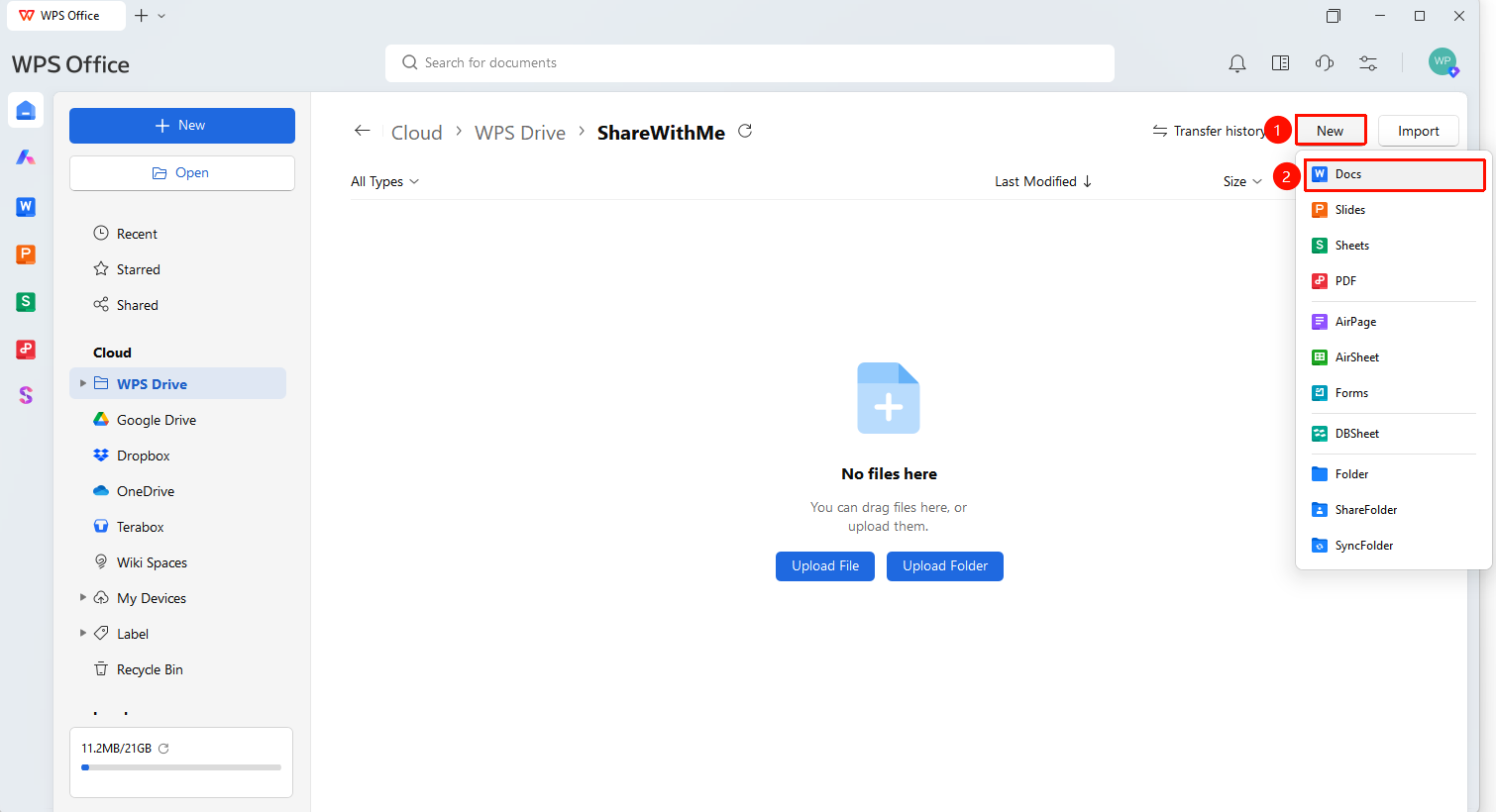
Click the "New" button at the top right of the Cloud Space interface → Select the "Text" option
- Click the "New" button at the top right of the WPS Cloud Space interface
- Select the "Text" option in the pop-up panel
Method 6: Create from Online Template
Some templates require a membership subscription. Before using, you can check the membership indicator on the template details page. If you need to use a paid template, you must activate membership benefits. Once activated, you can use paid template resources.
Feature Entry
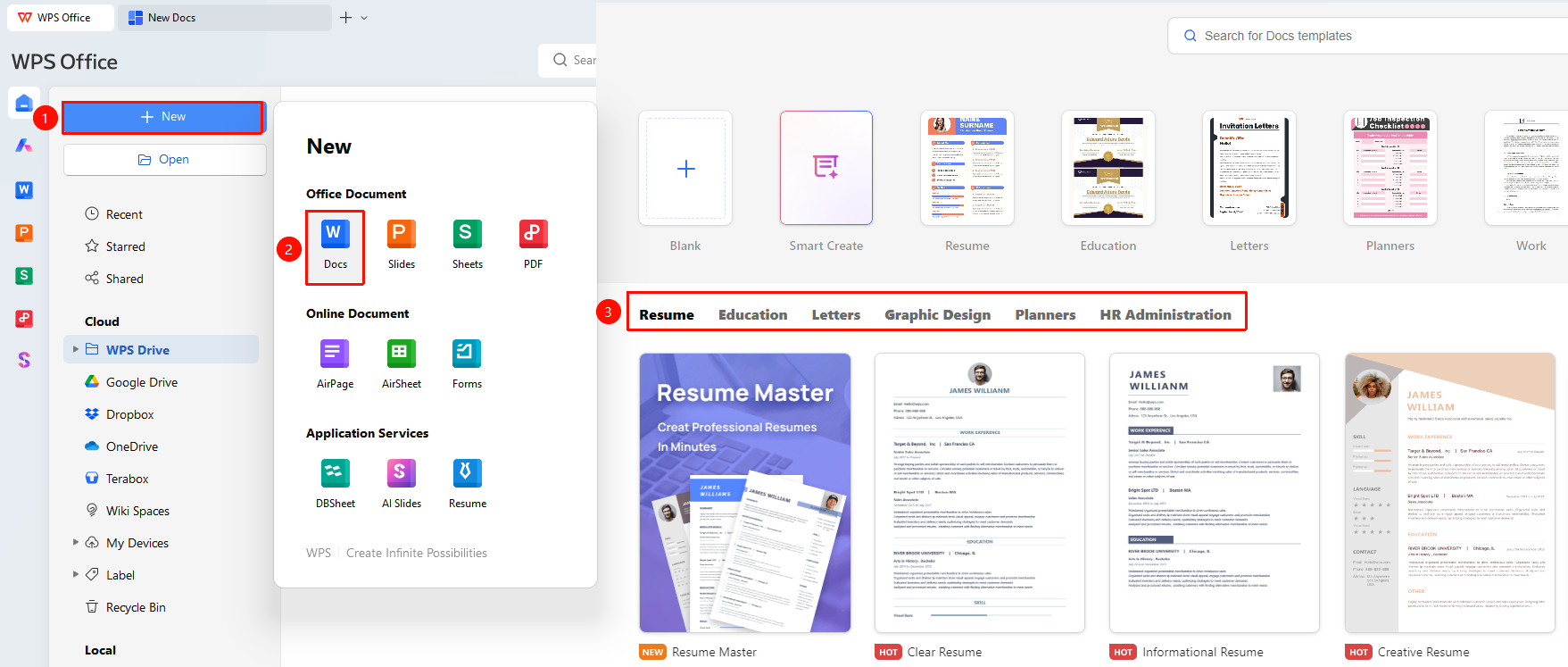
"New" button → "Writer" option → Select a template
- After launching WPS, click "New" in the left navigation bar
- Select "Writer"
- Choose a desired template to create
- Enter keywords in the search box (e.g., "resume", "meeting minutes", "project proposal"), or browse by category
- After selecting the target template, click "Use Now" to automatically generate a new document based on the template, then modify the corresponding content
Method 7: Create from Local Template
Feature Entry
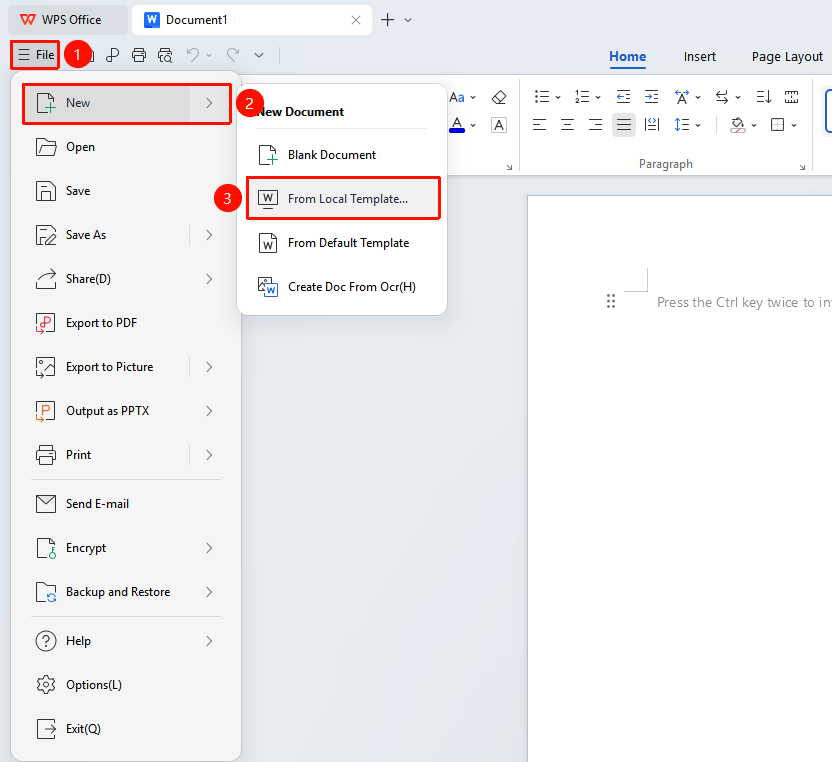
"File" menu → "New" option → "Templates on this PC" button
- Click the "File" menu in the upper-left corner
- Select "New" from the dropdown list
- Select "Templates on this PC"
Method 8: Create from Image-to-Text (This feature requires a membership subscription)
Feature Entry
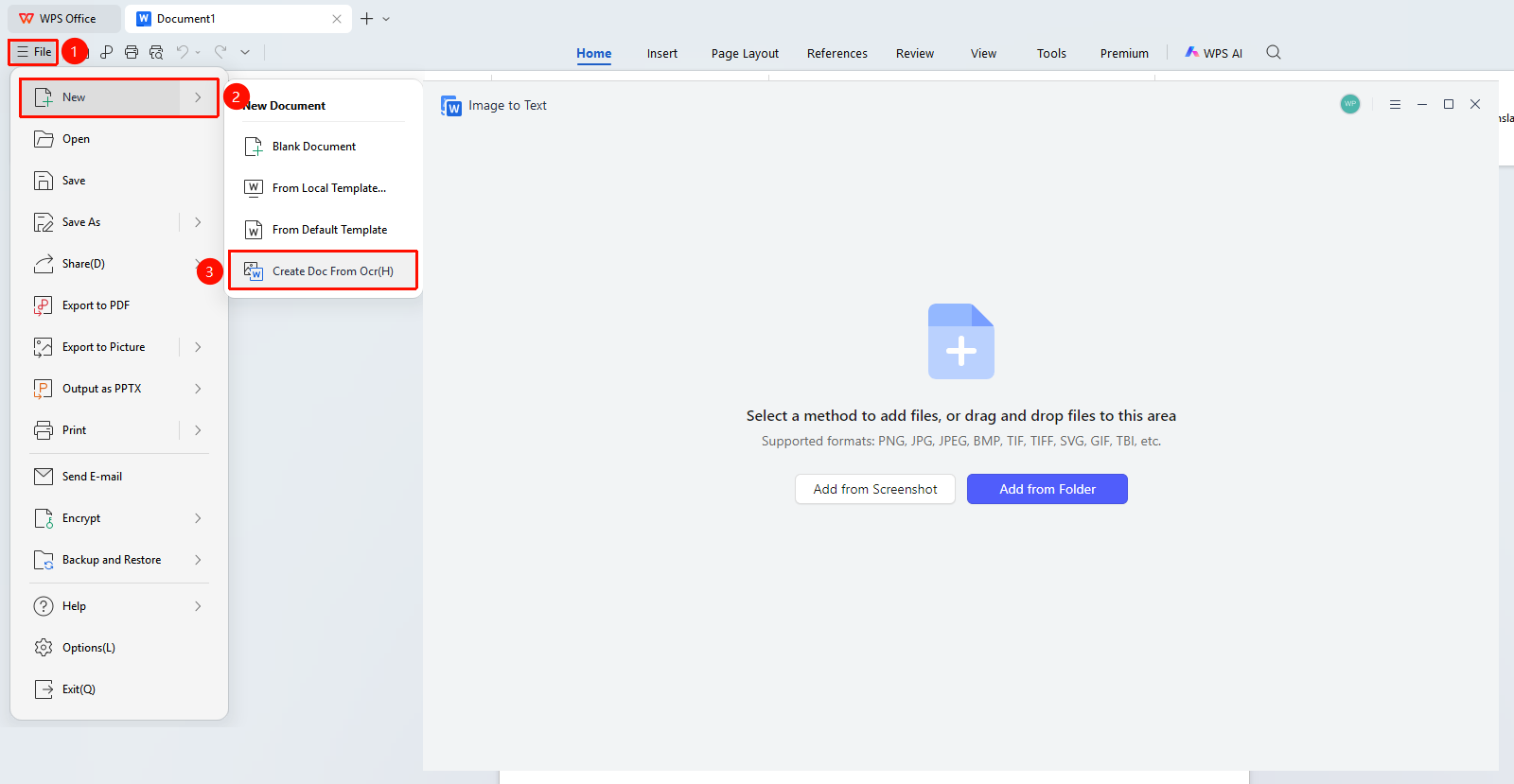
"File" menu → "New" option → "New from Image-to-Text" button
- Click the "File" menu in the upper-left corner
- Select "New" from the dropdown list
- Select "New from Image-to-Text"
- You can capture text from a screenshot or recognize text from a local image, and insert the extracted text into the current document or a new document
Method 9: Create new via shortcut key (fastest method)
Press Ctrl + N on the document editing page
to directly create a blank document without any mouse operation.
FAQ
Q1: How to save a newly created document?
- Solution:
- Click the "File" menu in the upper-left corner → "Save" (shortcut Ctrl+S), select a save location, enter a file name, and click OK.
- Saving to Cloud Docs enables multi-device synchronization.
Q2: Are templates free?
- Solution: WPS provides free templates. Some paid templates require membership privileges and will be clearly marked when used.
Q3: How to collaborate with others on a newly created cloud document?
- Solution: After opening the document, click the 「Share」 button in the upper-right corner to generate a link or invite collaborators, enabling real-time multi-user editing.
Question 4: Can I use my own document as a template to create a new file?
- Solution: Open any blank document, click the "File" menu in the upper left corner → "New" → "Templates on My Computer" > "Import Template", then check the option to set it as the default template.
Notes
- When using shortcut keys to create a new file, make sure the WPS window is active; otherwise, the shortcut may be intercepted by other programs.
- It is recommended to regularly back up documents saved locally on your computer to prevent data loss.